

Create Service Token
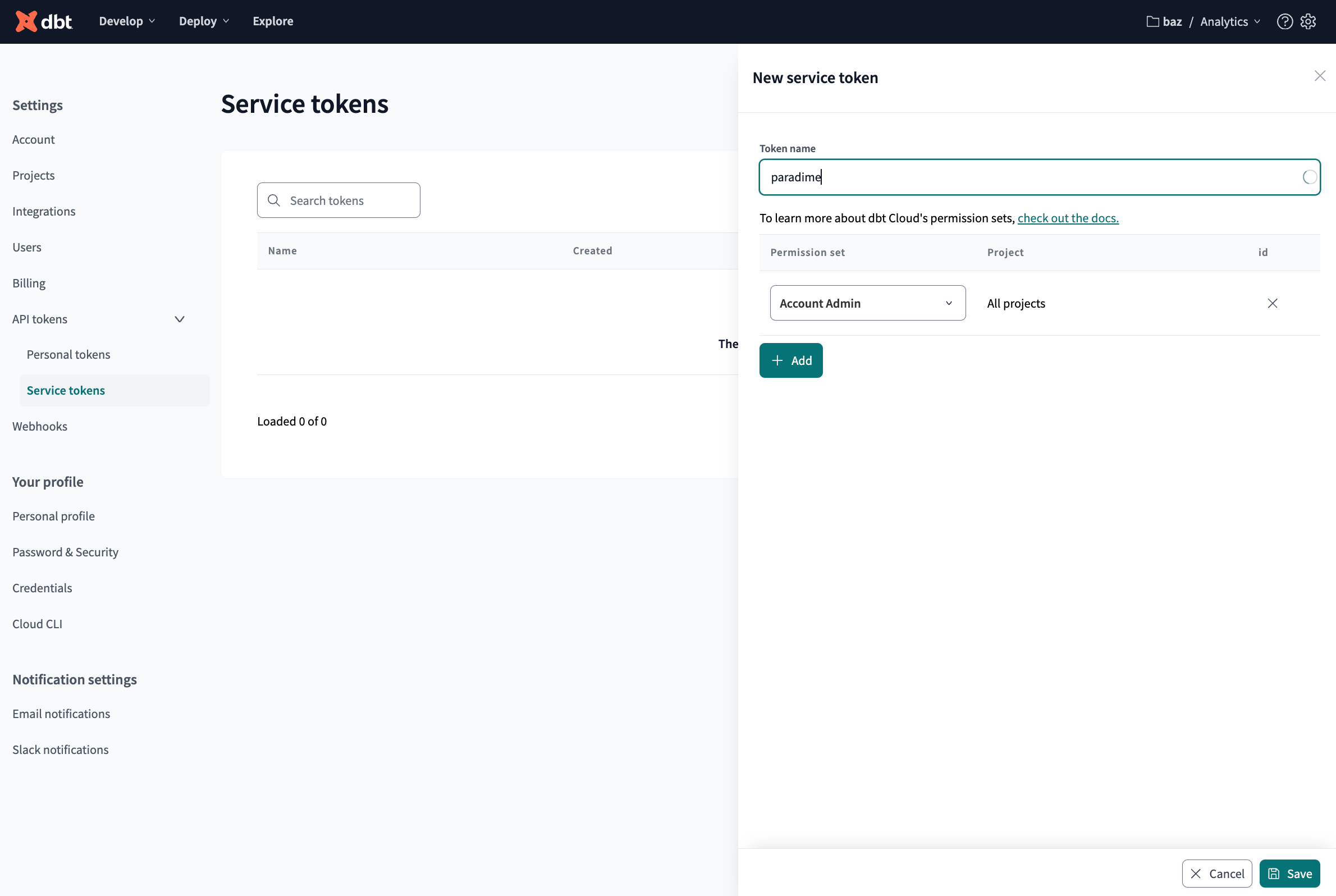
In dbt Cloud™, navigate to the account setting screen by clicking on the ⚙️ on the top-right of your screen and in the left panel select the Service Token option from the menu. Click on theNew Token option to create a new Service Token. Set paradime as token name and make sure to set:
- Permission set as
Account Admin - Project: select the dbt Cloud™ project that matches the Paradime workspace you are importing into
A dbt Cloud™ project maps to a Paradime workspace. The import brings every job the token can access into your current Paradime workspace. Scope the token (and the connection) to the single dbt Cloud™ project that corresponds to that workspace so you don’t pull another project’s jobs into the wrong place. To import several projects, repeat the connection from each matching Paradime workspace.
You will not be able to view this token again after generating it, so make sure to save it securely as we will need this in the next step to setup the integration.
Connect the dbt Cloud™ integration
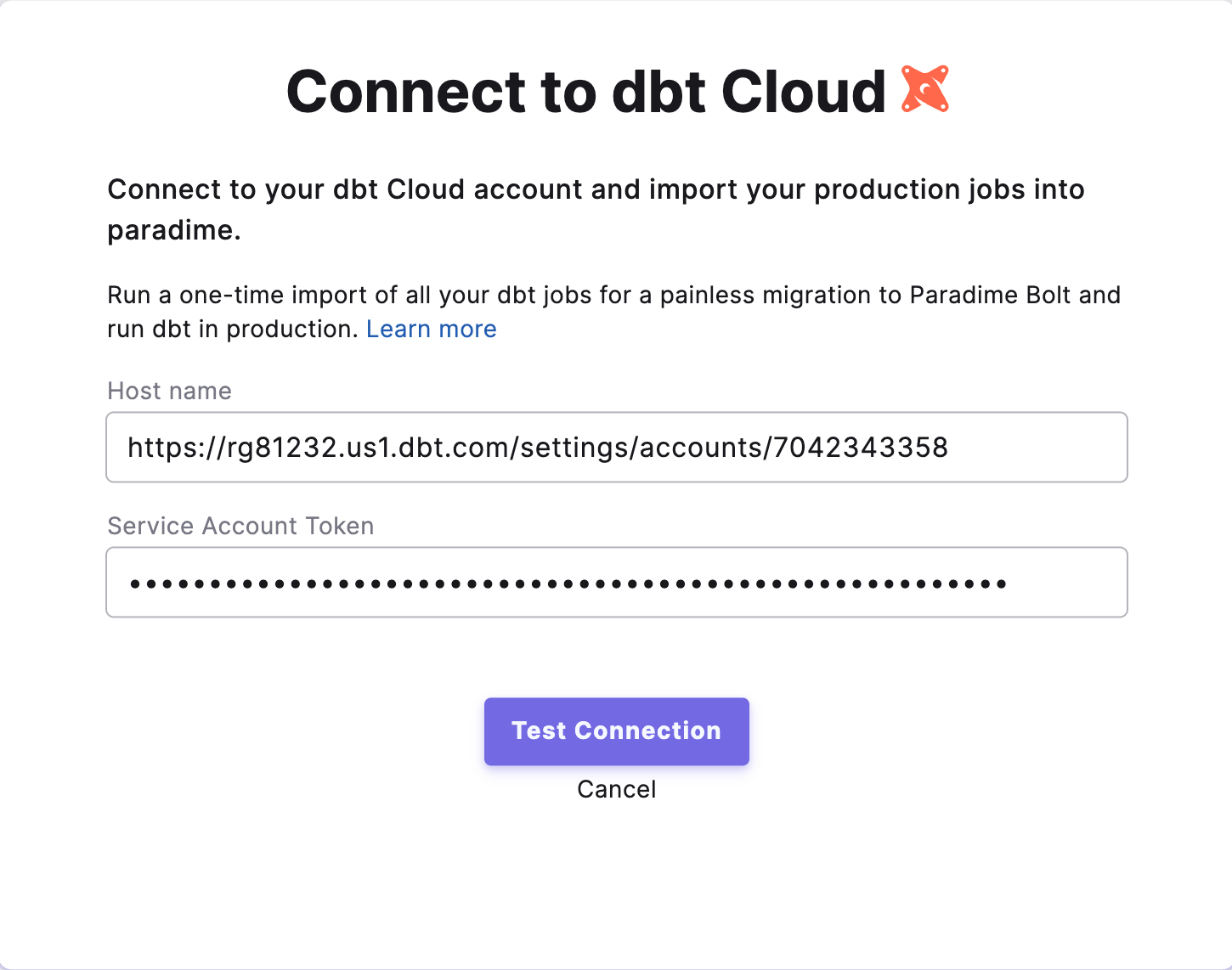
The dbt Cloud™ integration can be connected by a Paradime Admin. In Paradime, go to Workspace Settings > Integrations, find the dbt Cloud™ integration and click Connect.- Host name: paste your dbt Cloud™ account URL, for example
https://ab123.us1.dbt.com. - Service account token: enter the token you created in the previous step. On dbt Cloud™ Starter plans, service tokens cannot read jobs, so use a personal access token.
Review the migration before you import
Choose the dbt Cloud™ project that matches your Paradime workspace. Paradime reads the project and shows what each job, environment and variable becomes in Paradime. The review reads from dbt Cloud™ and writes nothing. Each item can have one of these labels:- Changed: the setting is imported, but it works differently in Bolt. The review says how.
- Not imported: the setting has no Bolt equivalent.
- Decision: you must choose something, for example a target name or a parent job in another project.
- Secret: dbt Cloud™ never returns secret values, so you enter them in Paradime.
Import the jobs
After the review, choose how to migrate:- Migrate step by step starts the step-by-step migration on the dbt Cloud™ integration page.
- Import all N jobs now creates one Bolt schedule for each job in the project. Then click View imported jobs to open Bolt.
Every imported schedule is created paused. Nothing runs on import. Review each schedule and turn it on from the Bolt UI when you are ready.
How dbt Cloud™ Jobs are mapped to Bolt Schedules
Each dbt Cloud™ job becomes a Bolt schedule. The table below shows how the job’s configuration is carried across.Trigger types and deferral
dbt Cloud™ jobs can run in several ways. Each trigger type maps to the equivalent Bolt concept:What is not imported
Some dbt Cloud™ settings have no Bolt equivalent, or are managed elsewhere in Paradime. The review lists each one:Re-importing jobs
What this means in practice:- Changes are not synced. If you change a job’s cron or commands in dbt Cloud™ and re-import, you get a new schedule alongside the old one — the original is not updated.
- Deletions are not detected. Jobs removed in dbt Cloud™ remain in Paradime.
- To avoid duplicates, delete the previously-imported schedules before re-importing.
Known caveats & limitations
- Schedules import paused. Review and enable each schedule from the Bolt UI when ready.
- Deferral needs a successful run in Paradime. A schedule that defers to an environment or to another schedule finds no state until that environment or schedule has a successful Bolt run. Turn on the jobs that produce state first, then the CI jobs and the jobs that defer to them.
- Duplicate job names. dbt Cloud™ allows multiple jobs to share a name. These import as separate schedules that display the same name (each has its own unique slug).
- A dbt Cloud™ project maps to a Paradime workspace. The import brings the jobs of the project you choose into your current workspace. To bring across several projects, repeat the import from the workspace that matches each project.
- On-completion triggers across projects/accounts. A schedule that runs on the completion of another job is only chained if the parent job is part of the same import. If the parent isn’t imported (for example, it lives in another project or account that wasn’t part of this import), the schedule is imported paused with no trigger, and the review shows a decision. The step-by-step migration adds such a trigger once the other project is migrated.