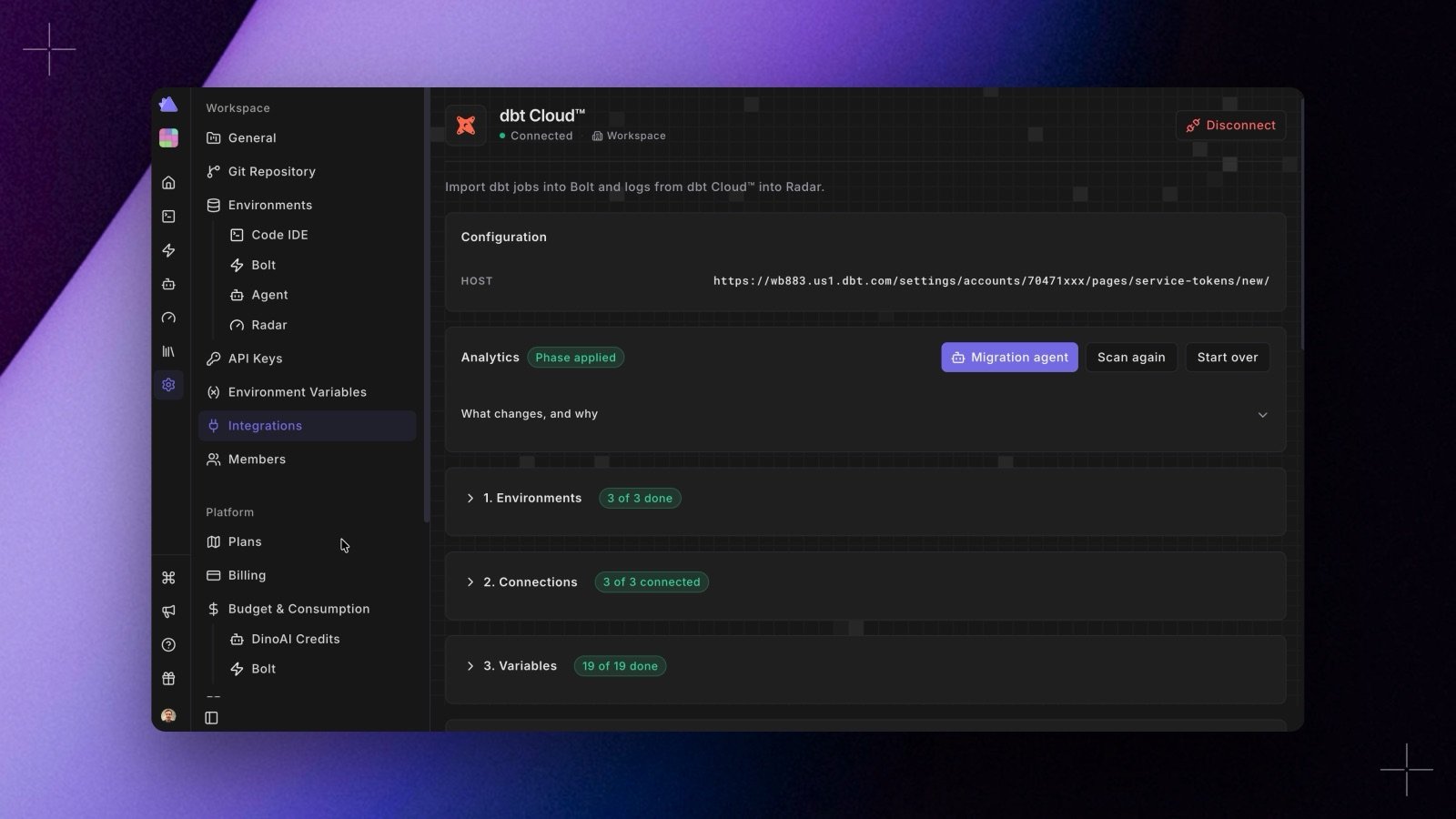
The step-by-step migration moves one dbt Cloud™ project into the current Paradime workspace. You apply it in phases, you see the result for each environment, variable and job, and you switch jobs from dbt Cloud™ to Bolt only when you are ready. A built-in DinoAI agent can walk you through it.
Use it for every project with more than a few jobs, several environments, job triggers, or secret variables. For a small project, you can still import every job in one step.
Access to the dbt Cloud™ API is included only on the Team and Enterprise plans. On a Starter plan, use a personal access token: a Starter service token cannot read jobs.
Before you start
- Admin access. Run the migration as a workspace Admin. Applying the phases writes integrations, production connections, environment variables, and Bolt schedules, so it needs the rights for each of them.
- A token that can read the project. Create a dbt Cloud™ service token with read access to the account and the project. See Create Service Token.
- One project per workspace. A dbt Cloud™ project maps to one Paradime workspace. Start the migration from the workspace that will run the project. To migrate several projects, repeat the migration from each matching workspace.
- For the switch only: a second token with job write access, for example Job Admin or Account Admin. You add it when you switch the first jobs.
Start the migration
- In Paradime, go to Workspace Settings > Integrations, find the dbt Cloud™ integration and click Connect.
- Enter the Host name (your account URL, for example
https://ab123.us1.dbt.com) and the Service account token. Paradime checks the token and lists the projects it can read. Nothing is imported.
- Choose the project that matches this workspace. Paradime reads it and shows what each job, environment, and variable becomes. Nothing is written yet.
- Click Migrate step by step. The dbt Cloud™ integration page opens with the migration checklist.
To come back later, open Workspace Settings > Integrations > dbt Cloud™. The page header shows the project and the migration status, with three buttons:
- Migration agent opens the migration agent.
- Scan again reads the project from dbt Cloud™ again. What is already applied stays applied.
- Start over forgets the migration, after a second click to confirm. What it created in Paradime stays.
What changes, and why holds the full review: for each job, its triggers, commands, and what works differently in Bolt.
Apply the phases
The checklist has one card per phase. Only the current phase is open: the first one with something left to do, or a phase while it runs. Open any other card from its title.
Each phase runs in the background, and the page updates while it runs. Each row shows its status: To do, Done, Failed (with the error), Skipped, Needs input, or Manual. On a row that failed, needs input, or is manual, click Ask DinoAI to have the migration agent explain it.
You can apply a phase again at any time. Rows that are already applied are skipped, and failed rows run again. Fix the cause of a failure first, then apply the phase again. Only one phase runs at a time.
1. Environments
Each dbt Cloud™ deployment environment gets a Bolt environment. For each one, choose:
- Use an existing Bolt environment. Production defaults to the workspace’s default Bolt environment, and another environment defaults to the Bolt environment with the same name.
- Create a new environment, with the dbt™ version and branch from dbt Cloud™.
- Skip: Paradime creates no Bolt environment for it. Its jobs still migrate, to the workspace’s default Bolt environment.
Click Apply environments to save your choices and apply them. The other phases wait until then. You can’t change an environment’s target after it’s applied: its schedules and variables already live there.
The dbt Cloud™ development environment becomes the Code IDE, so there is nothing to choose. Its row says whether your development connection is set up. Click Set up if it isn’t.
2. Connections
dbt Cloud™ never returns warehouse passwords, keys, or tokens, so you finish each connection yourself:
- On an environment’s row, click Set up connection. The usual connection form opens, filled in from dbt Cloud™: the warehouse, its settings, the profile name, the target, and the threads.
- Add the secrets, correct any value, and test the connection.
- Save it. Paradime takes you back to the migration, and the row shows Connected.
The form is filled in for Snowflake, BigQuery, Databricks, and Redshift. For another warehouse, set up the connection in Connections yourself. An environment that already has a connection keeps it.
3. Variables
Every variable is listed with its dbt Cloud™ value. Project values become workspace variables, and environment values become environment variables.
- Apply writes the dbt Cloud™ value of one variable.
- Edit lets you change the value first, then Apply it. After a change, the row says Changed from and the dbt Cloud™ value.
- Secret variables (
DBT_ENV_SECRET_*) have a password field, because dbt Cloud™ never returns their values. Enter the value and click Apply. The row then says Secret set.
- When Paradime already has another value, it keeps it, and the row says dbt Cloud has and that value. Click Use dbt Cloud value to replace it.
- A job’s own variables say With schedule until the schedules phase creates the job’s schedule.
Click Apply variables to apply the rest at once. It never overwrites a value you applied by hand.
4. Schedules
Click Apply schedules. Every job becomes a suspended Bolt schedule, with its triggers and deferral. Paradime writes the schedules first and the links between them second, so a job can run after a parent that is created later. Then it parses the schedules and checks that every link resolves.
See how jobs are mapped for each setting.
- Jobs that trigger each other in a loop are not linked. The row names the loop.
- A job that runs after a job in another dbt Cloud™ project shows Waiting. See Jobs that depend on another project.
5. Verify
Click Run checks. Paradime creates one check schedule per environment that runs dbt debug and dbt compile, and runs it in Bolt.
Each check shows Running while its Bolt run is in progress, then Done when the run passed. A failed check links to its Bolt run: open it, fix the cause, then run the checks again. The phase is only done when every check passed.
Switch jobs from dbt Cloud™ to Bolt
The 6. Switch card opens once the schedules are applied. Nothing switches on its own: you move jobs one group at a time, or a whole environment at once. The card header counts the groups already in Bolt.
- A group is one job plus every job linked to it by completion triggers. A job in one product cannot trigger a job in the other, so a chain moves as a whole.
- Order. A group that other groups defer to says Switch this group first. Switch it first, so the jobs that defer to it have a successful Bolt run.
- State. Each group shows In dbt Cloud, In Bolt, or Partly switched.
Before the first switch, enter a dbt Cloud™ token with job write access and click Save token. Paradime stores it apart from the read token, and uses it only to turn jobs off and on.
To switch a group:
- Click Check. Each check passes, warns, or fails:
- every job has a Bolt schedule, deployed with no parse errors and with every link resolved
- the verify check of the job’s environment passed
- no dbt Cloud™ run of the group is queued or running
- no run of the group is due in the next 10 minutes, in either product
- a write token is saved
- a deferral target has no successful Bolt run yet (warning only)
- If a check fails, fix the cause and click Check again. Switch to Bolt stays disabled while a check fails.
- Click Switch to Bolt. Paradime turns the group’s dbt Cloud™ jobs off first, then turns its Bolt schedules on, so no job runs twice. If a step fails, Paradime undoes what it did.
- After the first runs, click Compare runs to see the latest runs of each job in both products, with status and duration.
To switch a whole environment, pick it in Switch a whole environment, click Switch N group(s), then confirm. Paradime checks and switches the groups in order, and stops at the first group that fails.
To move a group back, click Roll back, then Confirm roll back. Paradime suspends the Bolt schedules first, then gives the dbt Cloud™ jobs their triggers back.
If a switch or a rollback stops half-way, for example because dbt Cloud™ does not answer, Paradime undoes what it can. The group then shows Partly switched, and each job shows what is left. Roll the group back, or switch it again.
A switch turns off each job’s schedule and Git triggers in dbt Cloud™. It cannot stop a run that an orchestrator or a script starts through the dbt Cloud™ API, or a run that someone starts by hand. Stop those at the source before you switch.
Keep the dbt Cloud™ jobs (turned off) for 1 to 2 weeks after the switch, as the migration checklist recommends. A rollback needs them. For the same reason, Start over is refused while any job is switched: the migration keeps the dbt Cloud™ triggers that a rollback restores. The migration agent
The migration page has a built-in DinoAI agent. Click Migration agent in the page header to open it in a drawer next to the checklist, then click Start the migration agent.
- It works through the checklist with you. It reads the same checklist, explains each gap, and asks you one decision at a time, with a button for each option.
- It checks your code. It searches your repository for code that reads
target.name, DBT_ENV, or DBT_CLOUD_* variables.
- It never sees your secrets. It asks for secret values in a secure form. The value goes to Vault, and the agent only gets a reference to it.
- It changes nothing without your approval. Before it applies a phase or switches jobs, it shows an approval card that names exactly what it will do. Click Approve or Reject.
Ask DinoAI on a checklist row sends the agent a message about that row. New conversation starts a fresh session, and Open in agent opens the session in DinoAI. The page shows the same session again after a reload.
To start the agent, you need to be able to start DinoAI agent sessions and to change environments, variables, connections, integrations, and Bolt schedules. Today that means a workspace Admin. The workspace also needs its Git repository set up. The agent is built in: it ignores your repository’s .dinorules and skills, and it isn’t listed with your workspace’s agents.
Jobs that depend on another project
A dbt Cloud™ job can run after a job in another dbt Cloud™ project. Each project migrates into its own workspace, so migrate the upstream project first.
- Triggers. The job’s link shows Waiting until another Paradime workspace has migrated the parent job. Then apply the schedules phase again: the job gets a trigger on the parent’s schedule in the other workspace. A waiting link does not hold up the other phases.
- Deferral. Bolt can’t defer to a schedule in another workspace, so a deferral to another project’s job stays a decision.
- Description. The schedule’s description gets a Migrated from dbt Cloud note that names the other project’s job, so the dependency stays visible.
- Switch order. A group can’t switch while its parent in the other workspace still runs in dbt Cloud™, because Bolt can’t trigger a dbt Cloud™ job. A job in another workspace that runs after the group gets a warning: switch it right after.
Only a parent that the migration imported can be found. A schedule made by hand in another workspace has no dbt Cloud™ job ID, so link it by hand.
Known limits
- Docs jobs are skipped: the Paradime Catalog refreshes every night. To refresh it after a job, add the Refresh Paradime Catalog command.
- Target names. A job’s target name becomes a
--target flag only when the environment has a connection with that target name. Otherwise the checklist asks you to decide.
- Not migrated: compare changes, lint, run on draft pull requests, cost optimization, job-level dbt™ versions, and warning and cancel notifications. The review lists them for each job.