In this guide, you’ll learn how to effectively work with CSV files in Paradime using the integrated Rainbow CSV feature. This tool enhances your ability to view, edit, and analyze CSV data directly within the Paradime IDE. Estimated completion time: 10 minutes
Prerequisites

What You’ll Learn

In this guide, you’ll learn how to:
  1. Access Rainbow CSV features
  2. Align CSV columns
  3. Perform multi-cursor editing
  4. Set header lines
  5. Customize separators
  6. Use CSVLint for data quality checks

Tutorial

Key Features

  • Automatic Color Coordination: CSV columns are color-coded for easy reading.
  • CSV Column Alignment: Visually align columns for better organization.
  • Multi-cursor Column Editing: Efficiently make bulk edits across columns.
  • Header Line Freezing: Keep column names visible while scrolling.
  • Customizable Separators: Choose how columns should be distinguished.
  • CSVLint: Check for consistency in quotes usage and field count.

How to Use

1. Launch Rainbow CSV (H3)

  1. If you don’t already have a .csv file in your project, drag one into your project’s repository.
  2. Open a CSV file in the Paradime IDE.
  3. In the status bar at the bottom of the IDE, turn on Rainbow CSV.
  1. Open the Command Panel:
  • On Mac: Press + Shift + P
  • On Windows: Press Ctrl + Shift + P

2. Access the Commands Panel

To access all Rainbow CSV commands:
  1. Open the Command Panel
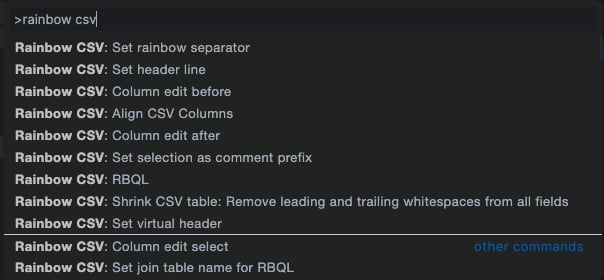
  2. Type “Rainbow CSV”
  3. You’ll see a list of available commands:

3. Utilize Rainbow CSV Commands

Here are some key Rainbow CSV commands you can use:\
Discover all Rainbow CSV features via the command panel:
Pro Tips
  • Use Rainbow CSV for quick data quality checks before importing into your dbt™ models.
  • Leverage multi-cursor editing for rapid data cleaning tasks.
  • Combine Rainbow CSV with dbt™ seeds for efficient data loading and version control.
  • Use CSVLint regularly to catch formatting issues early in your data pipeline.

Related Documentation

Summary

You’ve learned how to effectively work with CSV files in Paradime using the Rainbow CSV feature. This tool enhances your ability to view, edit, and analyze CSV data directly within the Paradime IDE, improving your data handling capabilities and workflow efficiency.

Next, we’ll explore how to run dbt™ in production with Bolt.