

Git Lite creates new branches from your remote main/master branch and automatically handles syncing with remote branches.
Branch Management
Creating a New Branch
- Click the Git Lite icon (🪄) in the left panel of the Code IDE
- Select “Create Branch”
- Enter your branch name
- Click “Create Branch”
Switching Branches
- Click the Git Lite icon (🪄) in the left panel of the Code IDE
- Click the branch dropdown
- Use the search bar to find your branch
- Select the branch name to switch
Branch list updates automatically every 30 minutes. Click the refresh button to update manually.
Working With Changes
Keeping Branches Updated
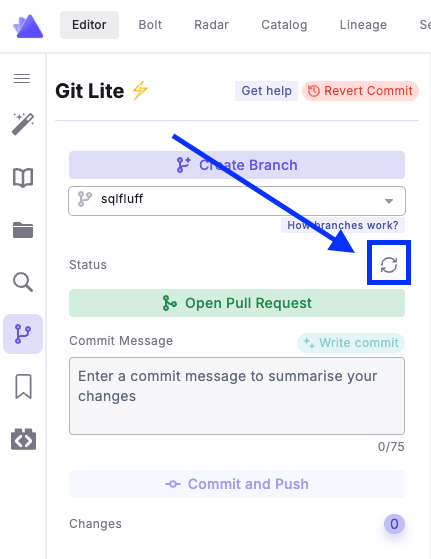
Git Lite automatically checks if your branch is behind your remote branch and/or your main/master branch. This check happens:- After each commit
- When you click the refresh button manually
Committing Changes
- Click the Git Lite icon (🪄) in the left panel of the Code IDE
- Enter a commit message
- Click “Commit and Push”
Git Lite will:
- Commit your changes
- Push to your remote branch
- Automatically pull and merge remote changes if needed
To abandon changes, click the “Discard All Changes” button.
Advanced Features
Opening Pull Requests
- Click the Git Lite icon (🪄) in the left panel of the Code IDE
- Ensure all changes are committed by clicking “Commit and Push”
- Click “Open Pull Request”
- Review changes in your git provider
Reverting Commits
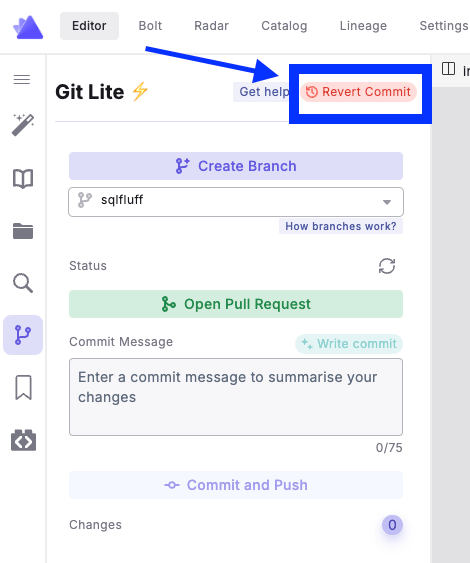
To undo your last commit:- Click “Revert Commit” in the top right corner
- Review the commit details
- Click “Continue” to revert
Handling Merge Conflicts
When merge conflicts occur, Git Lite provides tools to help you resolve them easily.For detailed instructions on resolving merge conflicts, see our merge conflict documentation.