

Paradime Turbo CI check.
Prerequisites
- The Paradime GitHub app installed on your dbt™ repository. Paradime posts a check for each schedule only through the app.
- Turbo CI set up: a CI environment, the custom schema macro, and a production schedule to defer to.
- The Admin or Developer role in Paradime, to create Bolt schedules.
- Admin access to the GitHub repository, to change its branch protection.
Steps
1
Give each check its own job
Each Turbo CI schedule becomes one check on the pull request. Give each schedule a different job, for example:
2
Create a Turbo CI schedule for each check
Your current Turbo CI schedule can be the first check. For each other check, create a schedule in Bolt with these settings:
- Name: a short name. GitHub shows the check as
Paradime Turbo CI / <schedule name>. - Environment: your CI environment.
- Git branch: the branch that your pull requests merge into, for example
main. A Turbo CI schedule runs only on pull requests into its Git branch. - Commands: the commands for this check.
- Trigger type: Turbo CI. Leave Run after another schedule off, so that the schedule starts as soon as the pull request opens.
- Defer to: Schedule, then your production schedule, or Environment, then your production environment. This field shows in Schedule settings after you select the Turbo CI trigger.
3
Require only the overall check on GitHub
In your GitHub repository, go to Settings > Branches and edit the protection rule for your base branch. Under Require status checks to pass before merging, add
Paradime Turbo CI.Paradime Turbo CI passes only when all your schedules pass, and it fails as soon as one of them fails. One required check covers all your schedules.4
Open a pull request
Change a model in your dbt™ project folder and open a pull request into your base branch. Turbo CI does not run on draft pull requests, or on pull requests that change no file in your dbt™ project folder.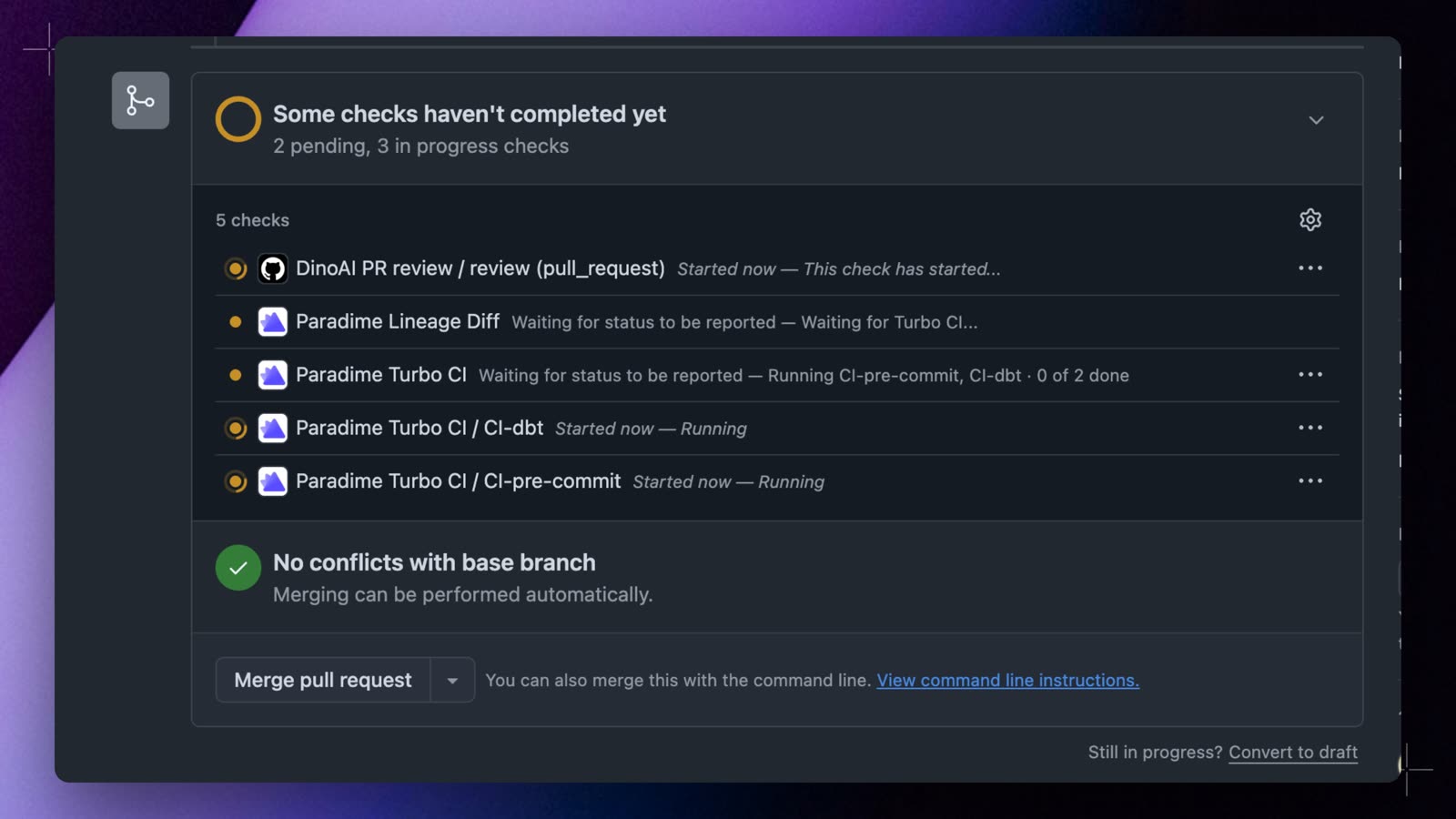
The pull request shows one check for each schedule, for example
Paradime Turbo CI / CI - lint and Paradime Turbo CI / CI - dbt build, and both run at the same time. While they run, Paradime Turbo CI names the running checks, for example Running CI - lint, CI - dbt build · 0 of 2 done. When both pass, it shows 2 of 2 passed.If you see only Paradime Turbo CI, Paradime found only one Turbo CI schedule for the pull request. Make sure that each schedule’s Git branch is the base branch of the pull request. A schedule that you deploy from the form applies from the next pull request event, so push a new commit to a pull request that is already open.When a check fails
Each schedule runs on its own. If one check fails, the other checks continue, so you see all the results in one round.Paradime Turbo CI fails at once and names the failed checks. While the other check still runs, it says so, for example 0 of 2 passed · 1 still running · failed: CI - lint. When both are done, it shows 1 of 2 passed · failed: CI - lint.
To run one check again, select Re-run on that check in GitHub. Paradime runs only that schedule again, on the same commit. When you push a new commit, all the checks run again.
Re-run works after all the checks of the pull request finish. While a check still runs, GitHub’s Re-run does nothing, and Retry on the run page in Paradime shows
This step can't be retried now: a chain is running.Set it up in YAML
If you manage your schedules as code, add one Turbo CI schedule for each check toparadime_schedules.yml. Neither schedule has run_after, so both start when a pull request opens:
paradime_schedules.yml
paradime schedule verify before you commit. It checks the file and adds a slug to each new schedule. Paradime reads Turbo CI schedules from your deployed schedules, so a change in a pull request applies after the pull request merges and Bolt deploys your schedules. See Manage schedules as code.
Next steps
Chain Turbo CI checks to run in order
Build the changed models only after the lint check passes.
Lint and test template
A ready-made pre-commit configuration for the lint check.
What you see on GitHub
Every status that the checks can show.
Turbo CI reference
Environment variables, temporary schemas, and schema cleanup.
Troubleshooting
- Only
Paradime Turbo CIshows. Paradime found one Turbo CI schedule for the base branch of the pull request. Check the Git branch of each schedule, and push a new commit after you deploy a schedule. - A required check never reports. The check name in your branch protection rule does not match a check that Paradime posts, often after a schedule was renamed. Require only
Paradime Turbo CI. - No check runs. The pull request is a draft, or it changes no file in your dbt™ project folder.
- There is no Re-run button on a check. The Paradime GitHub app cannot create checks in your repository, so Paradime posts each schedule as a commit status, and GitHub cannot re-run a commit status. Ask a GitHub organization owner to accept any pending permission request from the Paradime app. Until then, use Retry on the run page in Paradime.