

Prerequisites
- The Paradime GitHub app installed on your dbt™ repository.
- An on-merge deploy job. See Set up continuous deployment, and Run several jobs when a pull request merges for the jobs after the deploy.
- The Admin or Developer role in Paradime, to edit the schedule.
The Bolt merge queue orders the runs that Paradime starts after each merge. It is separate from GitHub’s merge queue, which orders the merges themselves.
Steps
1
Choose the job to queue
Set the queue on the first job of your merge chain, usually the deploy job. A merge keeps its turn until that job and all the jobs after it finish. Then the next merge starts. The setting has no effect on the jobs after the first one.Each queue belongs to one job. A merge that waits for the deploy does not delay the other jobs that start with the merge.
2
Turn on Wait in line
In Bolt, open the deploy job and select Edit. In Trigger type, keep On merge selected. Under When merges overlap, select Wait in line. Then select Deploy.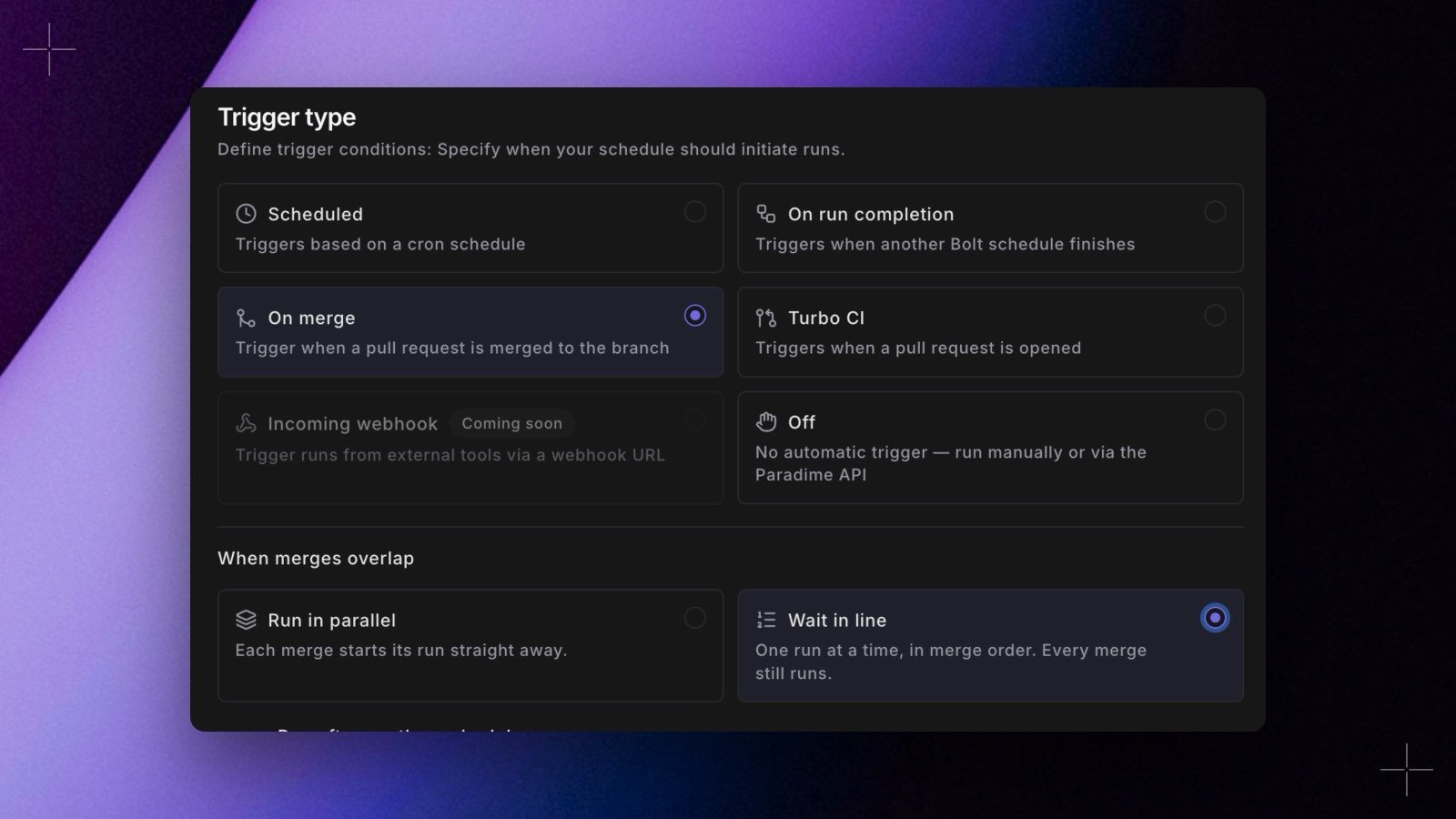
3
Merge two pull requests close together
Merge a pull request into the branch of the deploy job. While its deploy runs, merge a second pull request. Both pull requests must change a file in your dbt™ project folder.
4
Watch the queue
In Bolt, open the deploy job. The Merge queue card above the run history shows the merge that is running and the merges that wait, next first. Each row shows the pull request number, the merge commit, and when the merge joined the queue.A waiting merge has no run in the run history yet. Its run shows when its turn comes. On GitHub, the Paradime Merge Run Summary comment of a waiting merge shows its place in the queue, for example
Queued (1st in line): waiting for the merge of #482.The deploy of the second merge starts only after the deploy of the first merge, and the jobs after it, finish. When both merges finish, the Merge queue card shows
No merge is running or waiting.If the second deploy starts at once, check that When merges overlap is Wait in line on the first job of the chain, and not on a job after it.Manage the waiting merges
Each waiting merge on the Merge queue card has two actions. Paradime asks you to confirm each one.- Remove takes the merge out of the queue. For that merge, Paradime skips the job and the jobs after it, and the summary comment shows
Skipped: removed from the merge queue in Paradime. You need permission to run the schedule. - Run now starts the merge out of turn, next to the merge that is running. Two merges then run the job at the same time. You need permission to edit the schedule.
merge_queue_removed and merge_queue_run_now.
Things to know
- Merges run in the order they merged. Each merge builds its own merge commit. The first merge in line starts about a minute after it merged, so an older merge whose GitHub event arrives late can still go first.
- A late older merge is skipped. If an older merge arrives after a newer one already had its turn, Paradime skips it with
Skipped: the merge of #N is newer and already had its turn, because the newer merge commit contains its changes. - A failure does not block the queue. If a deploy fails, the next merge still takes its turn, because it can contain the fix.
- A merge waits for up to 24 hours. After that, its jobs stop with
Couldn't run: still waiting for the merge queue after 24 hours. - Time in the queue does not count toward the 6-hour limit for the jobs of a merge.
- A retry does not wait in line. Retry on a run page starts the job at once, even while another merge has its turn.
Set it up in YAML
If you manage your schedules as code, setconcurrency: queue on the on-merge job:
paradime_schedules.yml
concurrency: queue is valid only together with trigger_on_merge: true. The Paradime CLI checks it from version 6.8.0, when you run paradime schedule verify.
Next steps
Run several jobs when a pull request merges
Add the jobs that run after the deploy.
Merge queue reference
Every rule for the queue and its actions.
Set up a GitHub merge queue
Test pull requests as GitHub batches them, before they merge.
Audit logs
See who removed a merge or ran one out of turn.
Troubleshooting
- The second deploy starts at once. The queue is on a job after the first one, or the deploy job is still on Run in parallel.
- There is no Merge queue card. The card shows only on an on-merge job with Wait in line.
- Remove or Run now shows
Merge queue not updated. The merge is no longer waiting: its turn came, or someone removed it. The card refreshes every 30 seconds. - A merge waits for a long time. The merge ahead of it still runs its jobs. Open the running merge’s runs to check their progress, or select Run now to start the waiting merge out of turn.