

Prerequisites
- Access to Bolt in your Paradime workspace.
- At least one configured Bolt schedule.
- The Slack integration set up (for Slack notifications).
Steps
1
Open the schedule's notification settings
From the Bolt home screen, select a schedule, select Edit, and scroll to Notification settings.
2
Configure notifications
Set who gets notified and when:
3
Publish
Select Publish to save. Notifications send after the next run; trigger a manual run to verify the setup immediately.
After a run, recipients get a Slack or email notification. Selecting Open in Paradime in the notification opens the schedule’s view for investigation.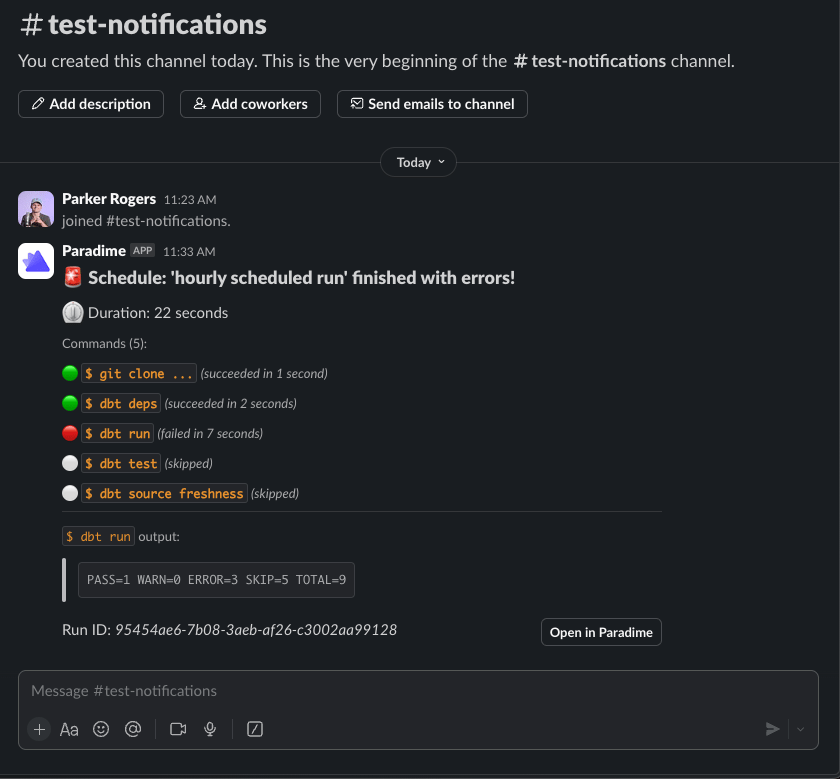
Next steps
Debug a failed run
Act on a failure notification.
Notification settings reference
All notification options.