

meta configuration, which allows you to add custom metadata to your models, columns, sources, and other dbt™ resources. All classifications must be defined within the meta config block in your dbt™ YAML files. These classifications appear in the Paradime catalog as searchable and filterable metadata, helping with data governance and asset discovery.
Legacy vs Modern Syntax
Deprecated (will be removed in future dbt™ versions):Current (dbt™ 1.10+ compatible):
How Classifications Appear in Paradime
Once you’ve addedmeta configurations to your dbt™ files, they appear in two key places in the Paradime catalog:
1. Search filters
Press/ in the catalog search bar to open the filter menu, where your classifications appear as Classification filters. Add one to narrow results to assets with a specific value, such as a sensitivity level, data domain, or owner.
2. Asset detail
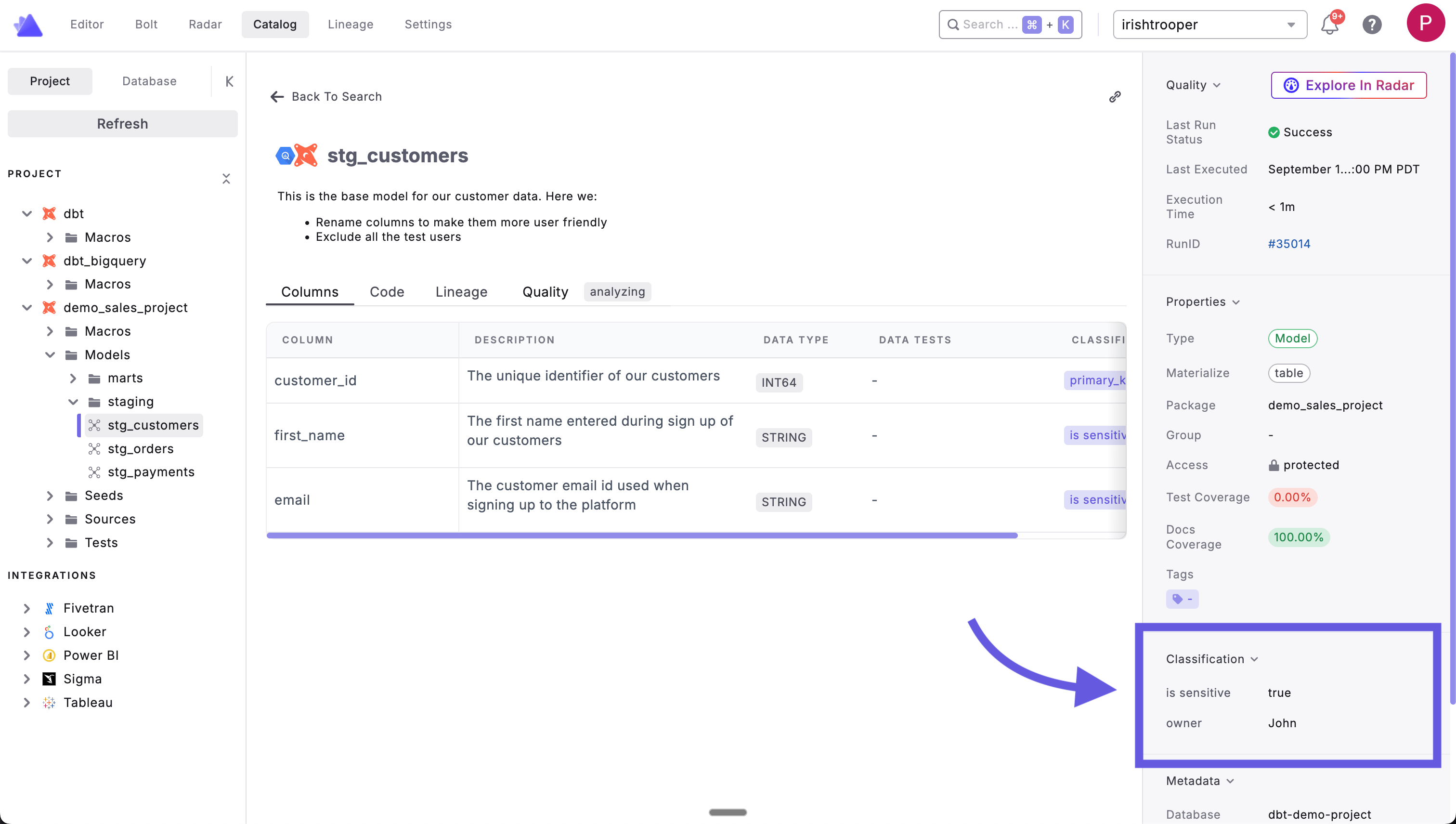
When viewing any asset, classifications appear on the Overview tab (for model-levelmeta) and on the Columns tab next to each column (for column-level meta). They display as the key: value pairs you’ve defined, such as:
is_sensitive: trueowner: John- Any other custom metadata you’ve configured
Where to Set Classifications
Classifications are always defined within themeta configuration block at two levels in your dbt™ project:
Model Level Classifications
Add classifications to entire models using themeta config block in your properties file:
Column Level Classifications
Add classifications to specific columns using themeta config block within column definitions:
Common Classification Examples
Here are some typical classification patterns teams use within themeta config block:
Data Sensitivity Levels
Data Domains
Data Governance
Best Practices
- Be Consistent: Use standardized classification values across your project
- Document Standards: Define what each classification level means for your organization
- Use Meaningful Keys: Choose descriptive meta keys that make sense to your team
- Combine Classifications: Use multiple meta fields to provide rich context