

Authentication Methods
Microsoft Fabric uses Microsoft Entra ID (formerly Azure AD) as its primary authentication system. Setauthentication to one of these values:
ActiveDirectoryPassword- Microsoft Entra ID username and passwordServicePrincipal- Service principal authentication
Setup Instructions
- Click Settings in the top menu bar of the Paradime interface to access Account Settings
- In the left sidebar, click Connections
- Click Add New next to the DinoAI Background Agent Environment section
- Select Microsoft Fabric
- In the Profile Configuration field, add the following parameters based on your authentication method. Reference the Profile Fields Reference section below for additional context and configurations.
- Microsoft Entra ID username and Password
- Service Principal
After adding the configuration, ensure it’s properly formatted using a YAML formatter like YAML Formatter.
- Provide a dbt™ Profile Name (this should match the profile name set in your
dbt_project.yml). - In the Target field, enter
dinoai. This is the target your dbt™ project will use during DinoAI background agent sessions. - The Schema field is pre-configured, but you can change it to specify the schema where dbt™ will build objects.
- The Threads value is pre-configured to 1, but you can adjust this to specify how many parallel operations your dbt™ project can run.
Example Profile Configuration
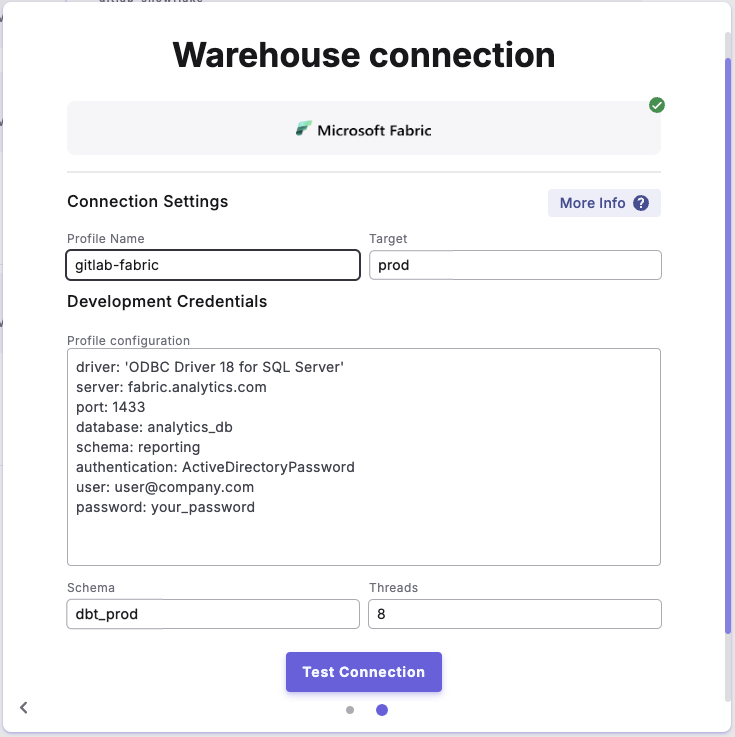
Profile configuration example for 'Microsoft Entra ID username and Password'
Schema Authorization
When creating schemas in Microsoft Fabric, you can control who owns them:- Schema ownership is defined using the AUTHORIZATION Argument. The syntax follows this pattern:
- Useful for managing permissions in Microsoft Entra ID environments
- Recommended when working with group-based permissions