We recommend creating a dedicated Redshift service user for the DinoAI agent environment, with the minimum permissions required to create tables and views in your database.
Create a Redshift user
Run the script below in Redshift to create a dedicated service user for the DinoAI agent environment. Make sure you run these commands as anAccount Admin.
Suggested permissions
This set of permissions will enable DinoAI to read from and create tables and views during background agent sessions in your Redshift database.lineNumbers
Maintain privileges
In Redshift, after each DinoAI background agent session you need to ensure the correct privileges are granted, as Redshift does not support grant on future schemas. Theparadime_dinoai_user should be able to read new schemas created during agent sessions.
Check this guide on using grants and hooks.
Add the DinoAI agent environment connection
- Click Settings in the top menu bar of the Paradime interface to access Account Settings
- In the left sidebar, click Connections
- Click Add New next to the DinoAI Background Agent Environment section
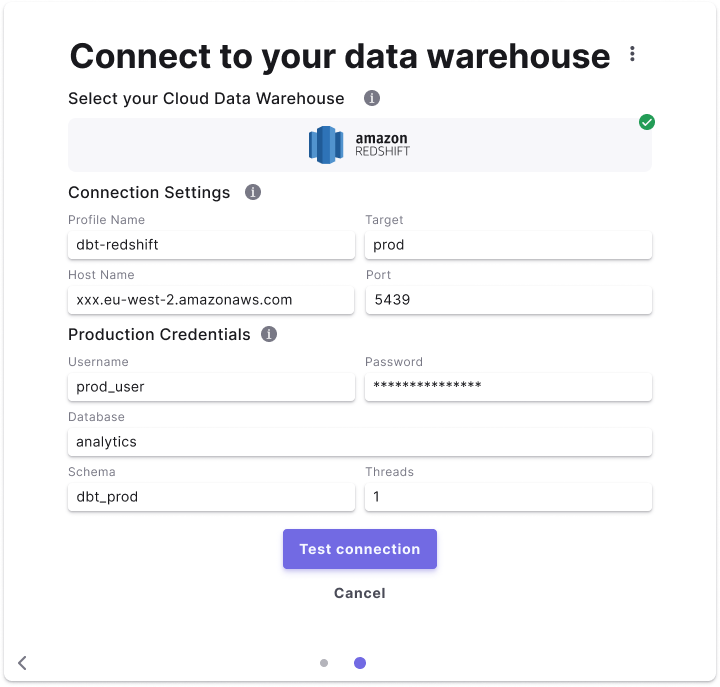
- Select Redshift and fill out the corresponding fields.