

How It Works
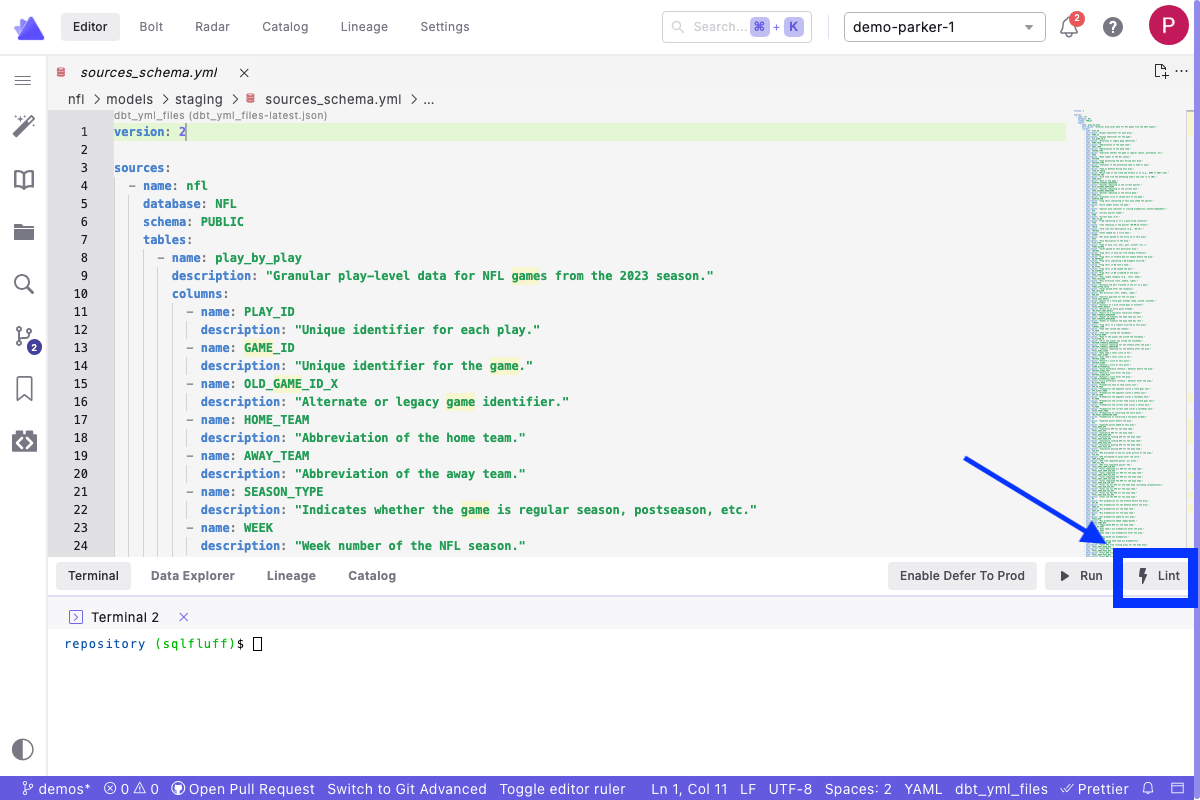
Click the Lint button in the Command Panel while editing a file to automatically format your code. The tool used for formatting is determined by the file type you have open in the editor:- SQLfluff - runs to lint your SQL code if you’re editing a
.sqlfile. - Prettier - runs to lint your YAML if you’re editing a
.ymlfile.
SQLFluff
SQLfluff is a SQL linter that helps maintain consistent SQL code style and catch potential errors. It understands dbt™ and Jinja templating, making it perfect for dbt™ projects.Configuring .sqlfluff
Before using SQLfluff, create a configuration file to customize its behavior:- Create a
.sqlflufffile in your dbt™ project root directory (same location as yourdbt_project.yml) - Add your configuration:
.sqlfluff example file
Visit SQLfluff documentation for a complete list of configuration options.
Using SQLfluff
- Open a
.sqlfile in your editor - Click the Lint button in the Command Panel
- Review the changes made in Git Lite
- Syntax errors
- Style violations
- Formatting suggestions
- If satisfied with Lint updates, Commit and Push your changes to your remote branch.
Want to automate SQLfluff linting? Learn how to set up SQLfluff pre-commit hooks to automatically lint SQL files before each commit.
Prettier
Prettier automatically formats your YAML files to ensure consistent structure across your dbt™ project. While the integration works out of the box, you can customize Prettier’s behavior:Configuring Prettier
While Prettier works out of the box with sensible defaults, you can customize its behavior:- Create a
.prettierrc.yamlfile in your dbt™ project root directory (same location as yourdbt_project.yml) - Add your configuration:
Visit prettier documentation a complete list of configuration options.
Using Prettier
- Open a
.ymlfile in your editor - Click the Lint button in the Command Panel
- Review the changes in Git Lite
- YAML syntax corrections
- Formatting improvements
- Structure updates
- If satisfied with Lint updates, Commit and Push your changes to your remote branch
Want to automate YAML formatting? Learn how to set up Prettier pre-commit hooks to automatically format YAML files before each commit.