

Suggested permissions:The following permissions will enable users in Paradime to run dbt™ from Paradime in your BigQuery project:
- BigQuery Data Editor
- BigQuery User
Initial Setup Instructions
- Click Settings in the top menu bar of the Paradime interface to access Account Settings
- Click “Connections” in the left sidebar
- Click “Add New” next to Code IDE Environment
- Select “BigQuery”
Using BigQuery OAuth
Follow our BigQuery OAuth setup guide to configure OAuth authentication. Each user will need to approve the required scopes when connecting.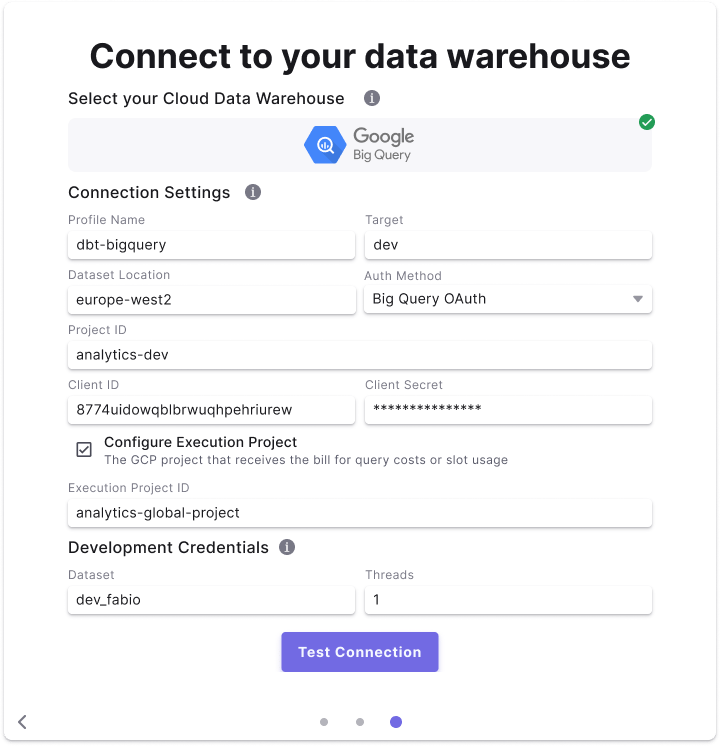
Fields Details
Below are list of fields and example to create a connection.Field access levels:
- 🏢
Workspace levelfields are set by the the workspaceAdminand not configurable for by user - 👥
User levelfields are set by each user (Admin/Developer) when setting the Development connection.
Using BigQuery Service Account JSON
Uploading a service account JSON key file is the quickly and accurately way to configure a connection to BigQuery and authenticate each user’s development credentials. To create a service account in BigQuery, follow the detailed steps in Google Cloud’s Creating and managing service account keys.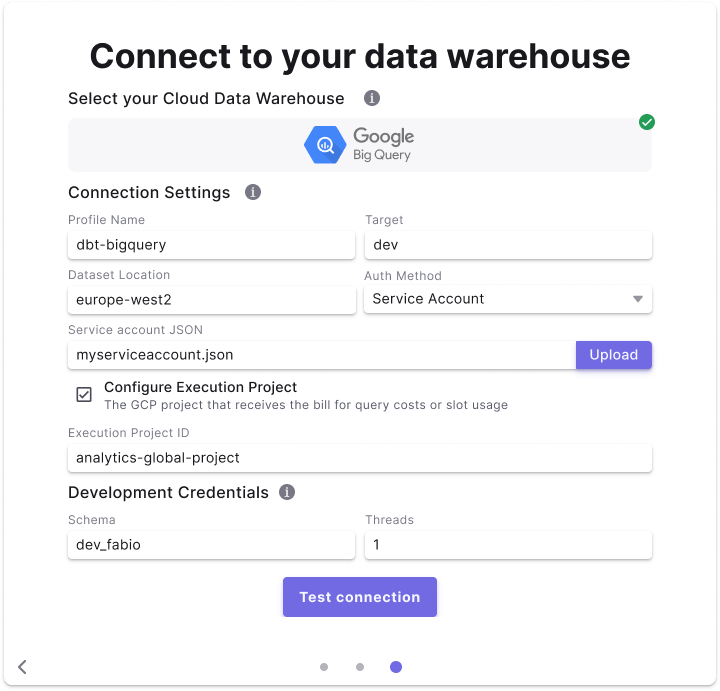
Field Details
Below are list of fields and example to create a connection.Field access levels:
- 🏢
Workspace levelfields are set by the the workspaceAdminand not configurable for by user - 👥
User levelfields are set by each user (Admin/Developer) when setting the Development connection.