Important Notes:
- These variables only apply to your Code IDE development environment
- They do not affect Bolt schedules
- For production environment variables, see Bolt Schedules Environment Variables
Setup Instructions
- From any page in the Paradime application, Click the Settings
- Navigate to Workspaces > Environment Variables
- In the Code IDE section, click Add New
- Configure your variable:
- Enter Key name
- Enter Value
- Click Save icon (💾)
Bulk Upload Environment Variables
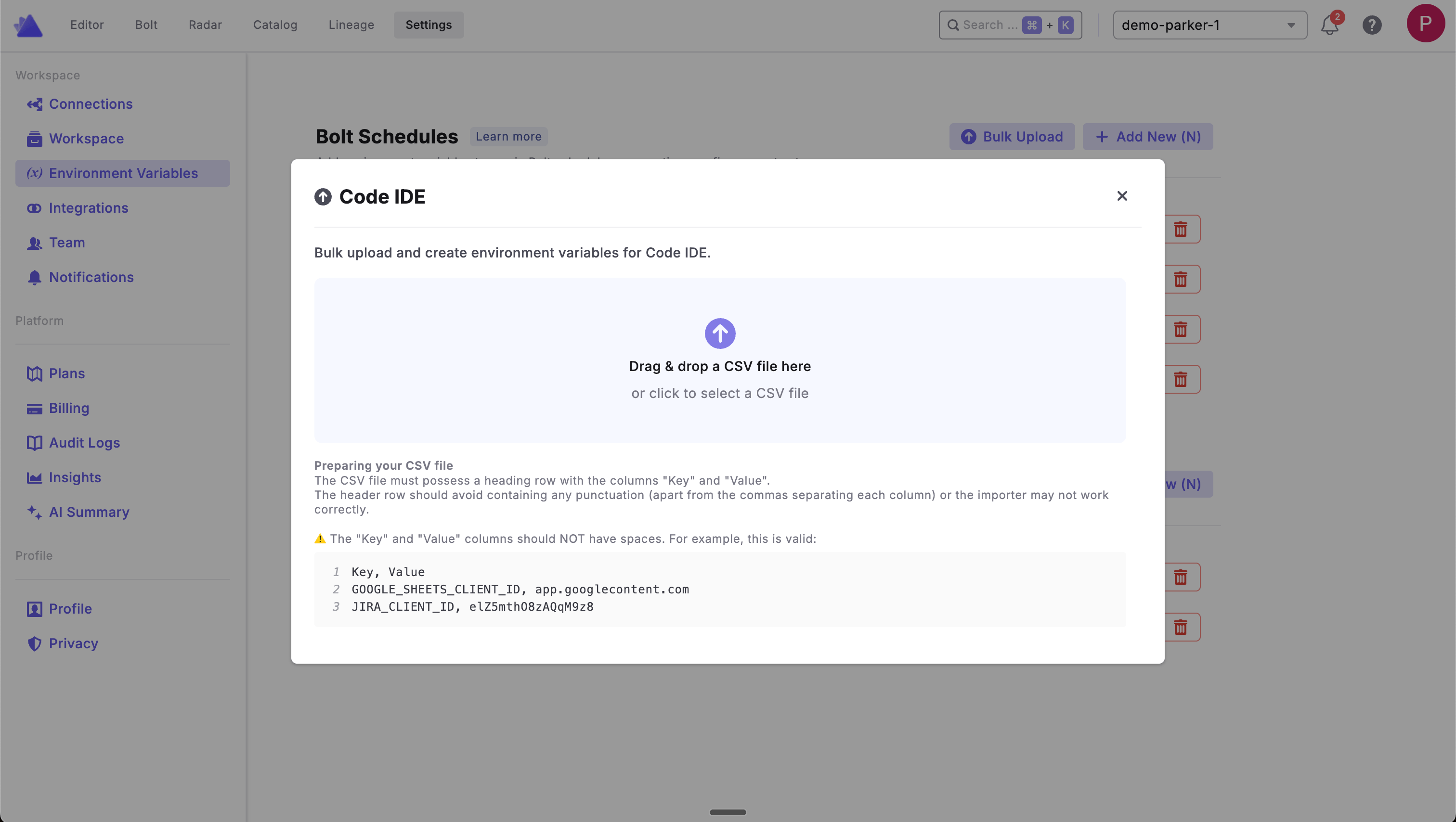
Instead of adding environment variables one at a time, you can upload multiple variables at once using a CSV file. To bulk upload variables:- From any page in the Paradime application, click Settings
- Navigate to Workspaces > Environment Variables
- In the Code IDE section, click Bulk Upload
- Drag and drop your CSV file or click to select a file
- Review and confirm the upload