

- Paradime clones the repository over HTTPS with a short-lived token from the app installation. There is no deploy key to add or rotate.
- The token reaches only the workspace’s repository.
- In the Code IDE, each person pushes as themselves after they link their GitHub account.
What changes for the workspace
When a workspace connects through the GitHub App, every part of Paradime uses HTTPS:
Each workspace keeps its deploy key on file. You can switch the workspace back to the deploy key at any time, and it clones over SSH again.
Before you start
- The Paradime GitHub App must be installed on the GitHub organization or account that owns the repository. If you are not an organization owner, Paradime asks an owner to approve the install for you. See Install the app.
- The installation must have access to the repository. If you install the app for selected repositories only, add the dbt™ repository to that list.
- You need permission to update the workspace’s Git repository in Paradime.
Connect a new workspace
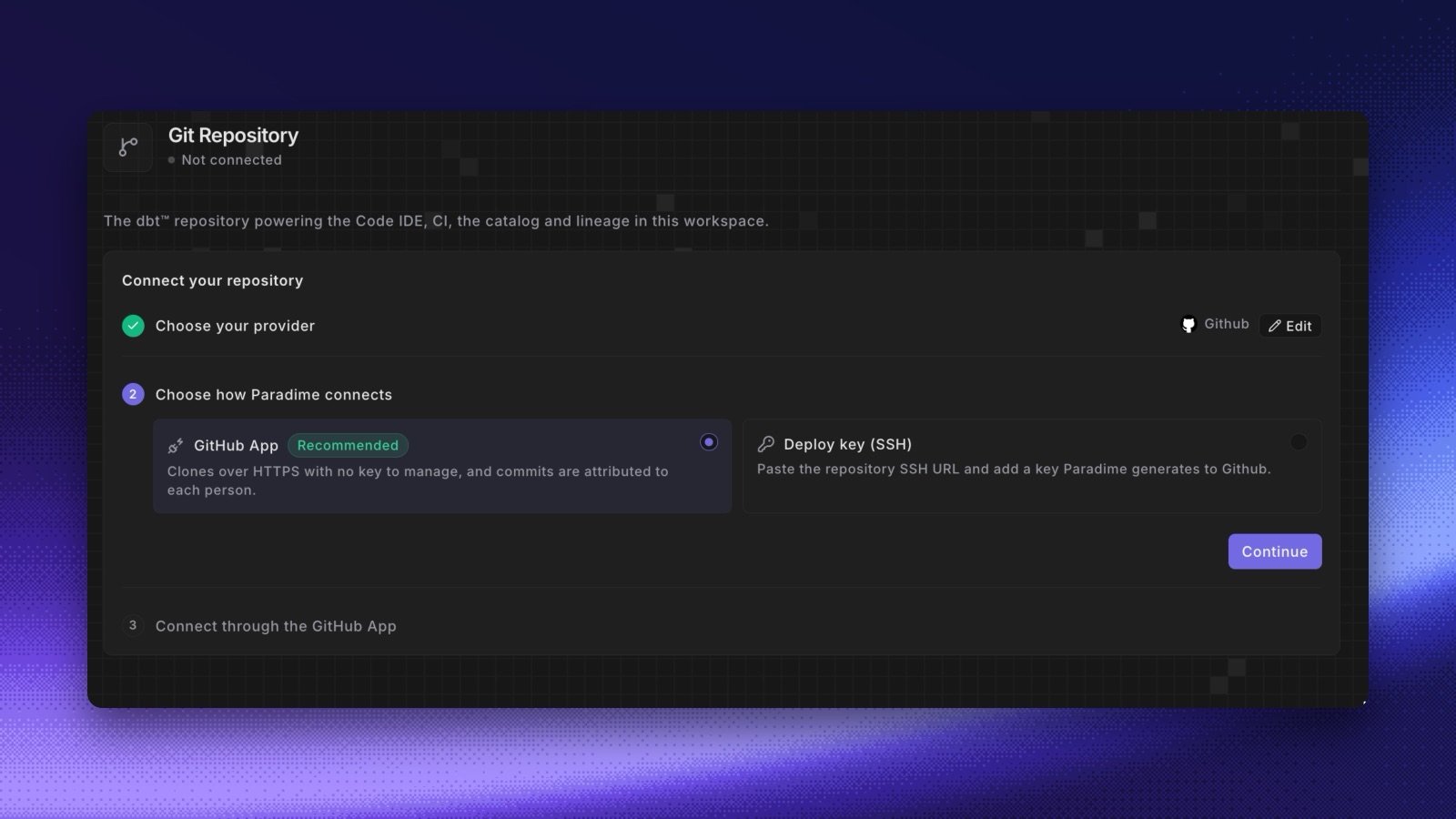
- Go to Settings → Git Repository.
- In Choose your provider, select GitHub.
- In Choose how Paradime connects, select GitHub App and click Continue.
- If the app is not installed yet, click Connect GitHub App and complete the install on GitHub. See Install the app.
- In GitHub installation, select the installation that has access to your repository.
- In Repository, search for and select the repository. The list shows only the repositories that the installation can reach.
- Click Connect repository.
Install the app
If no installation is available, the page shows Connect through the Paradime GitHub App. Click Connect GitHub App. GitHub opens in a new tab.- If you are a GitHub organization owner, choose the repositories and install the app. Return to Paradime, then pick the installation and the repository.
- If you are not an owner, GitHub sends the install request to your organization owners by email. Paradime shows Waiting for a GitHub organization owner. The page connects itself when an owner approves the install. To check again, click Check again.
Switch an existing workspace to the GitHub App
A workspace that already uses a deploy key can switch without changing its repository. If an installation already covers the repository, the Git Repository page shows a Switch to the GitHub App banner that names the GitHub account that has the app installed.- Go to Settings → Git Repository.
- In the banner, click Switch to the GitHub App.
Push from the Code IDE as yourself
To push from the Code IDE on a workspace that uses the GitHub App, link your GitHub account to Paradime. See Connect GitHub user level OAuth. If you push before you link your account, GitHub refuses the push. The terminal shows a Paradime notice with a link before GitHub’s error:git push again in the terminal.
Check the connection
On the Repository card, click Test connection. Paradime checks that it can reach the repository through the GitHub App. The card also shows when the connection needs attention:Manage installations
A company can hold more than one GitHub App installation, for example one for each GitHub organization. Each workspace pins its repository to one installation. You manage installations on the GitHub integration page. See Manage app installations. When you unlink an installation, Paradime stops using it. Each workspace connected through it falls back to its deploy key if it still has one. A workspace without a deploy key is marked disconnected.Change the repository
To connect the workspace to another repository, click Change repository on the Repository card. Paradime disconnects the workspace, and you choose a provider and a method again. Your GitHub App installations stay connected, so you can pick another repository at once. See Update connected git repository.Connect with the API
The Workspace Management API hasgitRepository to read a workspace’s connection and setGitRepository to connect it through the GitHub App, a GitLab connection, or the deploy key. The API key needs the Git repository admin capability.