

Introduction
Google Workspace provides secure identity management and single sign-on to applications that you can add to your Google Workspace. From Google Workspace, you can automatically provision users who should have access to Paradime i.e. any user who has access to your Google Workspace, will be able to register / login to Paradime.Setting up in Google
1. Register an OAuth 2.0 app
In your Google API Console set up an OAuth app by following the instructions here: https://support.google.com/googleapi/answer/6158849. During the setup, make sure you choose the following options:1.1 User Type:
Set to Internal1.2 Authorized Domains:
In the Authorized domain fields make sure you have at least the following:- your email domain e.g. if your email is
xyz@abc.comthenabc.com auth0.com
1.3 Add or remove scopes:
Choose the following user scopes:../auth/userinfro.email../auth/userinfo.profileopenid
Authorized Domains field is correct by following 1.2 above.
2. Create client-id and secret
2.1 Create Credentials
Navigate to theCredentials tab within your Google API Console and click on Create Credentials. Choose OAuth client ID option.
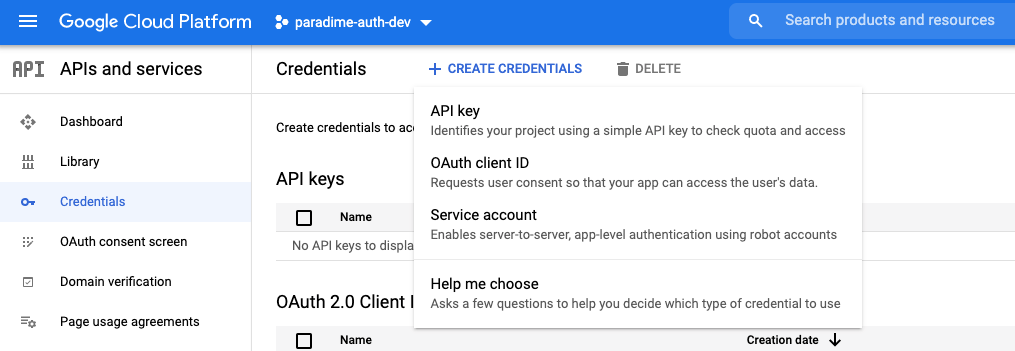
Create credentials
2.2 Enter details
- Choose Application type=
Web application. - Authorized Javascript origins: enter
https://auth.paradime.io - Authorized redirect URIs: enter
https://auth.paradime.io/login/callback - Click
Create
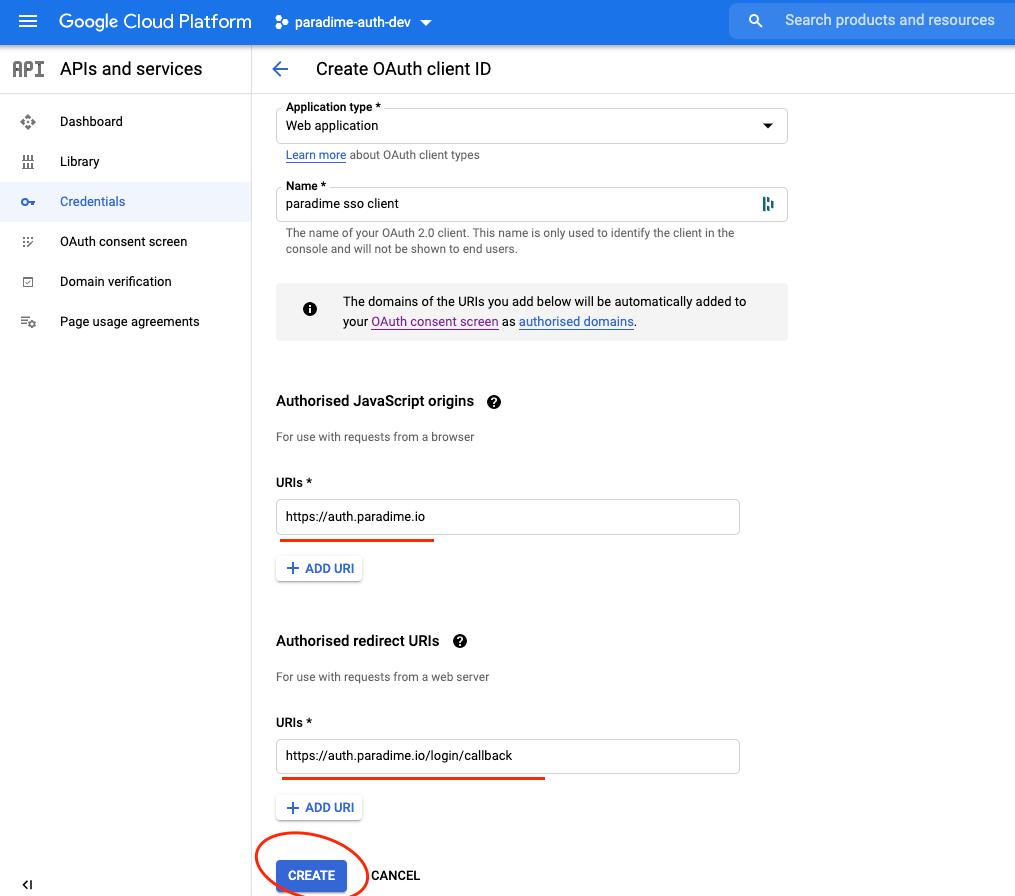
Enter details
2.3 Get the client-id and secret
Note down the client-id and client-secret when the OAuth client created.Get credentials
Configuring Paradime for workspace
Contact the Paradime Support team at support@paradime.io and share the following information:- your
google-workspace-domain.com - Client ID
- Client Secret