

Introduction
Okta provides secure identity management and single sign-on to applications that you can add to your Okta account. From Okta, you and your users can log in to Okta and then access applications such as Paradime without having to log in to each application. Organizations can use Okta OIDC to connect Paradime to their Okta instance. This page describes how to add configure the Okta connection for Paradime.Creating an Okta OIDC Application
- To connect your Okta tenant as an identity Provider in Auth0, you must create an OIDC application. In your Okta Admin Dashboard, create a new application.
Select Applications > Applications, and Create App Integration.
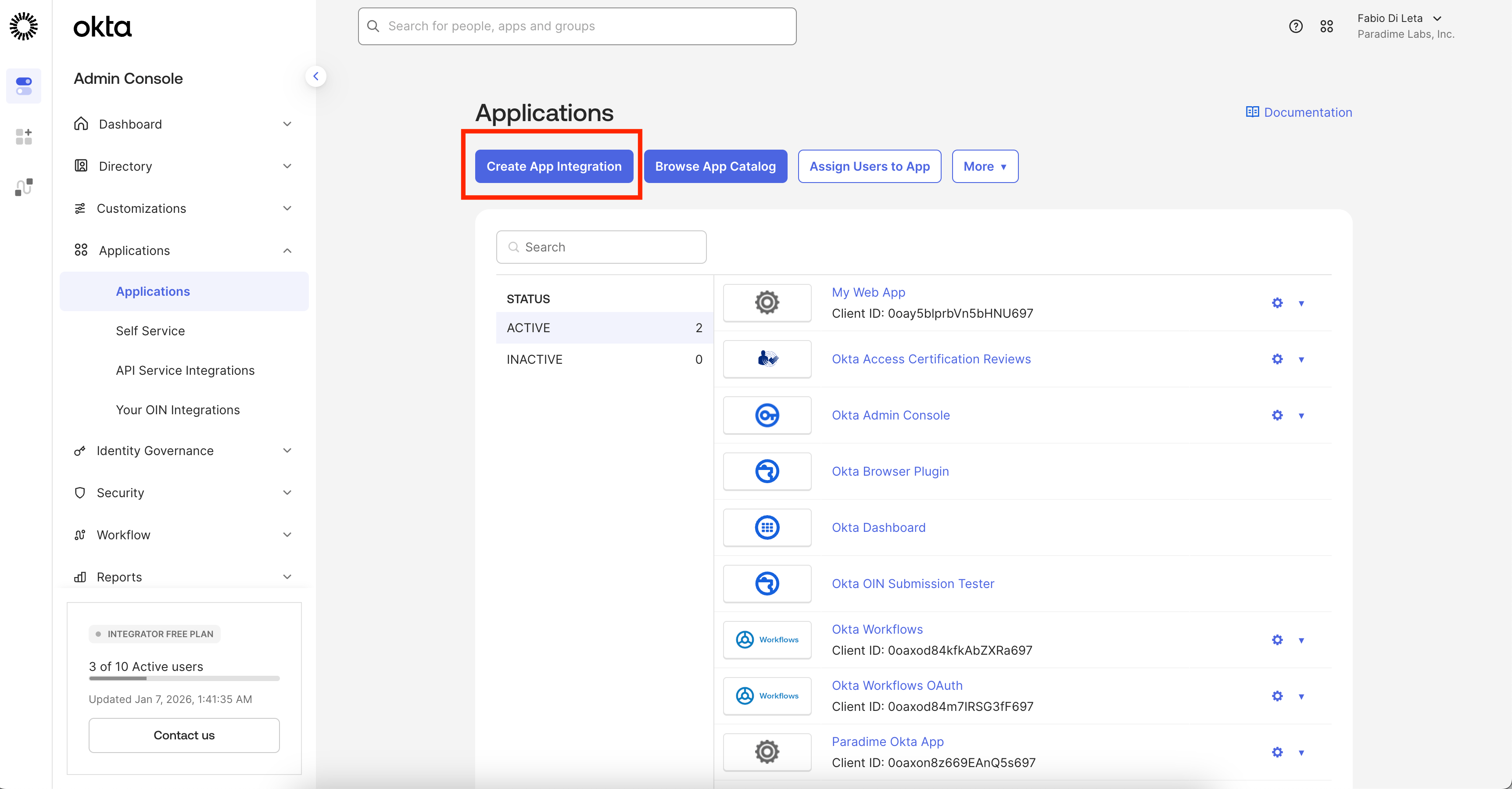
- Select Create New App.
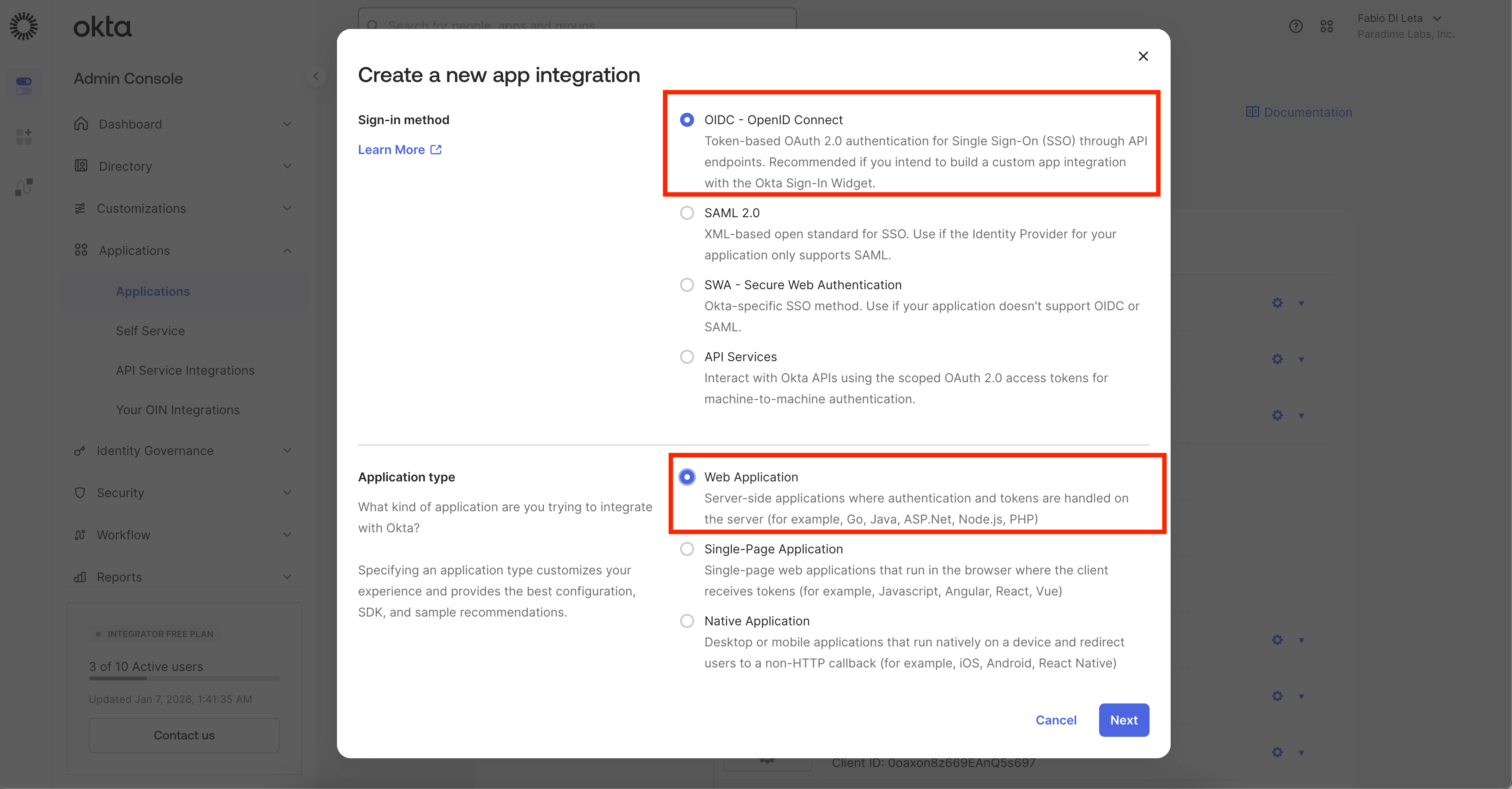
Choose OIDC as the Sign-in method. Choose Web Application as your Application Type. Select Next.
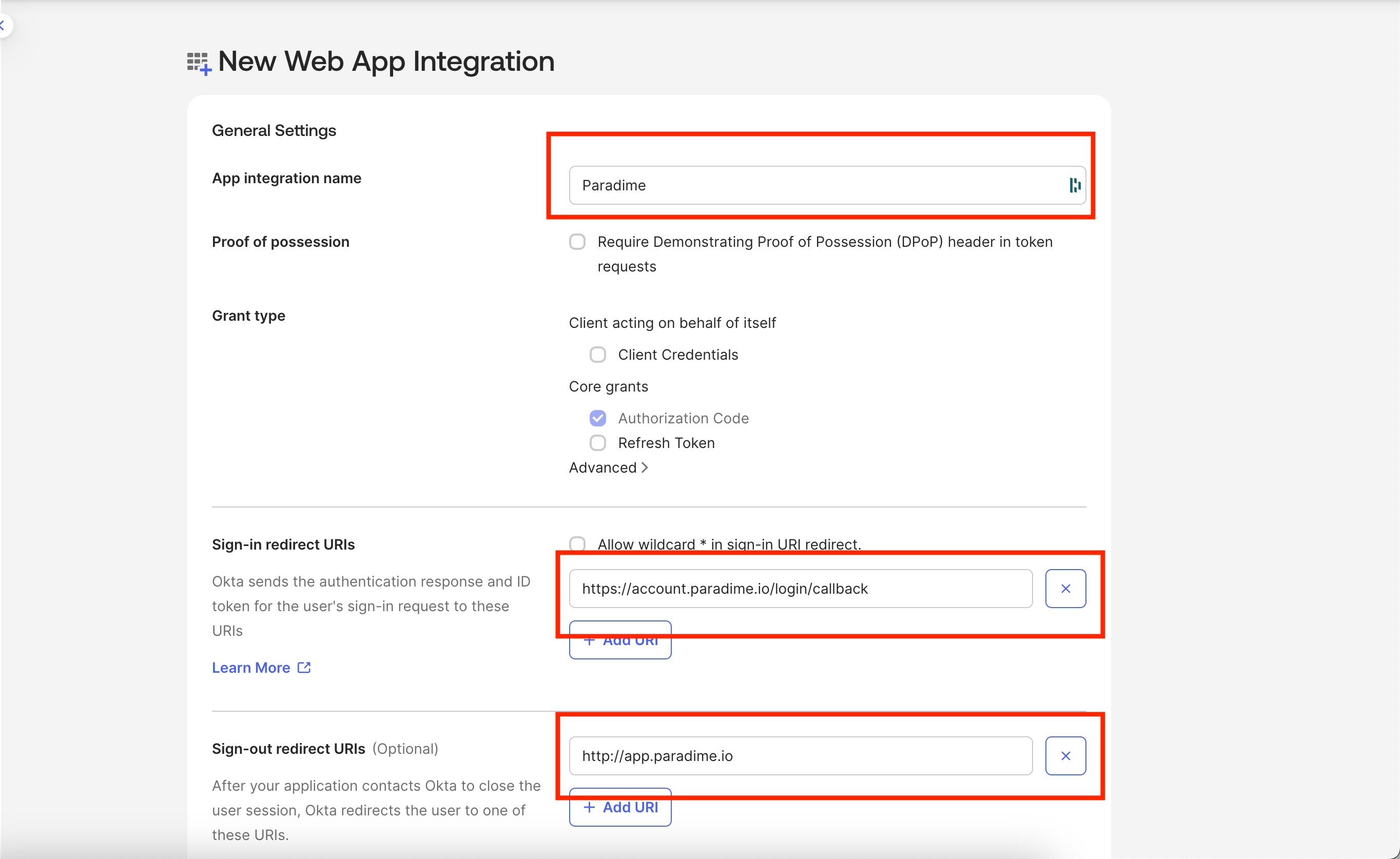
- In the New Application Settings enter the following details:
- Enter your App integration name as Paradime.
- Add the Paradime Logo for the Application. You can download the paradime logo here Paradime Logo.
- In the Sign-in Redirect URIs section, enter the Redirect URI below based on the region where your Paradime account is hosted
- Enter
https://app.paradime.ioin the Sign-out Redirect URIs - Make sure to select “Refresh Token” in the Core grants
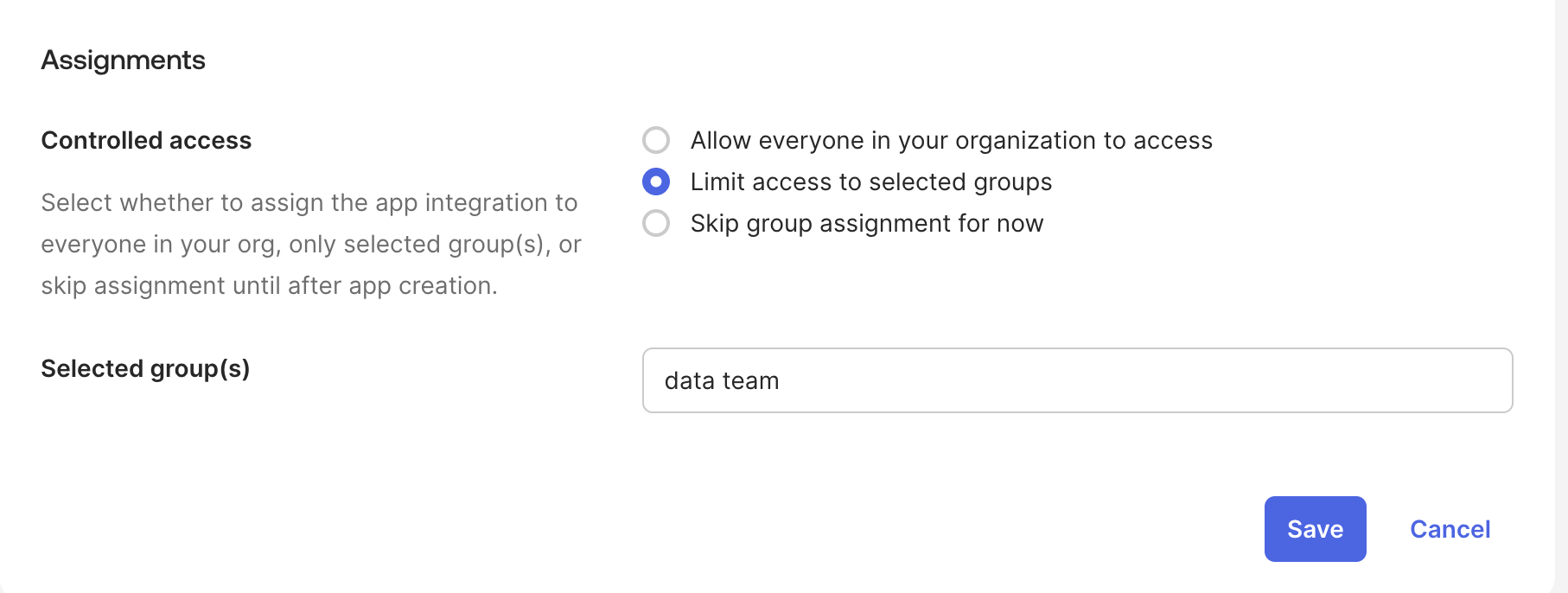
Make sure you add the user groups who need access to Paradime app in Okta in the Assignments section.
Configuring Paradime to enable Okta SSO
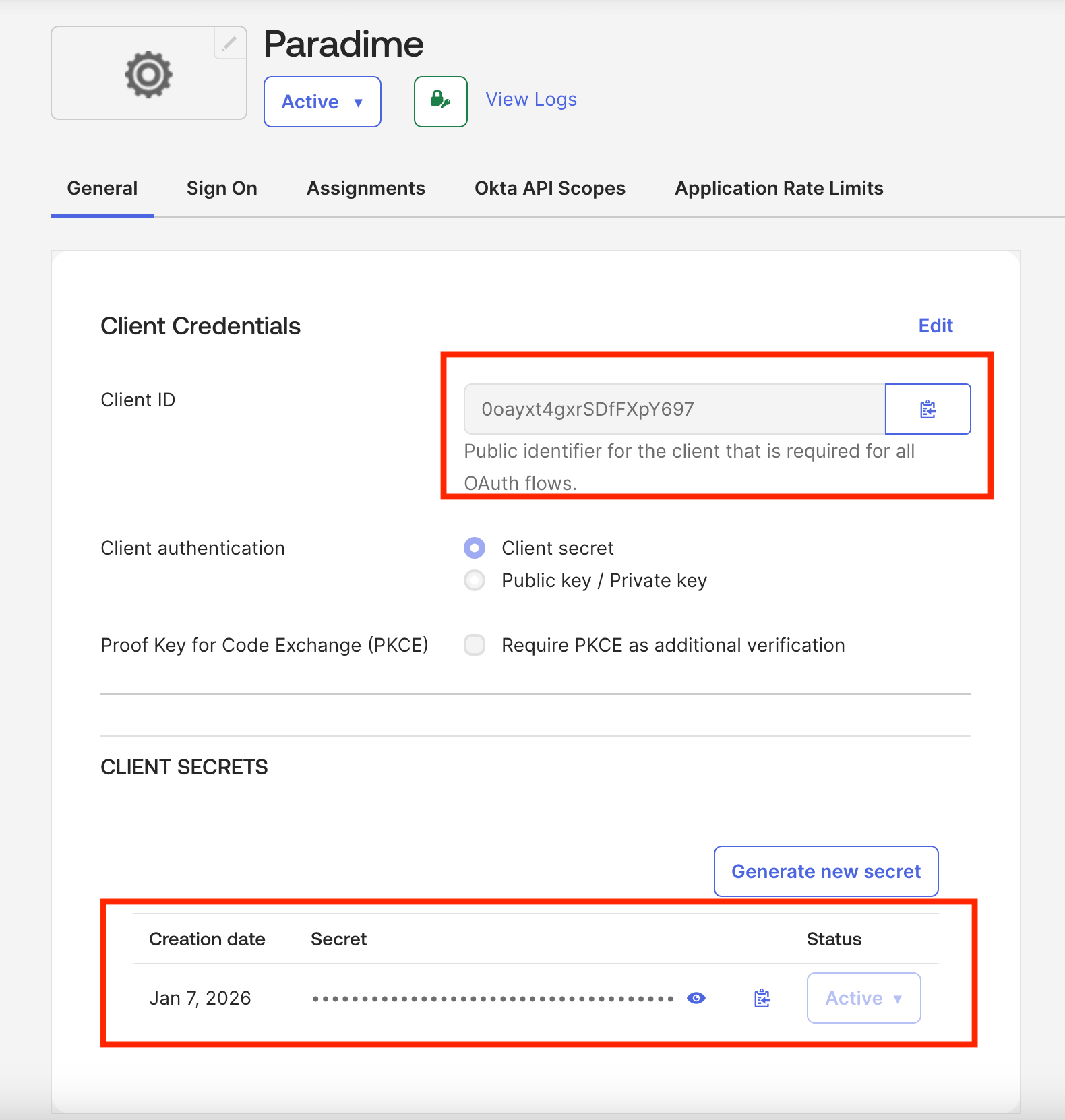
Once the Okta SSO Application is configured, reach out to the Paradime team at support@paradime.io and share the following information via a password manager like 1Password, Dashlane and similar.- Client ID
- Client Secret
- Okta Domain (You can find this by clicking your username in the upper-right corner of the Admin Console. The domain appears in the dropdown menu)
If you already have an existing Google or Github login setup, then using the Okta option, Paradime will automatically link your accounts and you can then use Okta SSO for all future logins.
- Once you have created the Paradime app, make it hidden so no user can access it.
- Create a bookmark app (instructions here) in Okta and point the app to
https://app.paradime.io - this way the user will always be directed to the Paradime login screen and will then use the Okta SSO to finally login to Paradime