

Trigger types
Scheduled
Runs the schedule automatically on a cron schedule.- Select Scheduled as the trigger type.
- Enter a cron schedule (for example,
0 0 * * *). Use Choose a preset for common intervals, or Cron help to build your own. - Select a timezone. The default is UTC.
For help writing cron expressions, use the Choose a preset dropdown, or visit crontab.guru.
On run completion
Runs the schedule after another Bolt schedule finishes, so you can chain dependent workflows, including across Paradime workspaces.- Select On run completion as the trigger type.
- In the Workspace Name dropdown, select the Paradime workspace that contains the triggering schedule.
- In the Bolt Schedule Name dropdown, select the schedule that acts as the trigger.
- Choose which parent outcome starts this run:
- Passed: only when the parent schedule completes successfully.
- Failed: only when the parent schedule completes with errors.
- Passed & Failed: whenever the parent schedule completes, regardless of outcome.
A parent run on a different git branch from its schedule’s own branch doesn’t start this schedule. This covers an API, CLI, or DinoAI trigger with a custom branch, or with a commit that isn’t on the schedule’s own branch, and a retry of such a run. A commit that is on the schedule’s own branch, such as the merge commit a CD pipeline passes, isn’t an override, so this schedule starts. For a parent schedule with no branch set, the workspace’s default branch counts as its own. The parent’s run page shows a Branch override pill. This keeps one chain from running two versions of your code.
A Turbo CI run doesn’t start schedules that run after it. They start only after the parent’s scheduled, manual, or API runs. To run a schedule after a Turbo CI schedule on the same pull request, use the Turbo CI trigger with Run after another schedule instead.
On merge
Runs the schedule when a pull request is merged into the branch, for continuous deployment workflows.- Select On merge as the trigger type.
- Optionally, turn on Run after another schedule to make this schedule a later step of a merge chain.
- Under When merges overlap, choose what happens when a merge arrives while this schedule is still running for an earlier one:
- Run in parallel (default): each merge starts its run straight away.
- Wait in line: one run at a time, in the order the pull requests merged. See Merge queue.
- Click Deploy to publish the schedule.
Turbo CI
Runs the schedule when a pull request is opened, building only the changed models so you can validate changes before they merge. See Turbo CI for the full setup, including per-provider configuration and schema cleanup. A workspace can have several Turbo CI schedules. Turn on Run after another schedule to run one after another on the same pull request.Run after another schedule
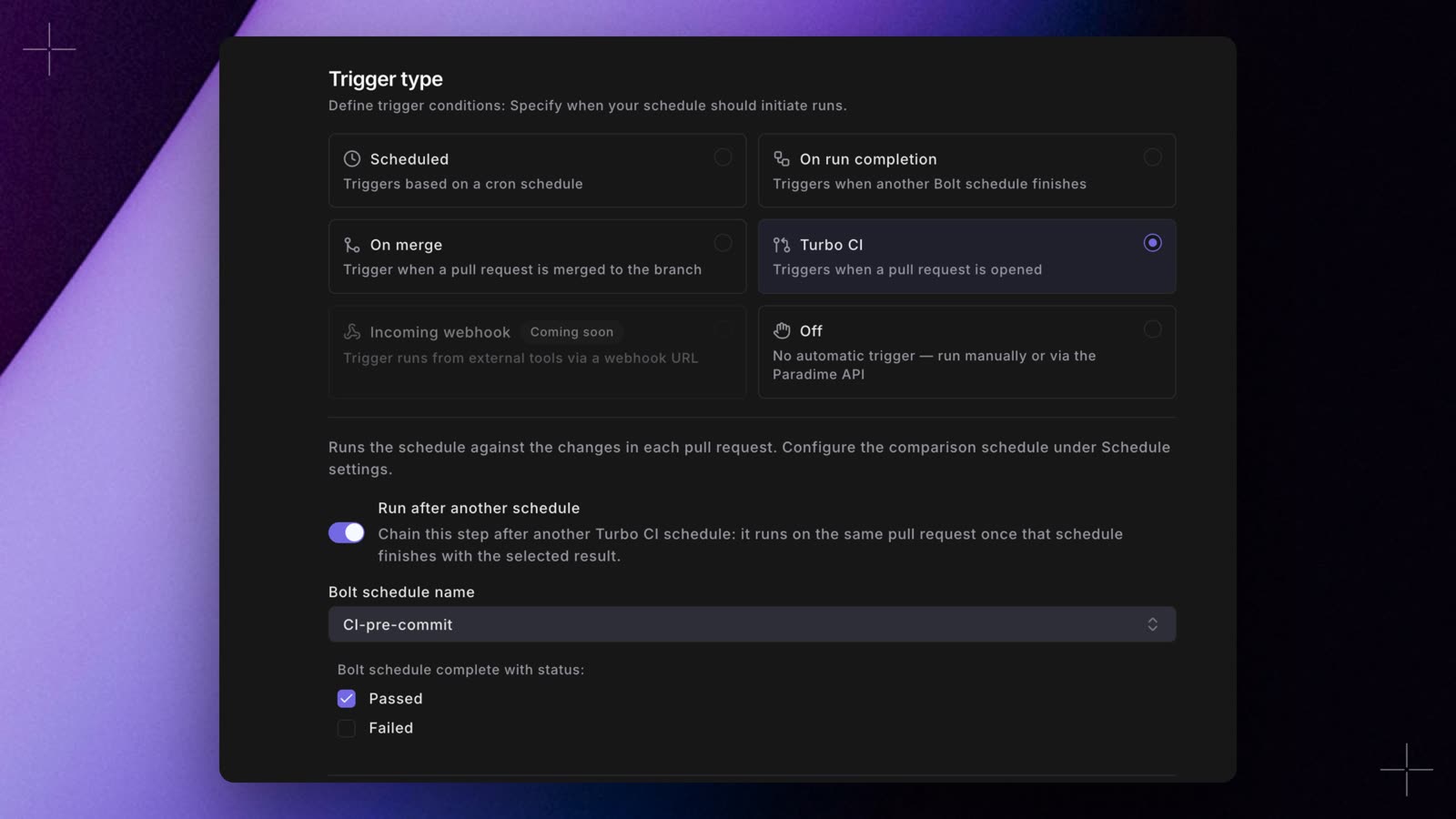
- Turn on Run after another schedule.
- In Bolt schedule name, pick the schedule to run after. Only schedules in the current workspace are listed. For a Turbo CI schedule, pick another Turbo CI schedule.
- Under Bolt schedule complete with status:, pick Passed, Failed, or both.
Incoming webhook
Runs the schedule when an external tool, such as Jira Automation, Zapier, or a CI job, sends aPOST request to one of the schedule’s incoming webhooks. The app lists each one as a Trigger URL.
- Create or edit the schedule and select Incoming webhook as the trigger type.
- In the Trigger URLs card, click New Trigger URL, name the webhook, and copy the URL and secret it shows.
- Click Deploy. On a new schedule, Deploy needs at least one active incoming webhook.
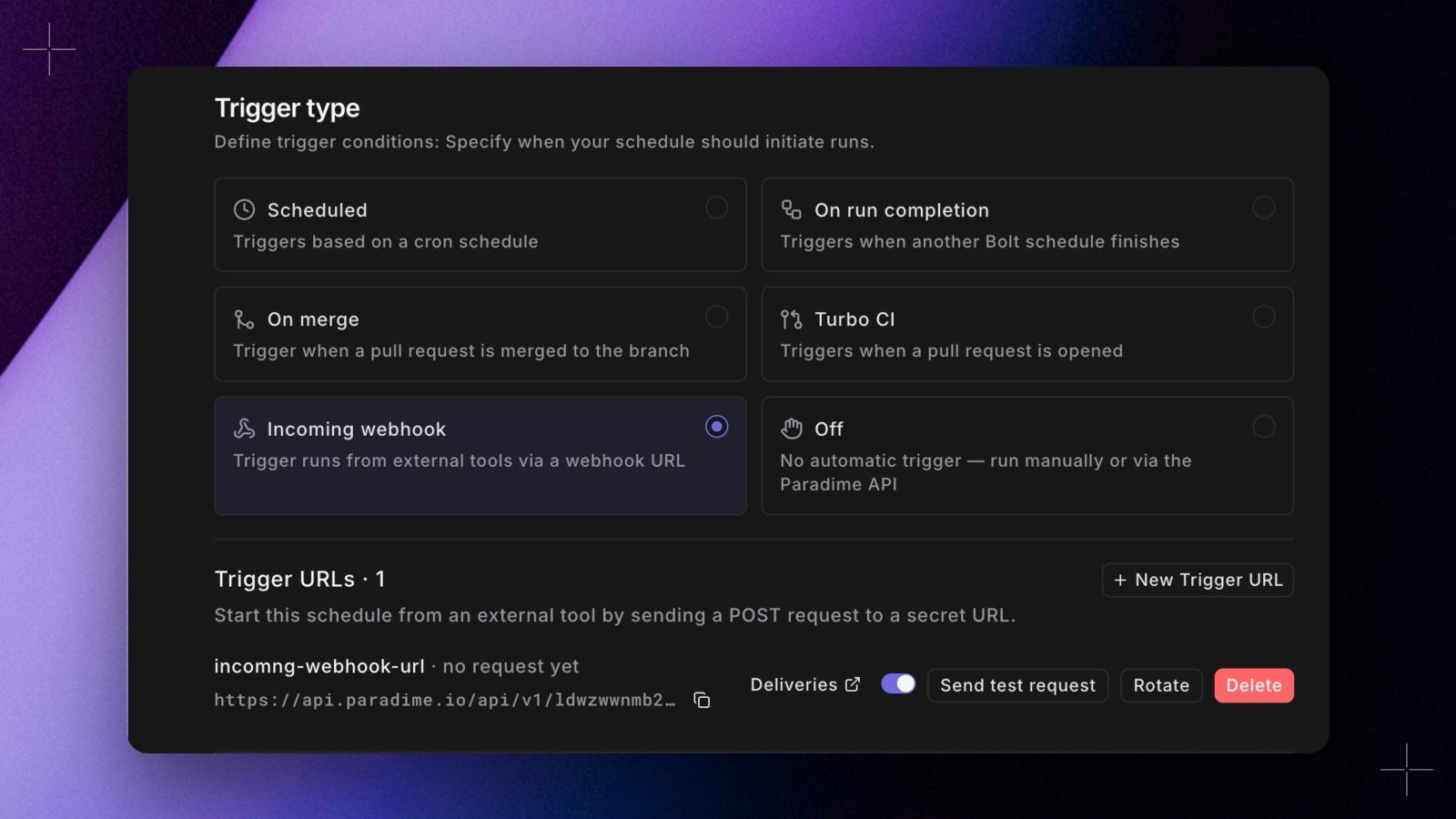
trigger_on_webhook: true, deploy, then create the webhooks on the schedule page. See Incoming webhooks for how to call the webhook, pass its request body to the run, check each request it receives, and pause or rotate it.
Off
No automatic trigger. The schedule only runs when you start it manually or call it through the Paradime API. Use this for on-demand schedules and for triggering Bolt from external systems such as Airflow, Dagster, or Prefect.- Select Off as the trigger type.
- Run the schedule manually from the Bolt UI, or trigger it with the Bolt API.
Next, configure the commands your schedule runs.
Define this as code
Set the trigger in YAML with
schedule, run_after (or schedule_trigger), trigger_on_merge, trigger_on_webhook, or turbo_ci.