

ci environment, the custom schema macro, and the Turbo CI job — then connect GitHub.
How Turbo CI works on GitHub
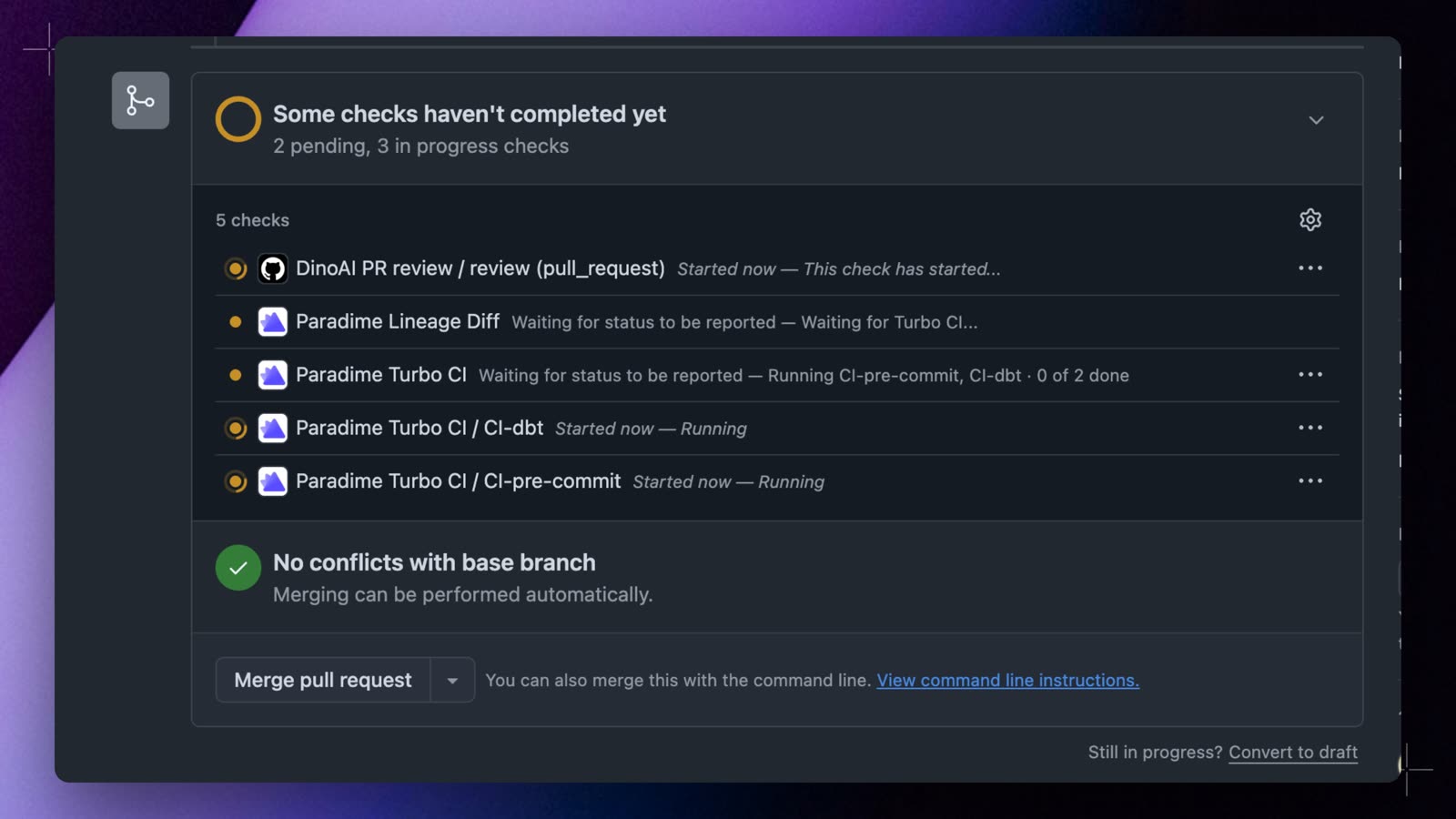
Paradime listens for pull request events from GitHub. Turbo CI runs on PR creation, reopening, and each new commit. When Paradime receives the webhook, Bolt triggers a run based on the Turbo CI job configuration. Models build into a temporary schema using the prefixparadime_turbo_ci_pr_ followed by the PR number (for example, paradime_turbo_ci_pr_123), and the run status shows on the pull request as the Paradime Turbo CI check. After the PR is merged, Paradime deletes the temporary schema.
With two or more Turbo CI schedules, each one also gets its own Paradime Turbo CI / <schedule name> check, and Paradime Turbo CI holds the overall result. To run them in order instead of all at once, see Chains.
DinoAI Summary on failed runs
When a Turbo CI run fails on a pull request, Paradime posts a DinoAI Summary as a comment on the PR, so reviewers can see why CI failed without leaving GitHub or opening the run logs. The PR comment includes:- The schedule name and commit SHA, with a link to view the full run in Paradime.
- A plain-language explanation of what went wrong (for example, which models failed and why).
- The list of errors with the affected model and the underlying error message.
- The exact command that failed (for example,
dbt run --select state:modified+).
Learn more about how DinoAI generates these summaries in Pipeline Insights.
DinoAI Code Review on pull requests
DinoAI Code Review reviews pull requests separately from Turbo CI and posts a Paradime Code Review check. When a review covers the run’s commit, the run’s details bar shows Reviewed by and the reviewer name, with a link to the review session. If no active reviewer watches the branch of a Turbo CI schedule, the schedule and run pages show No DinoAI reviewer watches and the branch name. Select Add a reviewer to create a reviewer for that branch. This prompt shows only when Code Review is on for your company and the repository supports it.Schedule Parse check on pull requests
Alongside the main Turbo CI run, Paradime exposes a separate, lightweight GitHub check calledParadime Schedule Parse that validates your YAML schedule configuration on every PR that modifies it. It uses the same validation logic as the paradime bolt verify CLI command, but runs automatically in GitHub on the PR head commit.
When it runs
The check runs when a pull request is opened or updated and the PR changes a schedule file (scoped to your configured dbt™ root):
- The legacy flat file
paradime_schedules.yml. - Any
.yamlor.ymlfile under the modular.bolt/directory.
- Every schedule parses as valid YAML and matches the Bolt schedule schema.
- Every schedule individually validates (required fields present, references resolve), the same rules the deployer applies when YAML schedules are merged to your default branch.
- Passed: all schedules in the changed files are valid.
- Passed with warnings: all schedules are valid, but a schedule runs after a Turbo CI schedule and has no Turbo CI of its own, so a pull request run never starts it. The check stays green and lists each schedule, its file, and the fix: turn on
turbo_cito make it a step of the pull request chain. - Failed: the check output lists each failing schedule with its source file and the validation error. Every failure in the PR is reported.
The Schedule Parse check is separate from the main
Paradime Turbo CI check, and they can pass or fail independently. Mark Paradime Schedule Parse as required in your branch protection rules to block merges that would introduce invalid schedule YAML.Filter Turbo CI runs by PR number
Filter Turbo CI runs by pull request number to see all runs for a specific PR:- Open Bolt and select the Turbo CI schedule.
- In the schedule’s Run history, enter the PR number in the search box (for example,
PR:183).