

ci environment, the custom schema macro, and the Turbo CI schedule. Then choose how GitLab starts the runs:
- With the GitLab connection (recommended): Paradime receives merge request events and runs your Turbo CI schedules. You do not need a pipeline or an API key.
- From a GitLab pipeline: your
.gitlab-ci.ymlcalls the Bolt API. Use this if you don’t use the GitLab connection.
Run Turbo CI with the GitLab connection
How Turbo CI works on GitLab
paradime_turbo_ci_pr_ followed by the merge request number, for example paradime_turbo_ci_pr_123. When the merge request is merged or closed, Paradime deletes the temporary schema.
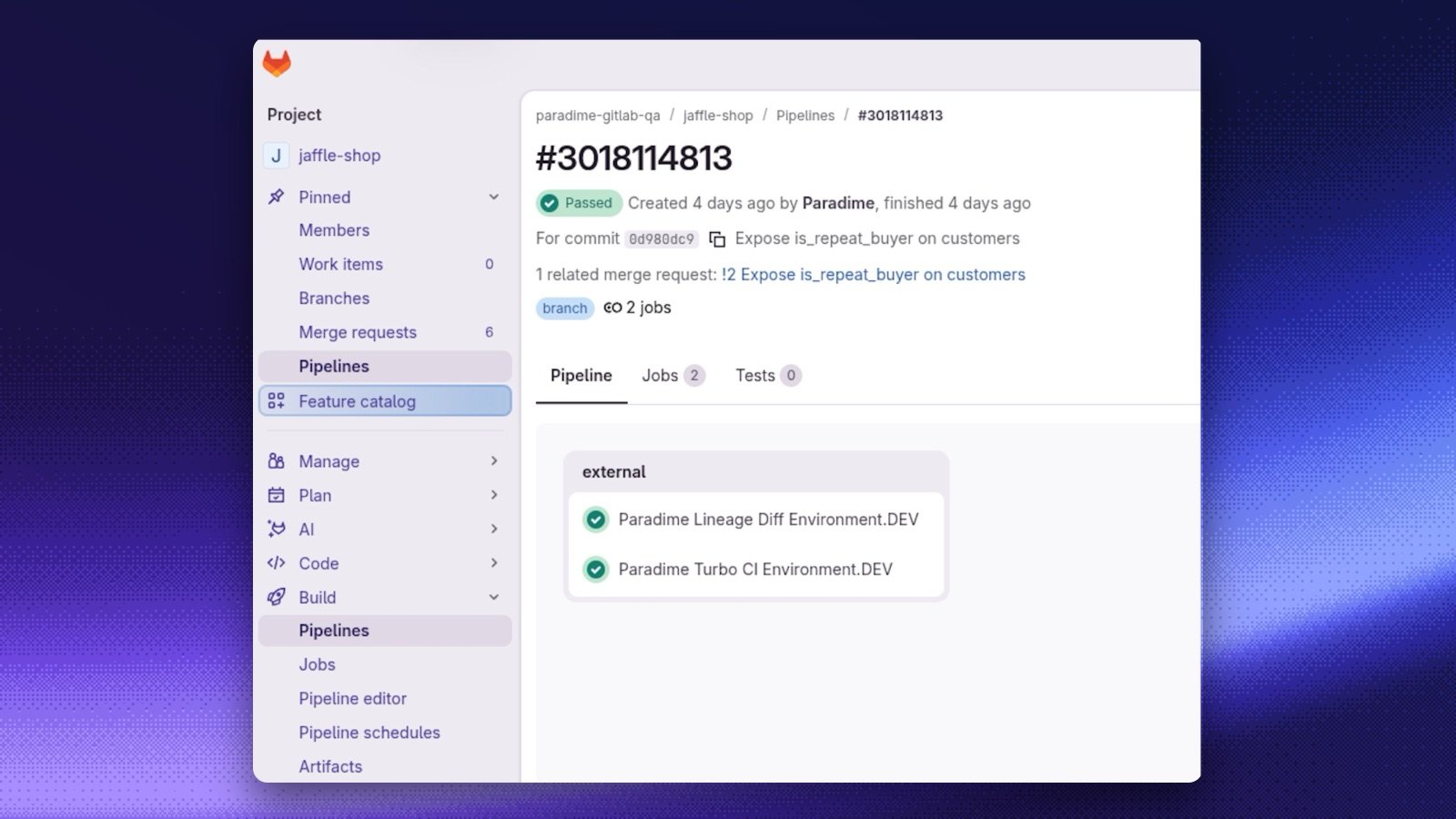
- Each Turbo CI schedule posts its own commit status on the merge request, and
Paradime Turbo CIholds the overall result. GitLab shows the statuses as an external pipeline on the commit. When several Paradime workspaces use the same project, each status name ends with/and the workspace name. To run the schedules in order, see Chains. - A draft merge request does not run Turbo CI. If a merge request becomes a draft, or is merged or closed, Paradime stops its running chain.
- To re-run a failed step, retry the run from Bolt, or comment
@paradime retryon the merge request. See Mention Paradime in a merge request. - When a Turbo CI run fails, Paradime posts a DinoAI summary of the failure as a note on the merge request, like the DinoAI Summary on GitHub.
Filter Turbo CI runs by merge request number
- Open Bolt and select the Turbo CI schedule.
- In the schedule’s Run history, enter the merge request number in the search box, for example
PR:183.
Environment variables
Runs that the GitLab connection starts get these system environment variables, which you can use in custom macro or schema logic:Run Turbo CI from a GitLab pipeline
Generate API keys
To trigger the Turbo CI schedule from your pipeline, generate a Paradime API key with the Bolt schedules admin capability. Generate an Account API key (aprdm_cmp_... Bearer token) and save the token, your workspace token, and the API endpoint; you will add them as CI/CD variables in the next step.
Generate API keys
Create a GitLab pipeline
Create a.gitlab-ci.yml file at the root of your dbt™ repository and enter the values required.
.gitlab-ci.yml
Add the variables in GitLab
Add these as GitLab CI/CD variables:PARADIME_API_SECRET— your account API key (prdm_cmp_...)PARADIME_WORKSPACE_UID— your workspace tokenPARADIME_API_ENDPOINT