Before you connect a workspace through the GitLab connection, install the connection on the project. See Connect gitlab.com or Connect GitLab Self-Managed.
Connect a workspace through the GitLab connection
- In Paradime, go to Settings > Git Repository.
- In Choose your provider, select GitLab.
- In Choose how Paradime connects, select GitLab connection and click Continue.
- If your company has no GitLab connection that covers the project yet, click Set up the GitLab connection. Paradime opens the GitLab integration page. Install the connection, then come back to this page.
- In Pick the project, select the project. The list shows only the projects that a GitLab connection reaches.
- Click Connect project.
In workspace setup
When you create a new workspace, the repository step has the same choice:- Choose GitLab, then GitLab connection.
- If GitLab is not connected yet, choose GitLab (your projects live on gitlab.com) or GitLab Self-Managed (your company runs its own GitLab instance), and install the connection in the same step.
- In Pick the project, select the project and click Connect project.
A workspace that already has a repository can connect only that same project through the GitLab connection. To use a different project, click Change repository first. See Update connected git repository.
Switch a deploy-key workspace to HTTPS
When a GitLab connection already covers the project of a workspace that uses a deploy key, the Git Repository page shows a banner: Switch to HTTPS: the GitLab connection to<host> already covers this project.
- Go to Settings > Git Repository.
- In the banner, click Switch to HTTPS through GitLab.
What changes for the workspace
On a workspace connected through the GitLab connection, every part of Paradime uses HTTPS:Link your GitLab account
To use git in the Code IDE on a workspace connected through GitLab, each person links their own GitLab account. Their commits and pushes are then made as them.- Go to Settings > Integrations and open the Personal tab.
- On the GitLab tile, click Connect.
- Sign in to GitLab and authorize Paradime.
<your GitLab username>.
If you push from the Code IDE before you link your account, the git error has a link. The link opens a page that starts the GitLab sign-in in one click.
On GitLab Self-Managed, the GitLab tile shows only when the Paradime OAuth application is registered on your instance. See Register the OAuth application. If your company set a sign-in URL, your browser opens GitLab at that address.
DinoAI agents on GitLab
On a workspace connected through the GitLab connection, a DinoAI agent session works on GitLab like this:- The agent pushes only to its own branch,
paradime/<session id>. It cannot push tomainor to any other branch. - When the agent opens a merge request, GitLab shows the person who started the session as its author, if they linked their GitLab account. Otherwise the Paradime bot opens it. The agent never sees the person’s token.
- The agent’s commits have
DinoAIas the author and the person who started the session as a co-author. - The agent can read the project and its merge requests, open a merge request from its own branch, and comment on that merge request. It cannot approve, merge, or edit merge requests, or change project settings.
When the connection cannot reach the project
The Git Repository page tells you when a workspace loses its GitLab connection:Connect with a deploy key
You can also connect a GitLab project with an SSH deploy key. If the project is also on a GitLab connection, Turbo CI, on-merge runs, and Lineage Diff still work with no pipeline. If it is not, they need a GitLab pipeline.Create a service account user in GitLab, for example
paradime.gitlab.maintainer@yourcompany.com, with write access to the project, and let this user own the deploy key.- In Paradime, import your repository with its SSH URL to generate a deploy key. See Importing a repository.
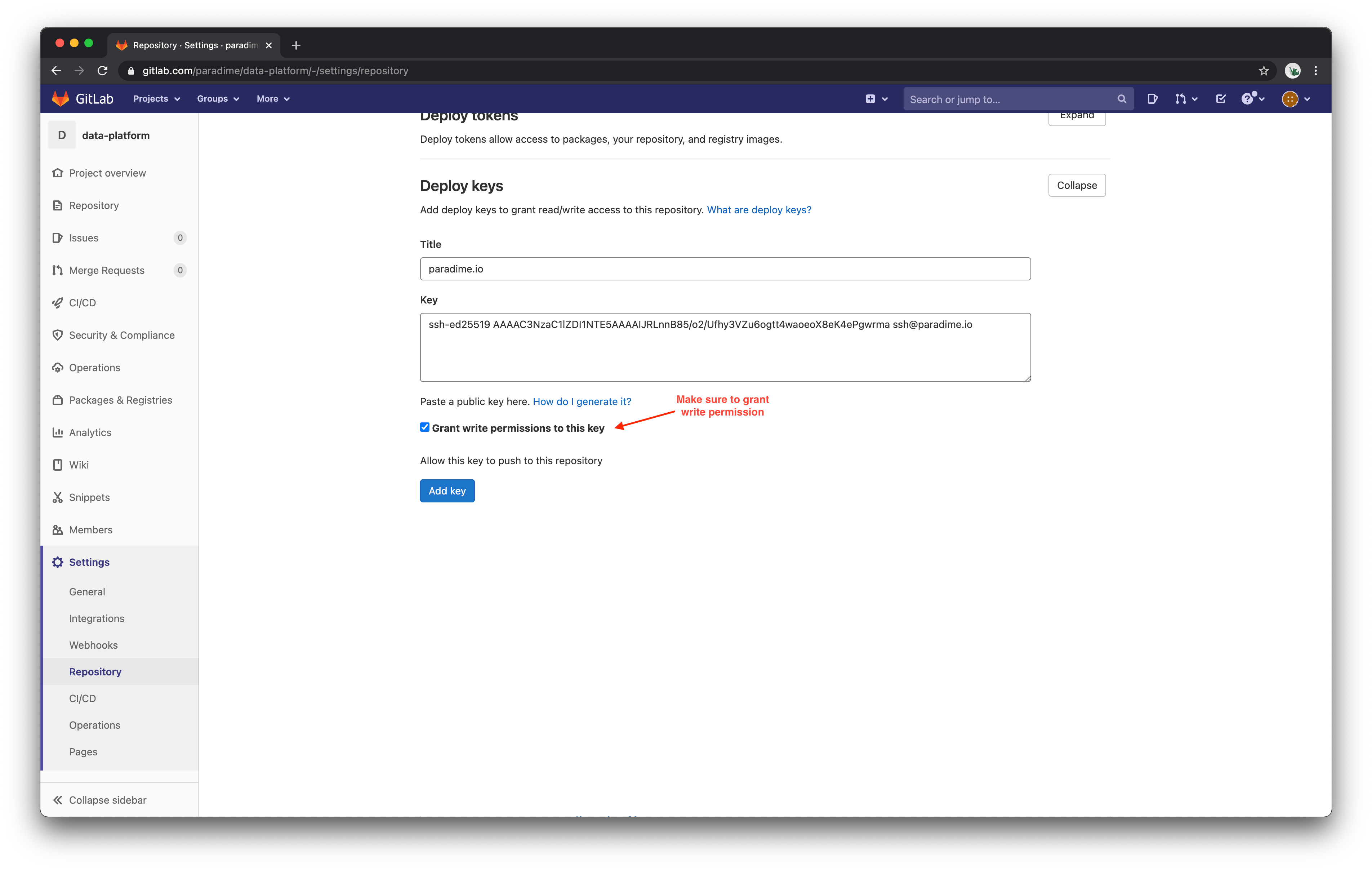
- In GitLab, open your project’s Settings > Repository.
- Expand Deploy keys and paste the deploy key from Paradime.
- Select Grant write permissions to this key, then save the key.