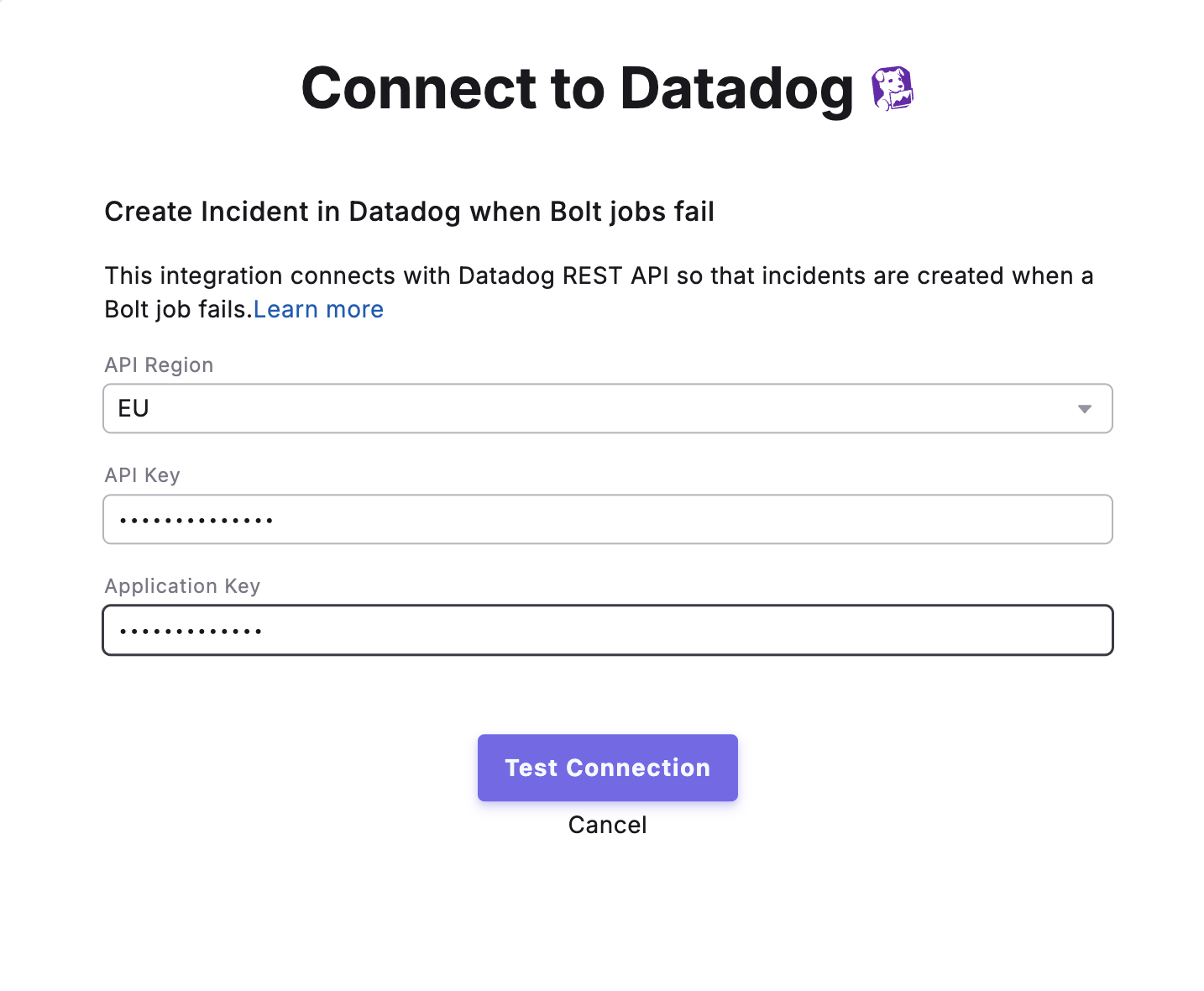
Connect Datadog to Paradime to automatically create incidents when your Bolt pipelines fail, and monitor dbt™ pipeline health alongside the rest of your stack.
Datadog is a monitoring and observability platform. Connecting Datadog to Paradime automatically creates incidents in Datadog whenever a Bolt schedule fails, so your team can track and resolve dbt™ pipeline issues inside the same incident workflows you already use.
Enable Datadog Incident Creation to automatically create incidents in Datadog when the schedule fails.
Once enabled, any failures in the configured Bolt schedules will automatically trigger incident creation in Datadog, allowing your team to respond quickly to data pipeline issues.
{"docsConfig":{"theme":"mint","$schema":"https://mintlify.com/docs.json","name":"Paradime","colors":{"primary":"#726AE3","light":"#9291F4","dark":"#5943D6"},"logo":{"light":"https://mintcdn.com/paradime-docs/C-R77mCdstNPsNTv/logo/paradime-logo-light-mode.svg?fit=max\u0026auto=format\u0026n=C-R77mCdstNPsNTv\u0026q=85\u0026s=7a32141c8f01f795c35f0c3c48b2f26a","dark":"https://mintcdn.com/paradime-docs/C-R77mCdstNPsNTv/logo/paradime-logo-dark-mode.svg?fit=max\u0026auto=format\u0026n=C-R77mCdstNPsNTv\u0026q=85\u0026s=e8b1dae8a943bf2a7c4d0088d7cc107b"},"favicon":"https://mintcdn.com/paradime-docs/F1X35JoCsYMKtOFi/favicon.svg?fit=max\u0026auto=format\u0026n=F1X35JoCsYMKtOFi\u0026q=85\u0026s=4ba032ce7ca6b66ccd44805e1e22567a","appearance":{"default":"system"},"background":{"decoration":"gradient"},"navbar":{"links":[{"href":"mailto:support@paradime.io","label":"Support"}],"primary":{"type":"button","label":"Launch Paradime","href":"https://app.paradime.io"}},"footer":{"socials":{"x":"https://x.com/paradimelabs","github":"https://github.com/paradime-io","linkedin":"https://www.linkedin.com/company/paradimelabs"},"links":[{"header":"Resources","items":[{"label":"Paradime Blog","href":"https://www.paradime.io/blog"},{"label":"SQL Resources Hub","href":"https://www.paradime.io/sql"},{"label":"Community","href":"https://paradimers.slack.com/join/shared_invite/zt-1mzax4sb8-jgw~hXRlDHAx~KN0az18bw"}]}]},"fonts":{"family":"Geist"},"icons":{"library":"lucide"},"styling":{"eyebrows":"breadcrumbs","codeblocks":"system","latex":true},"contextual":{"options":["copy","view","chatgpt","claude","perplexity","mcp","cursor","vscode"],"display":"header"},"thumbnails":{"appearance":"light"},"markdown":{"schema":true},"navigation":{"pages":[]}},"deployment":{"deploymentMetadataValue":{"subdomain":"paradime-docs","hasAudioNarration":false,"actualSubdomain":"paradime-docs","customDomains":["docs.paradime.io"],"gitSource":{"type":"github","owner":"paradime-io","repo":"paradime-docs-mintlify","deployBranch":"main","contentDirectory":"paradime-docs","isPrivate":true,"mountPath":"","label":""},"chroma":{"liveDeploymentHistoryId":"6ae9aad85ef2c10d596e22d0","collectionId":"0ae7ba9e-9bdb-49b2-acf1-c49a95f71a3e","schemaVersion":"v3","latestBuiltDeploymentHistoryId":"6ae9aad85ef2c10d596e22d0"},"entitlements":{"AI_CHAT":{"status":"ENABLED"},"WEB_MCP":{"status":"ENABLED"},"NARRATION":{"status":"ENABLED"}},"buildId":"6aedf586aaaef32f9954dbde","clientVersion":"0.0.4076","searchFilterCounts":[{"language":"default","tag":"Products","count":294},{"language":"default","tag":"Guides","count":183},{"language":"default","tag":"Integrations","count":166},{"language":"default","tag":"Changelog","count":111},{"language":"default","tag":"DinoAI","count":95},{"language":"default","tag":"Bolt","count":83},{"language":"default","tag":"Developers","count":57},{"language":"default","tag":"Orchestrate data pipelines","count":45},{"language":"default","tag":"Schedule Anatomy","count":45},{"language":"default","tag":"Administration","count":45}]},"assistantConfig":{"enableAskAiButton":false,"enableStarterQuestions":false,"enableContextualStarterQuestions":false,"enableAskAiSearchBar":true},"basePath":"","hasChatPermissions":true,"hasWebMcpPermissions":true,"toggles":[{"name":"kill-isr","enabled":true,"variant":{"name":"disabled","enabled":false,"feature_enabled":true},"impressionData":false},{"name":"agent-mintlify-slack","enabled":true,"variant":{"name":"disabled","enabled":false,"feature_enabled":true},"impressionData":false},{"name":"agent-integrations-settings","enabled":true,"variant":{"name":"disabled","enabled":false,"feature_enabled":true},"impressionData":false},{"name":"rbac-expansion","enabled":true,"variant":{"name":"disabled","enabled":false,"feature_enabled":true},"impressionData":false},{"name":"automations-pr-grouping","enabled":true,"variant":{"name":"disabled","enabled":false,"feature_enabled":true},"impressionData":false},{"name":"custom-prefix","enabled":true,"variant":{"name":"disabled","enabled":false,"feature_enabled":true},"impressionData":false},{"name":"analytics-v7","enabled":true,"variant":{"name":"disabled","enabled":false,"feature_enabled":true},"impressionData":false},{"name":"user-flows-analytics","enabled":true,"variant":{"name":"disabled","enabled":false,"feature_enabled":true},"impressionData":false},{"name":"no-publish-flow","enabled":true,"variant":{"name":"disabled","enabled":false,"feature_enabled":true},"impressionData":false},{"name":"workos-onboarding","enabled":true,"variant":{"name":"disabled","enabled":false,"feature_enabled":true},"impressionData":false},{"name":"llms-txt-v2","enabled":true,"variant":{"name":"disabled","enabled":false,"feature_enabled":true},"impressionData":false},{"name":"snapshot-serving-live","enabled":true,"variant":{"name":"disabled","enabled":false,"feature_enabled":true},"impressionData":false},{"name":"stripTemperatureMiddleware","enabled":true,"variant":{"name":"disabled","enabled":false,"feature_enabled":true},"impressionData":false},{"name":"support-platform-pylon-zendesk","enabled":true,"variant":{"name":"disabled","enabled":false,"feature_enabled":true},"impressionData":false},{"name":"snapshot-serving","enabled":true,"variant":{"name":"disabled","enabled":false,"feature_enabled":true},"impressionData":false},{"name":"instant-rollback","enabled":true,"variant":{"name":"disabled","enabled":false,"feature_enabled":true},"impressionData":false},{"name":"granular-notifications-server","enabled":true,"variant":{"name":"disabled","enabled":false,"feature_enabled":true},"impressionData":false},{"name":"granular-notifications","enabled":true,"variant":{"name":"disabled","enabled":false,"feature_enabled":true},"impressionData":false},{"name":"automations-fable","enabled":true,"variant":{"name":"disabled","enabled":false,"feature_enabled":true},"impressionData":false},{"name":"fixed-ai-action-pricing","enabled":true,"variant":{"name":"disabled","enabled":false,"feature_enabled":true},"impressionData":false},{"name":"automation-resolve-merge-conflict","enabled":true,"variant":{"name":"disabled","enabled":false,"feature_enabled":true},"impressionData":false},{"name":"scoped-publishing","enabled":true,"variant":{"name":"disabled","enabled":false,"feature_enabled":true},"impressionData":false},{"name":"mintql","enabled":true,"variant":{"name":"disabled","enabled":false,"feature_enabled":true},"impressionData":false},{"name":"page-level-analytics","enabled":true,"variant":{"name":"disabled","enabled":false,"feature_enabled":true},"impressionData":false},{"name":"editor-version-history-v2","enabled":true,"variant":{"name":"disabled","enabled":false,"feature_enabled":true},"impressionData":false},{"name":"billing-page-v2","enabled":true,"variant":{"name":"disabled","enabled":false,"feature_enabled":true},"impressionData":false},{"name":"full-page-search","enabled":true,"variant":{"name":"disabled","enabled":false,"feature_enabled":true},"impressionData":false},{"name":"workspace-projects","enabled":true,"variant":{"name":"disabled","enabled":false,"feature_enabled":true},"impressionData":false},{"name":"assistant-v5","enabled":true,"variant":{"name":"disabled","enabled":false,"feature_enabled":true},"impressionData":false},{"name":"fork-pr-previews","enabled":true,"variant":{"name":"disabled","enabled":false,"feature_enabled":true},"impressionData":false},{"name":"revalidation-jwt","enabled":true,"variant":{"name":"disabled","enabled":false,"feature_enabled":true},"impressionData":false},{"name":"workos-sso-scim","enabled":true,"variant":{"name":"disabled","enabled":false,"feature_enabled":true},"impressionData":false},{"name":"hobby-abuse-scan","enabled":true,"variant":{"name":"disabled","enabled":false,"feature_enabled":true},"impressionData":false},{"name":"dashboard-inbox","enabled":true,"variant":{"name":"disabled","enabled":false,"feature_enabled":true},"impressionData":false},{"name":"workos-signup","enabled":true,"variant":{"name":"disabled","enabled":false,"feature_enabled":true},"impressionData":false},{"name":"turbopuffer-dual-write","enabled":true,"variant":{"name":"disabled","enabled":false,"feature_enabled":true},"impressionData":false},{"name":"workos-enabled","enabled":true,"variant":{"name":"disabled","enabled":false,"feature_enabled":true},"impressionData":false},{"name":"approve-review-flow","enabled":true,"variant":{"name":"disabled","enabled":false,"feature_enabled":true},"impressionData":false},{"name":"sso-setup-deadline-banner","enabled":true,"variant":{"name":"disabled","enabled":false,"feature_enabled":true},"impressionData":false},{"name":"turbopuffer-serve","enabled":true,"variant":{"name":"disabled","enabled":false,"feature_enabled":true},"impressionData":false},{"name":"live-agents","enabled":true,"variant":{"name":"disabled","enabled":false,"feature_enabled":true},"impressionData":false},{"name":"comment-mode","enabled":true,"variant":{"name":"disabled","enabled":false,"feature_enabled":true},"impressionData":false}],"googleFontsInlined":true},"customCss":[{"filePath":"custom.css","content":"#navigation-items>ul.sidebar-group~ul.sidebar-group{margin-top:0}#navigation-items a .rounded-md[style*=\"background\"] svg{background:white!important}div[class*=\"w-[160px]\"] .flex.flex-wrap>span.inline-block.rounded-lg.font-medium{padding:2px 8px;background-color:rgba(114, 106, 227, 0.12);color:#5943D6}#content-area h1,#content-area h2,#content-area h3,#content-area h4{letter-spacing:-0.03em}#content-area #page-title{font-size:2.25rem;line-height:1.1}.nav-logo{height:22px}#background-color::after{content:\"\";position:absolute;inset:0;pointer-events:none;background-image:linear-gradient(to right, rgba(114, 106, 227, 0.13) 1px, transparent 1px),\n linear-gradient(to bottom, rgba(114, 106, 227, 0.13) 1px, transparent 1px);background-size:44px 44px;-webkit-mask-image:radial-gradient(700px circle at 100% 0%, black 12%, transparent 68%),\n radial-gradient(700px circle at 0% 0%, black 12%, transparent 68%);-webkit-mask-composite:source-over;mask-image:radial-gradient(700px circle at 100% 0%, black 12%, transparent 68%),\n radial-gradient(700px circle at 0% 0%, black 12%, transparent 68%);mask-composite:add}#sidebar .sidebar-group-header{color:rgb(113, 113, 122)}#sidebar div:has(>.sidebar-group-header)~div:has(>.sidebar-group-header){border-top:1px solid rgba(128, 128, 140, 0.18);padding-top:1.25rem}img[src*=\"dino-ai\"]{background:transparent!important;filter:brightness(0) invert(0.64)}a[aria-current=\"location\"] img[src*=\"dino-ai\"],a.group:hover img[src*=\"dino-ai\"]{filter:brightness(0) invert(1)}img.sidebar-group-icon[src*=\"slack\"]{filter:brightness(0) invert(0.44)}"}],"page":{"pagePath":"integrations/datadog","slug":"/integrations/datadog","pageMetadata":{"title":"Datadog","description":"Connect Datadog to Paradime to automatically create incidents when your Bolt pipelines fail, and monitor dbt™ pipeline health alongside the rest of your stack.","href":"/integrations/datadog"},"description":{"compiledSource":"\"use strict\";\nconst {jsx: _jsx} = arguments[0];\nconst {useMDXComponents: _provideComponents} = arguments[0];\nfunction _createMdxContent(props) {\n const _components = {\n p: \"p\",\n ..._provideComponents(),\n ...props.components\n };\n return _jsx(_components.p, {\n children: \"Connect Datadog to Paradime to automatically create incidents when your Bolt pipelines fail, and monitor dbt™ pipeline health alongside the rest of your stack.\"\n });\n}\nfunction MDXContent(props = {}) {\n const {wrapper: MDXLayout} = {\n ..._provideComponents(),\n ...props.components\n };\n return MDXLayout ? _jsx(MDXLayout, {\n ...props,\n children: _jsx(_createMdxContent, {\n ...props\n })\n }) : _createMdxContent(props);\n}\nreturn {\n default: MDXContent\n};\n","frontmatter":{},"scope":{}},"pageType":"default","mdx":{"mdxSource":{"compiledSource":"\"use strict\";const{Fragment:_Fragment,jsx:_jsx,jsxs:_jsxs}=arguments[0];const{useMDXComponents:_provideComponents}=arguments[0];function _createMdxContent(props){const _components={a:`a`,code:`code`,li:`li`,ol:`ol`,p:`p`,strong:`strong`,ul:`ul`,..._provideComponents(),...props.components},{Frame,Heading,OptimizedImage,Warning}=_components;if(!Frame)_missingMdxReference(`Frame`,true);if(!Heading)_missingMdxReference(`Heading`,true);if(!OptimizedImage)_missingMdxReference(`OptimizedImage`,true);if(!Warning)_missingMdxReference(`Warning`,true);return _jsxs(_Fragment,{children:[_jsxs(_components.p,{children:[_jsx(_components.a,{href:`https://www.datadoghq.com/`,children:`Datadog`}),` is a monitoring and observability platform. Connecting Datadog to Paradime automatically creates incidents in Datadog whenever a Bolt schedule fails, so your team can track and resolve dbt™ pipeline issues inside the same incident workflows you already use.`]}),`\n`,_jsx(Heading,{level:`2`,id:`what-you-can-do`,children:`What you can do`}),`\n`,_jsxs(_components.ul,{children:[`\n`,_jsx(_components.li,{children:`Automatically track dbt™ run failures as Datadog incidents`}),`\n`,_jsx(_components.li,{children:`Leverage Datadog’s incident management workflows for data pipelines`}),`\n`,_jsx(_components.li,{children:`Monitor pipeline health alongside your application monitoring`}),`\n`,_jsx(_components.li,{children:`Reduce time to resolution for data pipeline issues`}),`\n`]}),`\n`,_jsx(Heading,{level:`2`,id:`prerequisites`,children:`Prerequisites`}),`\n`,_jsx(_components.p,{children:`Before connecting Datadog to Paradime, make sure you have:`}),`\n`,_jsxs(_components.ul,{children:[`\n`,_jsx(_components.li,{children:`An existing Bolt schedule`}),`\n`,_jsx(_components.li,{children:`A Datadog account`}),`\n`,_jsx(_components.li,{children:`A Datadog API Key`}),`\n`,_jsxs(_components.li,{children:[`A Datadog Application Key with the following permissions:`,`\n`,_jsxs(_components.ul,{children:[`\n`,_jsx(_components.li,{children:_jsx(_components.code,{children:`incident_notification_settings_read`})}),`\n`,_jsx(_components.li,{children:_jsx(_components.code,{children:`incident_read`})}),`\n`,_jsx(_components.li,{children:_jsx(_components.code,{children:`incident_write`})}),`\n`,_jsx(_components.li,{children:_jsx(_components.code,{children:`teams_read`})}),`\n`,_jsx(_components.li,{children:_jsx(_components.code,{children:`user_access_read`})}),`\n`]}),`\n`]}),`\n`]}),`\n`,_jsx(Heading,{level:`2`,id:`step-1-gather-your-datadog-credentials`,children:`Step 1: Gather your Datadog credentials`}),`\n`,_jsxs(_components.ol,{children:[`\n`,_jsxs(_components.li,{children:[_jsx(_components.strong,{children:`Generate an API Key:`}),` follow the instructions in the `,_jsx(_components.a,{href:`https://docs.datadoghq.com/account_management/api-app-keys/#api-keys`,children:`Datadog documentation`}),` and copy your API Key.`]}),`\n`,_jsxs(_components.li,{children:[_jsx(_components.strong,{children:`Generate an Application Key:`}),` follow the instructions in the `,_jsx(_components.a,{href:`https://docs.datadoghq.com/account_management/api-app-keys/#application-keys`,children:`Datadog documentation`}),` and copy your Application Key.`]}),`\n`]}),`\n`,_jsx(Warning,{children:_jsxs(_components.p,{children:[_jsx(_components.strong,{children:`Important:`}),` Store your API Key and Application Key securely. You will need both to configure the Paradime integration.`]})}),`\n`,_jsx(Heading,{level:`2`,id:`step-2-connect-datadog-to-paradime`,children:`Step 2: Connect Datadog to Paradime`}),`\n`,_jsxs(_components.ol,{children:[`\n`,_jsxs(_components.li,{children:[`In Paradime, go to `,_jsx(_components.strong,{children:`Settings → Integrations`}),` (see `,_jsx(_components.a,{href:`/integrations/connecting-integrations`,children:`connecting integrations`}),`), find `,_jsx(_components.strong,{children:`Datadog`}),`, and click `,_jsx(_components.strong,{children:`Connect`}),`.`]}),`\n`,_jsx(_components.li,{children:`Select your Datadog API region.`}),`\n`,_jsx(_components.li,{children:`Enter your Datadog API Key into the field provided.`}),`\n`,_jsx(_components.li,{children:`Enter your Datadog Application Key into the field provided.`}),`\n`,_jsxs(_components.li,{children:[`Click `,_jsx(_components.strong,{children:`Create`}),` to establish the connection.`]}),`\n`]}),`\n`,_jsx(_components.p,{children:`Once connected, Paradime will automatically create incidents in Datadog whenever Bolt runs fail.`}),`\n`,_jsx(Frame,{children:_jsx(OptimizedImage,{src:`https://mintcdn.com/paradime-docs/vrtvqFryCVgm3kAH/images/image-3-1-1.png?fit=max\u0026auto=format\u0026n=vrtvqFryCVgm3kAH\u0026q=85\u0026s=16238b4e812d1c720494684a6a5eb9d6`,alt:`Connecting Datadog in Paradime`,\"data-og-width\":`1434`,width:`1434`,\"data-og-height\":`1180`,height:`1180`,\"data-path\":`images/image-3-1-1.png`,\"data-optimize\":`true`,\"data-opv\":`3`,srcset:`https://mintcdn.com/paradime-docs/vrtvqFryCVgm3kAH/images/image-3-1-1.png?w=280\u0026fit=max\u0026auto=format\u0026n=vrtvqFryCVgm3kAH\u0026q=85\u0026s=269f6abdb06e6559eed91b0e842ea488 280w, https://mintcdn.com/paradime-docs/vrtvqFryCVgm3kAH/images/image-3-1-1.png?w=560\u0026fit=max\u0026auto=format\u0026n=vrtvqFryCVgm3kAH\u0026q=85\u0026s=f3fac8032430c1bb91c6243fe8598610 560w, https://mintcdn.com/paradime-docs/vrtvqFryCVgm3kAH/images/image-3-1-1.png?w=840\u0026fit=max\u0026auto=format\u0026n=vrtvqFryCVgm3kAH\u0026q=85\u0026s=cc1bffc377d3754519b12786eeae8517 840w, https://mintcdn.com/paradime-docs/vrtvqFryCVgm3kAH/images/image-3-1-1.png?w=1100\u0026fit=max\u0026auto=format\u0026n=vrtvqFryCVgm3kAH\u0026q=85\u0026s=1bfca0039a9ad99644c66ad077ed8e72 1100w, https://mintcdn.com/paradime-docs/vrtvqFryCVgm3kAH/images/image-3-1-1.png?w=1650\u0026fit=max\u0026auto=format\u0026n=vrtvqFryCVgm3kAH\u0026q=85\u0026s=ae6ff72a686681d2a8e5302babd34219 1650w, https://mintcdn.com/paradime-docs/vrtvqFryCVgm3kAH/images/image-3-1-1.png?w=2500\u0026fit=max\u0026auto=format\u0026n=vrtvqFryCVgm3kAH\u0026q=85\u0026s=ab6e2a1f82f9ac6dea1eb91119055b15 2500w`})}),`\n`,_jsx(Heading,{level:`2`,id:`enable-datadog-for-your-bolt-schedules`,children:`Enable Datadog for your Bolt schedules`}),`\n`,_jsx(_components.p,{children:`After enabling the integration, configure which Bolt schedules should create incidents in Datadog when they fail.`}),`\n`,_jsxs(_components.ol,{children:[`\n`,_jsxs(_components.li,{children:[`Navigate to `,_jsx(_components.strong,{children:`Bolt → Schedules`}),` in the Paradime interface.`]}),`\n`,_jsx(_components.li,{children:`Select the schedule you want to monitor.`}),`\n`,_jsxs(_components.li,{children:[`Open the `,_jsx(_components.a,{href:`/products/bolt/creating-schedules/trigger-integrations/trigger-datadog-incidents`,children:_jsx(_components.strong,{children:`Integration Settings`})}),` for that schedule.`]}),`\n`,_jsxs(_components.li,{children:[`Enable `,_jsx(_components.strong,{children:`Datadog Incident Creation`}),` to automatically create incidents in Datadog when the schedule fails.`]}),`\n`]}),`\n`,_jsxs(_components.p,{children:[`Once enabled, any failures in the configured `,_jsx(_components.a,{href:`/products/bolt/index`,children:`Bolt schedules`}),` will automatically trigger incident creation in Datadog, allowing your team to respond quickly to data pipeline issues.`]})]})}function MDXContent(props={}){const{wrapper:MDXLayout}={..._provideComponents(),...props.components};return MDXLayout?_jsx(MDXLayout,{...props,children:_jsx(_createMdxContent,{...props})}):_createMdxContent(props)}return{default:MDXContent};function _missingMdxReference(id,component){throw new Error(`Expected `+(component?`component`:`object`)+\" `\"+id+\"` to be defined: you likely forgot to import, pass, or provide it.\")}","frontmatter":{},"scope":{"codeStyling":"system","config":{},"pageMetadata":{"title":"Datadog","description":"Connect Datadog to Paradime to automatically create incidents when your Bolt pipelines fail, and monitor dbt™ pipeline health alongside the rest of your stack.","href":"/integrations/datadog"}}},"mdxSourceWithNoJs":null},"mdxExtracts":{"tableOfContents":[{"title":"What you can do","slug":"what-you-can-do","depth":2,"children":[]},{"title":"Prerequisites","slug":"prerequisites","depth":2,"children":[]},{"title":"Step 1: Gather your Datadog credentials","slug":"step-1-gather-your-datadog-credentials","depth":2,"children":[]},{"title":"Step 2: Connect Datadog to Paradime","slug":"step-2-connect-datadog-to-paradime","depth":2,"children":[]},{"title":"Enable Datadog for your Bolt schedules","slug":"enable-datadog-for-your-bolt-schedules","depth":2,"children":[]}],"codeExamples":{}},"jsLinks":["/_mintlify/custom/paradime-docs/d89c3c6c95bfc95f/snitcher.js"],"subdomain":"paradime-docs","siteName":"Paradime","title":"Datadog - Paradime","relatedPagesConfig":{"enabled":true,"limit":5,"mode":"automatic"},"navMaps":{"firstHrefInVersion":{},"firstHrefInLanguage":{}},"lastModified":"2026-07-30T23:23:14.360Z","originalFileLocation":"integrations/datadog.mdx"},"headHtml":"\u003cscript data-mint-head>(function(){var d=document.documentElement,p=null;if(!p){try{p=localStorage.getItem(\"isDarkMode\")}catch(e){}if(p==='true')p='dark';else if(p==='false')p='light';if(p!=='light'\u0026\u0026p!=='dark'\u0026\u0026p!=='system')p=\"system\"}var r=p==='system'?(matchMedia(\"(prefers-color-scheme: dark)\").matches?'dark':'light'):p;d.classList.remove(r==='dark'?'light':'dark');d.classList.add(r);d.setAttribute(\"data-theme-preference\",p)})();\u003c/script>\u003cmeta data-mint-head name=\"description\" content=\"Connect Datadog to Paradime to automatically create incidents when your Bolt pipelines fail, and monitor dbt™ pipeline health alongside the rest of your stack.\">\u003cmeta data-mint-head name=\"application-name\" content=\"Paradime\">\u003cmeta data-mint-head name=\"generator\" content=\"Mintlify\">\u003clink data-mint-head rel=\"icon\" type=\"image/png\" sizes=\"192x192\" href=\"/mintlify-assets/_mintlify/favicons/paradime-docs/M6Wm7PyWfTcwC_Oc/_generated/favicon/android-chrome-192x192.png\" media=\"(prefers-color-scheme: light)\">\u003clink data-mint-head rel=\"apple-touch-icon\" type=\"image/png\" sizes=\"180x180\" href=\"/mintlify-assets/_mintlify/favicons/paradime-docs/M6Wm7PyWfTcwC_Oc/_generated/favicon/apple-touch-icon.png\">\u003clink data-mint-head rel=\"icon\" type=\"image/png\" sizes=\"16x16\" href=\"/mintlify-assets/_mintlify/favicons/paradime-docs/M6Wm7PyWfTcwC_Oc/_generated/favicon/favicon-16x16.png\" media=\"(prefers-color-scheme: light)\">\u003clink data-mint-head rel=\"icon\" type=\"image/png\" sizes=\"32x32\" href=\"/mintlify-assets/_mintlify/favicons/paradime-docs/M6Wm7PyWfTcwC_Oc/_generated/favicon/favicon-32x32.png\" media=\"(prefers-color-scheme: light)\">\u003clink data-mint-head rel=\"shortcut icon\" type=\"image/x-icon\" href=\"/mintlify-assets/_mintlify/favicons/paradime-docs/M6Wm7PyWfTcwC_Oc/_generated/favicon/favicon.ico\" media=\"(prefers-color-scheme: light)\">\u003clink data-mint-head rel=\"icon\" type=\"image/png\" sizes=\"192x192\" href=\"/mintlify-assets/_mintlify/favicons/paradime-docs/M6Wm7PyWfTcwC_Oc/_generated/favicon-dark/android-chrome-192x192.png\" media=\"(prefers-color-scheme: dark)\">\u003clink data-mint-head rel=\"icon\" type=\"image/png\" sizes=\"16x16\" href=\"/mintlify-assets/_mintlify/favicons/paradime-docs/M6Wm7PyWfTcwC_Oc/_generated/favicon-dark/favicon-16x16.png\" media=\"(prefers-color-scheme: dark)\">\u003clink data-mint-head rel=\"icon\" type=\"image/png\" sizes=\"32x32\" href=\"/mintlify-assets/_mintlify/favicons/paradime-docs/M6Wm7PyWfTcwC_Oc/_generated/favicon-dark/favicon-32x32.png\" media=\"(prefers-color-scheme: dark)\">\u003clink data-mint-head rel=\"shortcut icon\" type=\"image/x-icon\" href=\"/mintlify-assets/_mintlify/favicons/paradime-docs/M6Wm7PyWfTcwC_Oc/_generated/favicon-dark/favicon.ico\" media=\"(prefers-color-scheme: dark)\">\u003cmeta data-mint-head property=\"og:title\" content=\"Datadog - Paradime\">\u003cmeta data-mint-head property=\"og:description\" content=\"Connect Datadog to Paradime to automatically create incidents when your Bolt pipelines fail, and monitor dbt™ pipeline health alongside the rest of your stack.\">\u003cmeta data-mint-head property=\"og:site_name\" content=\"Paradime\">\u003cmeta data-mint-head property=\"og:url\" content=\"https://docs.paradime.io/integrations/datadog\">\u003cmeta data-mint-head property=\"og:type\" content=\"website\">\u003cmeta data-mint-head property=\"og:image\" content=\"https://paradime-docs.mintlify.site/_mintlify/api/og/v2?division=Documentation\u0026amp;title=Datadog\u0026amp;description=Connect+Datadog+to+Paradime+to+automatically+create+incidents+when+your+Bolt+pipelines+fail%2C+and+monitor+dbt%E2%84%A2+pipeline+health+alongside+the+rest+of+your+stack.\u0026amp;theme=5da792a529ae15a65836c568\u0026amp;signature=cb4281d0c94b1448f166e774c9abe049b2116700eeca09539c3f49f3fb328196\">\u003cmeta data-mint-head property=\"og:image:width\" content=\"1200\">\u003cmeta data-mint-head property=\"og:image:height\" content=\"630\">\u003cmeta data-mint-head name=\"twitter:card\" content=\"summary_large_image\">\u003cmeta data-mint-head name=\"twitter:title\" content=\"Datadog - Paradime\">\u003cmeta data-mint-head name=\"twitter:description\" content=\"Connect Datadog to Paradime to automatically create incidents when your Bolt pipelines fail, and monitor dbt™ pipeline health alongside the rest of your stack.\">\u003cmeta data-mint-head name=\"twitter:image\" content=\"https://paradime-docs.mintlify.site/_mintlify/api/og/v2?division=Documentation\u0026amp;title=Datadog\u0026amp;description=Connect+Datadog+to+Paradime+to+automatically+create+incidents+when+your+Bolt+pipelines+fail%2C+and+monitor+dbt%E2%84%A2+pipeline+health+alongside+the+rest+of+your+stack.\u0026amp;theme=5da792a529ae15a65836c568\u0026amp;signature=cb4281d0c94b1448f166e774c9abe049b2116700eeca09539c3f49f3fb328196\">\u003cmeta data-mint-head name=\"twitter:image:width\" content=\"1200\">\u003cmeta data-mint-head name=\"twitter:image:height\" content=\"630\">\u003cmeta data-mint-head name=\"msapplication-config\" content=\"/mintlify-assets/_mintlify/favicons/paradime-docs/M6Wm7PyWfTcwC_Oc/_generated/favicon/browserconfig.xml\">\u003cmeta data-mint-head name=\"apple-mobile-web-app-title\" content=\"Paradime\">\u003cmeta data-mint-head name=\"msapplication-TileColor\" content=\"#726AE3\">\u003clink data-mint-head rel=\"canonical\" href=\"https://docs.paradime.io/integrations/datadog\">\u003clink data-mint-head rel=\"alternate\" type=\"application/xml\" href=\"/sitemap.xml\">\u003clink data-mint-head rel=\"alternate\" type=\"text/markdown\" href=\"/integrations/datadog.md\">\u003cscript data-mint-head type=\"application/ld+json\">{\"@context\":\"https://schema.org\",\"@graph\":[{\"@type\":\"Organization\",\"@id\":\"https://docs.paradime.io/#organization\",\"name\":\"Paradime\",\"url\":\"https://docs.paradime.io\",\"logo\":{\"@type\":\"ImageObject\",\"url\":\"https://mintcdn.com/paradime-docs/C-R77mCdstNPsNTv/logo/paradime-logo-light-mode.svg?fit=max\u0026auto=format\u0026n=C-R77mCdstNPsNTv\u0026q=85\u0026s=7a32141c8f01f795c35f0c3c48b2f26a\"}},{\"@type\":\"WebSite\",\"@id\":\"https://docs.paradime.io#website\",\"name\":\"Paradime\",\"url\":\"https://docs.paradime.io\",\"publisher\":{\"@id\":\"https://docs.paradime.io/#organization\"}},{\"@type\":\"WebPage\",\"@id\":\"https://docs.paradime.io/integrations/datadog#webpage\",\"url\":\"https://docs.paradime.io/integrations/datadog\",\"name\":\"Datadog\",\"description\":\"Connect Datadog to Paradime to automatically create incidents when your Bolt pipelines fail, and monitor dbt™ pipeline health alongside the rest of your stack.\",\"dateModified\":\"2026-07-30T23:23:14.360Z\",\"isPartOf\":{\"@id\":\"https://docs.paradime.io#website\"}},{\"@type\":[\"Article\",\"TechArticle\"],\"@id\":\"https://docs.paradime.io/integrations/datadog#article\",\"headline\":\"Datadog\",\"name\":\"Datadog\",\"description\":\"Connect Datadog to Paradime to automatically create incidents when your Bolt pipelines fail, and monitor dbt™ pipeline health alongside the rest of your stack.\",\"url\":\"https://docs.paradime.io/integrations/datadog\",\"mainEntityOfPage\":{\"@id\":\"https://docs.paradime.io/integrations/datadog#webpage\"},\"dateModified\":\"2026-07-30T23:23:14.360Z\",\"publisher\":{\"@id\":\"https://docs.paradime.io/#organization\"},\"isPartOf\":{\"@id\":\"https://docs.paradime.io#website\"}}]}\u003c/script>\u003cscript data-mint-head type=\"application/ld+json\">{\"@context\":\"https://schema.org\",\"@type\":\"WebSite\",\"name\":\"Paradime\",\"creator\":{\"@type\":\"Organization\",\"name\":\"Mintlify\",\"url\":\"https://mintlify.com\"}}\u003c/script>","siteName":"Paradime","nav":{"global":null,"tabs":[{"tab":"Start here","pages":[{"title":"Start here","href":""}]},{"tab":"Guides","pages":[{"title":"Guides","href":"/guides/foundations"}]},{"tab":"Products","pages":[{"title":"Products","href":"/products/dino-ai"}]},{"tab":"Integrations","pages":[{"title":"Integrations","sidebarTitle":"Overview","href":"/integrations"},{"title":"Connecting integrations","sidebarTitle":"Connecting integrations","href":"/integrations/connecting-integrations"},{"group":"Airbyte","root":{"title":"Airbyte","href":"/integrations/airbyte/index"},"pages":[{"title":"Airbyte Cloud","sidebarTitle":"Airbyte Cloud","href":"/integrations/airbyte/airbyte-cloud"},{"title":"Airbyte Server","sidebarTitle":"Airbyte Server","href":"/integrations/airbyte/airbyte-server"}]},{"title":"Airflow","href":"/integrations/airflow"},{"title":"Altimate AI","href":"/integrations/altimate"},{"title":"Amazon Athena","href":"/integrations/amazon-athena"},{"title":"Amazon S3","href":"/integrations/amazon-s3"},{"title":"AWS ECS","href":"/integrations/aws-ecs"},{"title":"AWS Glue","href":"/integrations/aws-glue"},{"title":"AWS Lambda","href":"/integrations/aws-lambda"},{"group":"AWS PrivateLink","root":{"title":"AWS PrivateLink","sidebarTitle":"Overview","href":"/integrations/aws-privatelink/index"},"pages":[{"title":"Snowflake PrivateLink","href":"/integrations/aws-privatelink/snowflake-privatelink"},{"title":"Redshift PrivateLink","href":"/integrations/aws-privatelink/redshift-privatelink"}]},{"title":"AWS SageMaker","href":"/integrations/aws-sagemaker"},{"title":"AWS Secret Manager","href":"/integrations/aws-secret-manager"},{"title":"AWS Step Functions","href":"/integrations/aws-step-functions"},{"title":"Azure Data Factory (ADF)","href":"/integrations/azure-data-factory-adf"},{"title":"Azure DevOps","href":"/integrations/azure-devops"},{"title":"Azure Key Vault","href":"/integrations/azure-key-vault"},{"group":"BigQuery","root":{"title":"BigQuery","sidebarTitle":"Overview","href":"/integrations/bigquery/index"},"pages":[{"title":"Service account JSON","sidebarTitle":"Service account JSON","href":"/integrations/bigquery/service-account"},{"title":"BigQuery OAuth","sidebarTitle":"BigQuery OAuth","href":"/integrations/bigquery/oauth"},{"title":"BigQuery cost connection","sidebarTitle":"Cost connection","href":"/integrations/bigquery/cost-connection"}]},{"title":"BitBucket","href":"/integrations/bitbucket"},{"title":"ClickHouse","href":"/integrations/clickhouse"},{"group":"Confluence","root":{"title":"Confluence","href":"/integrations/confluence/index"},"pages":[{"title":"Confluence Cloud","href":"/integrations/confluence/confluence-cloud"},{"title":"Confluence Data Center","href":"/integrations/confluence/confluence-data-center"}]},{"title":"Cube CLI","href":"/integrations/cube-cli"},{"title":"Databricks","href":"/integrations/databricks"},{"title":"Dagster","description":"Overview of the Paradime Dagster integration: run Bolt schedules as Dagster assets using the Paradime dagster-dbt fork to orchestrate dbt™ from Dagster.","href":"/integrations/dagster"},{"title":"Datadog","href":"/integrations/datadog"},{"title":"DataHub","description":"Connect DataHub to Paradime so Bolt pushes your dbt™ docs artifacts (models, lineage, columns, and descriptions) to DataHub after every production docs run.","href":"/integrations/datahub"},{"title":"dbt Cloud","href":"/integrations/dbt-cloud"},{"title":"dbt™ Generator","href":"/integrations/dbt-generator"},{"title":"Dremio","href":"/integrations/dremio"},{"title":"DuckDB","href":"/integrations/duckdb"},{"group":"Elementary Data","root":{"title":"Elementary Data","href":"/integrations/elementary-data/index"},"pages":[{"group":"Anomaly Detection Tests","root":{"title":"Anomaly Detection Tests","href":"/integrations/elementary-data/anomaly-detection-tests/index"},"pages":[{"title":"Anomaly Tests Parameters","href":"/integrations/elementary-data/anomaly-detection-tests/anomaly-tests-parameters"},{"title":"Volume Anomalies","href":"/integrations/elementary-data/anomaly-detection-tests/volume-anomalies"},{"title":"Freshness Anomalies","href":"/integrations/elementary-data/anomaly-detection-tests/freshness-anomalies"},{"title":"Event Freshness Anomalies","href":"/integrations/elementary-data/anomaly-detection-tests/event-freshness-anomalies"},{"title":"Dimension Anomalies","href":"/integrations/elementary-data/anomaly-detection-tests/dimension-anomalies"},{"title":"All Columns Anomalies","href":"/integrations/elementary-data/anomaly-detection-tests/all-columns-anomalies"},{"title":"Column Anomalies","href":"/integrations/elementary-data/anomaly-detection-tests/column-anomalies"}]},{"group":"Schema Tests","root":{"title":"Schema Tests","href":"/integrations/elementary-data/schema-tests/index"},"pages":[{"title":"Schema Changes","href":"/integrations/elementary-data/schema-tests/schema-changes"},{"title":"Schema Changes From Baseline","href":"/integrations/elementary-data/schema-tests/schema-changes-from-baseline"}]},{"group":"Sending alerts","root":{"title":"Sending Alerts","href":"/integrations/elementary-data/sending-alerts/index"},"pages":[{"title":"Send Elementary dbt alerts to Datadog","href":"/integrations/elementary-data/sending-alerts/datadog-alerts"},{"title":"Slack Alerts","href":"/integrations/elementary-data/sending-alerts/slack-alerts"},{"title":"Microsoft Teams Alerts","href":"/integrations/elementary-data/sending-alerts/microsoft-teams-alerts"},{"title":"Alerts Configuration and Customization","href":"/integrations/elementary-data/sending-alerts/alerts-configuration-and-customization"}]},{"title":"Generate Observability Report","href":"/integrations/elementary-data/generate-observability-report"},{"title":"CLI Commands and Usage","href":"/integrations/elementary-data/cli-commands-and-usage"}]},{"title":"Firebolt","href":"/integrations/firebolt"},{"title":"Fivetran","href":"/integrations/fivetran"},{"title":"GCP BigQuery Transfer","href":"/integrations/gcp-bigquery-transfer"},{"title":"GCP Cloud Functions","href":"/integrations/gcp-cloud-function"},{"title":"GCP Cloud Run","href":"/integrations/gcp-cloud-run"},{"title":"GCP Dataflow","href":"/integrations/gcp-dataflow"},{"title":"GCP Dataproc","href":"/integrations/gcp-dataproc"},{"title":"GCP Datastream","href":"/integrations/gcp-datastream"},{"title":"GCP Secret Manager","href":"/integrations/gcp-secret-manager"},{"group":"GitHub","root":{"title":"GitHub","sidebarTitle":"Overview","href":"/integrations/github/index"},"pages":[{"title":"GitHub App","sidebarTitle":"GitHub App","href":"/integrations/github/github-app"},{"title":"Connect a GitHub repository","sidebarTitle":"Connect a repository","href":"/integrations/github/connect-a-repository"}]},{"group":"GitLab","root":{"title":"GitLab","sidebarTitle":"Overview","href":"/integrations/gitlab/index"},"pages":[{"title":"Connect gitlab.com","sidebarTitle":"Connect gitlab.com","href":"/integrations/gitlab/gitlab-com"},{"title":"Connect GitLab Self-Managed","sidebarTitle":"Connect GitLab Self-Managed","href":"/integrations/gitlab/self-managed"},{"title":"Connect a GitLab repository","sidebarTitle":"Connect a repository","href":"/integrations/gitlab/connect-a-repository"},{"title":"GitLab connection health","sidebarTitle":"Connection health","href":"/integrations/gitlab/connection-health"}]},{"title":"Google Docs","href":"/integrations/google-docs"},{"title":"Google Drive","href":"/integrations/google-drive"},{"title":"Google Sheets","href":"/integrations/google-sheets"},{"title":"Harlequin","href":"/integrations/harlequin"},{"title":"Hex","href":"/integrations/hex"},{"title":"Hightouch","href":"/integrations/hightouch"},{"title":"Incident.io","href":"/integrations/incident.io"},{"group":"Jira","root":{"title":"Jira","href":"/integrations/jira/index"},"pages":[{"title":"Jira Cloud","href":"/integrations/jira/jira-cloud"},{"title":"Jira Data Center","href":"/integrations/jira/jira-data-center"},{"title":"Required Jira Permissions","href":"/integrations/jira/required-jira-permissions"}]},{"title":"Lightdash","href":"/integrations/lightdash"},{"title":"Linear","href":"/integrations/linear"},{"title":"Looker","href":"/integrations/looker"},{"title":"Matillion","href":"/integrations/matillion"},{"group":"Mermaid.js","root":{"title":"Mermaid","href":"/integrations/mermaid-js/index"},"pages":[{"title":"Architecture Diagrams","href":"/integrations/mermaid-js/architecture-diagrams"},{"title":"Block Diagrams","href":"/integrations/mermaid-js/block-diagrams"},{"title":"Class Diagrams","href":"/integrations/mermaid-js/class-diagrams"},{"title":"Entity Relationship Diagrams","href":"/integrations/mermaid-js/entity-relationship-diagrams"},{"title":"Gantt Diagrams","href":"/integrations/mermaid-js/gantt-diagrams"},{"title":"Gitgraph Diagrams","href":"/integrations/mermaid-js/gitgraph-diagrams"},{"title":"Mindmaps","href":"/integrations/mermaid-js/mindmaps"},{"title":"Pie Chart","href":"/integrations/mermaid-js/pie-chart-diagrams"},{"title":"Quadrant Chart","href":"/integrations/mermaid-js/quadrant-charts"},{"title":"Requirement Diagrams","href":"/integrations/mermaid-js/requirement-diagrams"},{"title":"Sankey Diagrams","href":"/integrations/mermaid-js/sankey-diagrams"},{"title":"Sequence Diagrams","href":"/integrations/mermaid-js/sequence-diagrams"},{"title":"State Diagrams","href":"/integrations/mermaid-js/state-diagrams"},{"title":"Timeline Diagrams","href":"/integrations/mermaid-js/timeline-diagrams"},{"title":"User Journey Diagrams","href":"/integrations/mermaid-js/user-journey-diagrams"},{"title":"XY Chart","href":"/integrations/mermaid-js/xy-chart"},{"title":"Zenuml","href":"/integrations/mermaid-js/zenuml"}]},{"title":"Metabase","href":"/integrations/metabase"},{"title":"Microsoft Fabric","href":"/integrations/microsoft-fabric"},{"title":"Microsoft SQL Server","href":"/integrations/microsoft-sql-server"},{"title":"Microsoft Teams","href":"/integrations/microsoft-teams"},{"title":"MongoDB","href":"/integrations/mongodb"},{"title":"Monte Carlo","href":"/integrations/monte-carlo"},{"title":"MotherDuck","href":"/integrations/motherduck"},{"title":"New Relic","href":"/integrations/new-relic"},{"title":"Notion","href":"/integrations/notion"},{"title":"Omni","href":"/integrations/omni"},{"title":"PagerDuty","href":"/integrations/pagerduty"},{"title":"PostgreSQL","href":"/integrations/postgresql"},{"title":"Power BI","href":"/integrations/power-bi"},{"group":"Pre-Commit","root":{"title":"Pre-commit","href":"/integrations/pre-commit/index"},"pages":[{"title":"Configure pre-commit for your dbt project in Paradime","href":"/integrations/pre-commit/paradime-setup-and-configuration"},{"group":"dbt™ Checkpoint Hooks","root":{"title":"dbt™-checkpoint Hooks","href":"/integrations/pre-commit/dbt-tm-checkpoint-hooks/index"},"pages":[{"title":"dbt™ Model Checks","href":"/integrations/pre-commit/dbt-tm-checkpoint-hooks/dbt-tm-model-checks"},{"title":"dbt™ Script Checks","href":"/integrations/pre-commit/dbt-tm-checkpoint-hooks/dbt-tm-script-checks"},{"title":"dbt™ Source Checks","href":"/integrations/pre-commit/dbt-tm-checkpoint-hooks/dbt-tm-source-checks"},{"title":"dbt™ Macro Checks","href":"/integrations/pre-commit/dbt-tm-checkpoint-hooks/dbt-tm-macro-checks"},{"title":"dbt™ Modifiers","href":"/integrations/pre-commit/dbt-tm-checkpoint-hooks/dbt-tm-modifiers"},{"title":"dbt™ Commands","href":"/integrations/pre-commit/dbt-tm-checkpoint-hooks/dbt-tm-commands"},{"title":"dbt™ Checks","href":"/integrations/pre-commit/dbt-tm-checkpoint-hooks/dbt-tm-checks"}]},{"title":"SQLFluff Hooks","href":"/integrations/pre-commit/sqlfluff-hooks"},{"title":"Prettier Hooks","href":"/integrations/pre-commit/prettier-hooks"}]},{"title":"Prettier","href":"/integrations/prettier"},{"title":"Rainbow CSV","href":"/integrations/rainbow-csv"},{"group":"Redshift","root":{"title":"Redshift","sidebarTitle":"Overview","href":"/integrations/redshift/index"},"pages":[{"title":"Username and password","sidebarTitle":"Username and password","href":"/integrations/redshift/username-and-password"},{"title":"IAM","sidebarTitle":"IAM","href":"/integrations/redshift/iam"}]},{"title":"Sigma","href":"/integrations/sigma"},{"title":"Slack","href":"/integrations/slack"},{"group":"Snowflake","root":{"title":"Snowflake","sidebarTitle":"Overview","href":"/integrations/snowflake/index"},"pages":[{"title":"Username and password","sidebarTitle":"Username and password","href":"/integrations/snowflake/username-and-password"},{"title":"Snowflake OAuth","sidebarTitle":"Snowflake OAuth","href":"/integrations/snowflake/oauth"},{"title":"Key-pair authentication","sidebarTitle":"Key-pair authentication","href":"/integrations/snowflake/key-pair"},{"title":"Snowflake cost connection","sidebarTitle":"Cost connection","href":"/integrations/snowflake/cost-connection"},{"title":"Snowflake Native App","sidebarTitle":"Native App","href":"/integrations/snowflake/native-app"}]},{"title":"Snowflake Storage","href":"/integrations/snowflake-storage"},{"title":"Spectacles","href":"/integrations/spectacles"},{"title":"SQLFluff","href":"/integrations/sql-fluff"},{"title":"Starburst/Trino","href":"/integrations/starburst-trino"},{"title":"Tableau","href":"/integrations/tableau"},{"title":"ThoughtSpot","href":"/integrations/thoughtspot"},{"title":"Zapier","href":"/integrations/zapier"}]},{"tab":"Developers","pages":[{"title":"Developers","href":"/developers"}]},{"tab":"GraphQL Schema (generated - do not remove; powers API Reference pages)","hidden":true,"pages":[{"title":"GraphQL Schema (generated - do not remove; powers API Reference pages)","href":"/graphql-reference/queries/apiKeyIdentity"}]},{"tab":"Help \u0026 Resources","pages":[{"title":"Help \u0026 Resources","href":"/get-help/support"}]},{"tab":"Changelog","pages":[{"title":"Changelog","href":"/changelog/overview"}]}]},"basePath":"","title":"Datadog - Paradime","buildId":"dpl_8LJbrAiZvr1K98WQNZXCyY5AvT34","deploymentId":"dpl_8LJbrAiZvr1K98WQNZXCyY5AvT34","dynamics":["07c022d89b","a74be98ba7"],"chunks":["Frame-NdetNziF.js","DynamicMarkdown-CD8713Yy.js","zoom-image-lightbox-DMoL6lHz.js","lightbox-handle-r17bVUz3.js"]}