

What you can do
Catalog & Lineage
Extract Tableau metadata to power column-level lineage and the asset catalog, so you can trace dbt™ models through to the workbooks and dashboards that consume them.
Bolt refreshes
Trigger Tableau data source and workbook refreshes at the end of your dbt™ pipeline runs, so extracts always reflect your freshest data.
Prerequisites
- A Tableau Cloud or Server account (version 2020.1 or higher) with permission to create Personal Access Tokens.
- A dedicated Tableau user with the Site Administrator Explorer role (recommended for Metadata API access). See how to create a user and grant the role.
Generate a Personal Access Token
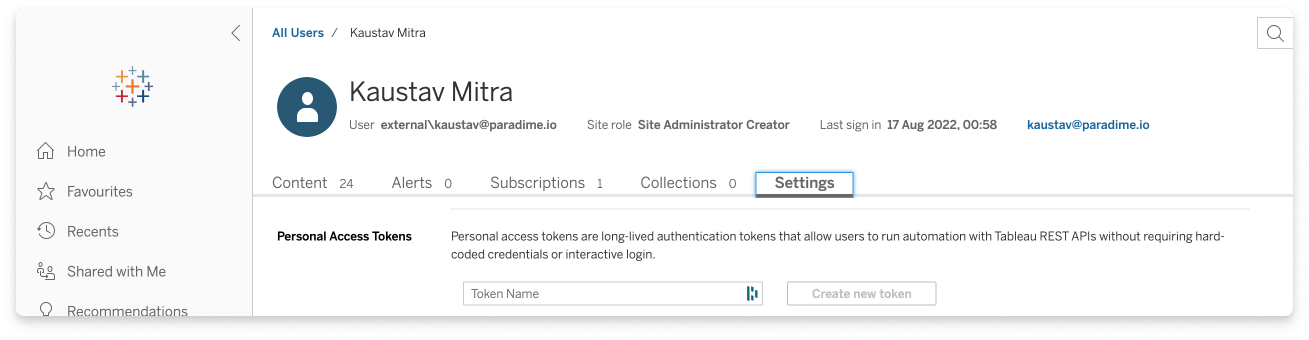
Paradime connects to Tableau via a Personal Access Token (PAT). The same token is used by both surfaces.- In Tableau, click your avatar (top right), then My Account Settings.
- Go to the Settings tab and scroll to Personal Access Tokens.
- Enter a token name (e.g.
paradime), then click Create new token. - Save the Token Name and Token Secret. You’ll need both below.
If you delete this token from Tableau, all Paradime integrations using it will stop working.
Catalog & Lineage
Bring Tableau assets into Paradime’s data catalog and column-level lineage, so you can trace dbt™ models through to the dashboards built on them.Paradime only extracts published Tableau assets.
Additional setup for Tableau Server
Tableau Cloud is ready to go. For Tableau Server:- Enable the Tableau Metadata API (always enabled on Tableau Cloud).
- Allow traffic from the Paradime IP address in your firewall. If you use Cloudflare, add a Browser Integrity Check skip rule for the same IP.
Connect in Paradime
Configured by the Admin user. In Paradime, go to Settings → Integrations (see connecting integrations), find Tableau, click Connect, enter the fields below, and click Test Connection.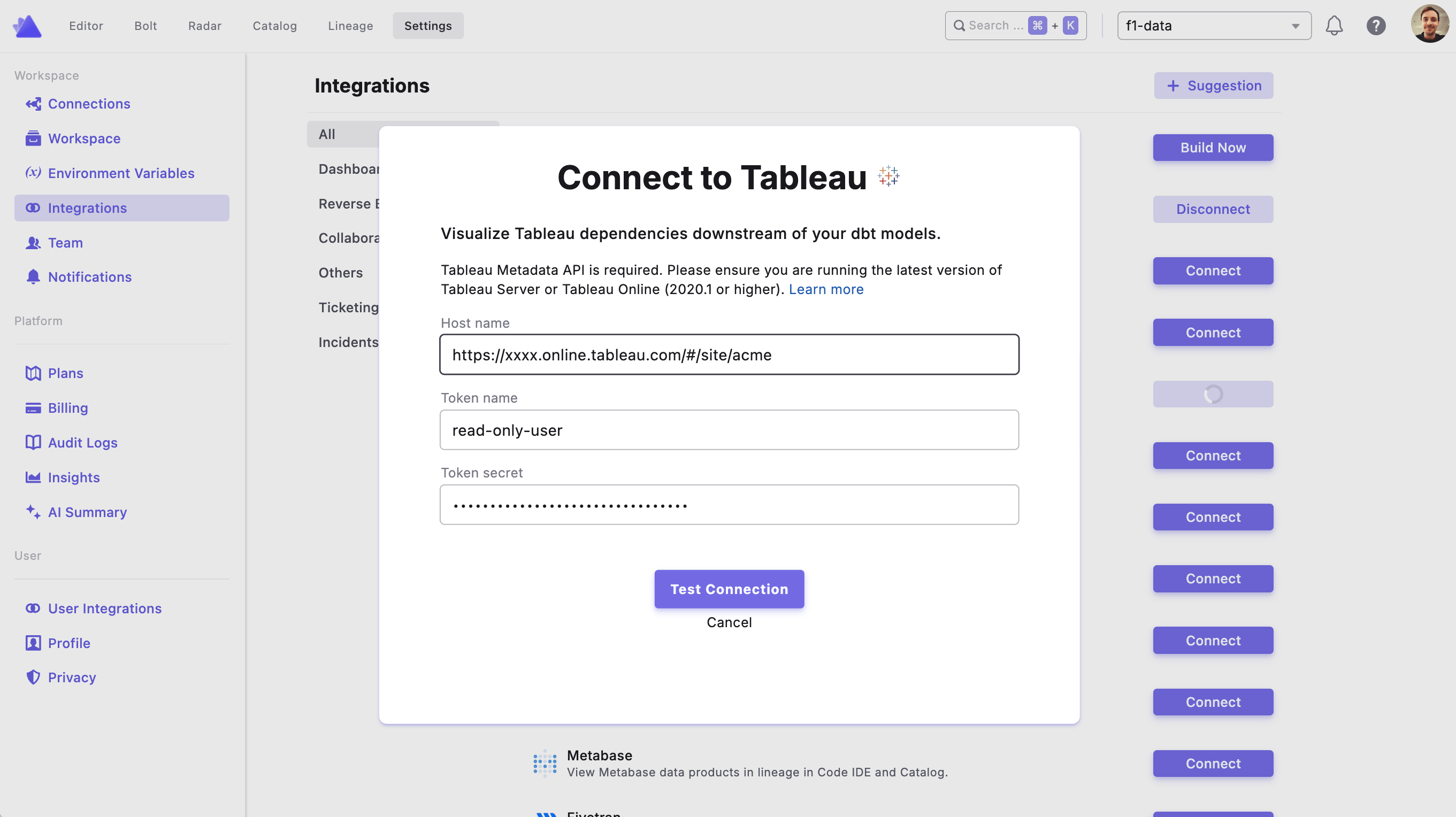
What metadata does Paradime extract?
What metadata does Paradime extract?
Paradime uses the following Tableau Metadata API endpoints:
Bolt refreshes
Trigger Tableau refreshes at the end of your dbt™ pipeline runs so your extracts stay in sync with your freshest data. Add either command to a Bolt schedule:Prerequisite: embed data source credentials
For Paradime to trigger a refresh, credentials must be embedded within the extract in Tableau.- Open the data source in Tableau.
- Click Publish.
- Select Embed credentials.