What you can do
Catalog & Lineage
Metabase dashboards and questions appear as assets in Paradime’s catalog and lineage, so you can trace dbt™ models through to the reports built on them.
Prerequisites
We recommend creating a new Metabase group and user to grant the correct access required to connect all your Metabase dashboards and questions to your dbt data models in Paradime.
Step 1: Create a dedicated Metabase user for Paradime
Create a Metabase group
You can only attach Metabase permissions to groups, not individual users.
- From the upper right corner of your Metabase instance, click the gear icon and then Admin Settings.
- From the top menu bar, change to the People tab.
- From the left of the page, open the Groups tab.
- At the top right, click the Create a group button.
- For Group name, enter
Paradime. - On the right of the row, click the Add button.
- For Group name, enter
Create a Metabase user
- From the upper right corner of your Metabase instance, click the gear icon and then Admin Settings.
- At the top of the page, change to the People tab.
- To the upper right of the table, click the Invite someone button and enter their details:
- For First name, enter a first name for the new user, for example,
Paradime. - For Last name, enter a last name for the new user, for example,
Integration. - For Email, enter an email address for the new user, for example a service account email address.
- For First name, enter a first name for the new user, for example,
- At the bottom of the dialog, click the Create button.
- When prompted, click Done.
Add user to the Paradime group
- From the People tab, click the Groups section on the left.
- Click the Paradime group you created.
- To the upper right of the table, click the Add members button.
- Under Members, start typing the name used above (for example,
Paradime Integration) and select it. - On the right of the row, click the Add button.
Set group permissions
Collection permissions
To set the minimum permissions required for Paradime to crawl your Metabase collections:- From the upper right corner of your Metabase instance, click the gear icon and then Admin Settings.
- From the top menu bar, change to the Permissions tab.
- From the top of the page, change to the Collection permissions tab.
- For each collection you want Paradime to access:
- Under the Collections heading on the left, click the collection.
- Under Permissions for
<collection name>, for the Paradime group, under Collection access, click the No access drop-down. - (Optional) To include sub-collections, toggle the Also change sub-collections option.
- Select the View permission.
- In the upper-right of the page, click the Save changes button.
- When prompted with Save permissions?, click the Yes button to confirm.
Step 2: Generate a Metabase API key
To generate an API key for the Paradime group:- Log in to your Metabase instance as the Paradime user you created.
- From the upper right corner, click on your profile icon.
- Select Account settings.
- Navigate to the API keys section.
- Click Create API key.
- Give the key a descriptive name, for example,
Paradime Integration. - Copy the generated API key and store it securely - you’ll need this for the connection setup below.
Catalog & Lineage
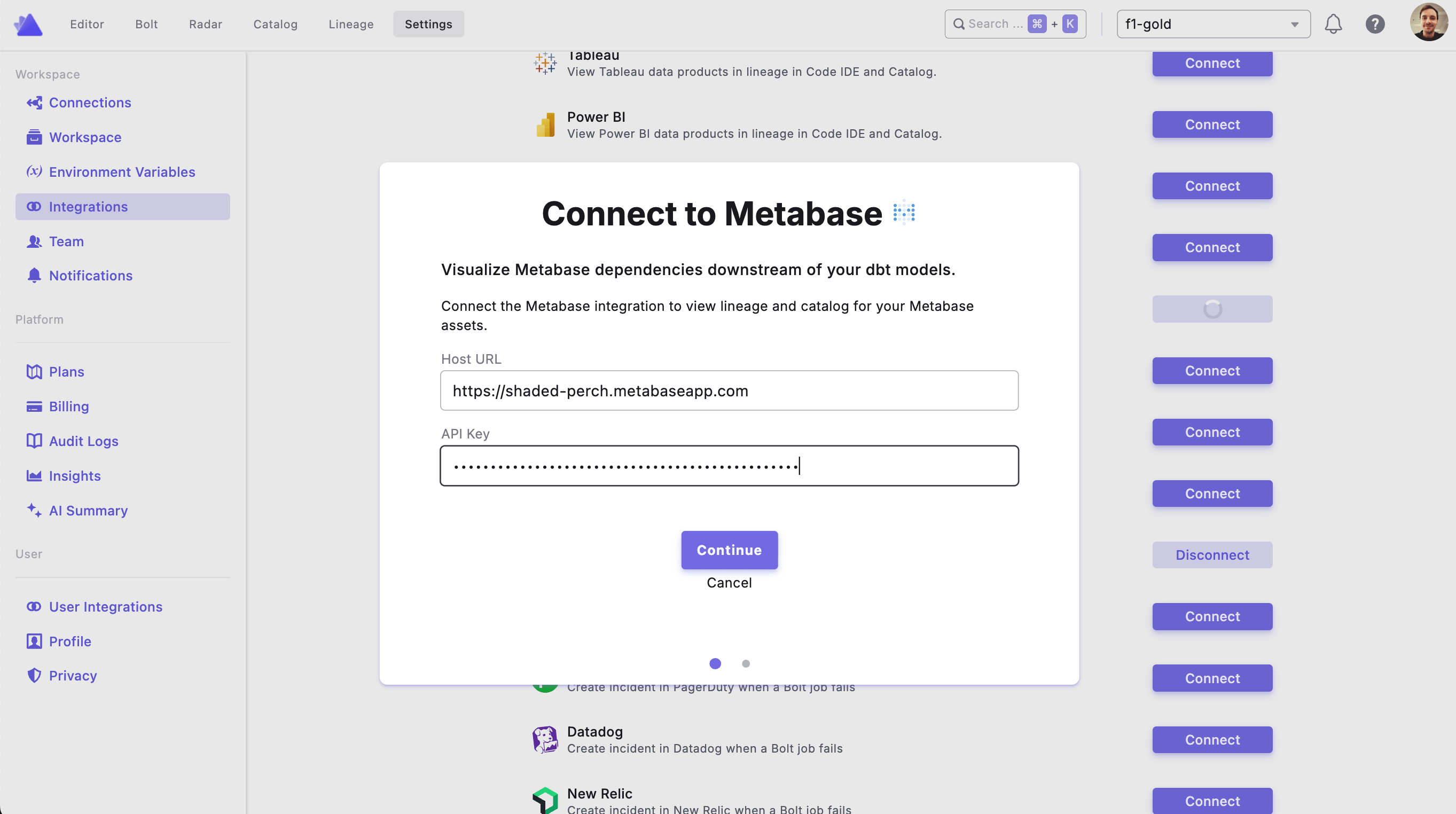
Bring Metabase assets into Paradime’s data catalog and column-level lineage, so you can trace dbt™ models through to the dashboards and questions built on them. The Metabase integration is set up by the Admin user for your organization profile. In Paradime, go to Settings → Integrations (see connecting integrations), find Metabase, and click Connect.Step 3: Connection parameters
Click Test Connection to validate that Paradime can connect to your Metabase account, then click Save to complete the integration.