

What you can do
Orchestration
Upload dbt™ run artifacts to Monte Carlo from a Bolt schedule or the CLI, so model runs, test results, and lineage stay in sync with your observability platform.
Key benefits include:
- Enhanced Observability: Overlay dbt™ context onto Monte Carlo’s lineage graph for easier troubleshooting.
- Incident Detection: Detect and centralize dbt™ model errors, test failures, and other data incidents in one place.
- Run Insights: Visualize dbt™ job execution times, success/error statuses, and run histories.
- Simplified Impact Analysis: Evaluate downstream and upstream impacts of dbt™ transformations on table updates.
Setting Up the Integration
Follow these steps to configure the Monte Carlo integration within Paradime.Step 1: Generate API Key and API ID
- Log in to your Monte Carlo account.
- Follow the instructions in Monte Carlo Docs to generate:
- API Key
- API ID
The key is required to be generated with the “Editor” or “Owner” roles, for example if you create a Service Account Key you need to select “Editors” or “Account Owners” under “Authorization Groups”.If you’re using a personal key, the user that generated it needs to be an “Editor” or “Owner”.
Step 2: Add API Credentials to Paradime
- From the Paradime home page, click the Settings icon (⚙️) on the bottom right hand side of the screen
- Navigate to Workspaces > Environment Variables
- In the Bolt Schedules section, add the following variables and their respective values from Step 1:
MCD_DEFAULT_API_TOKENMCD_DEFAULT_API_ID
- Click the Save icon (💾)
Step 3: Set Your Project Name
- In the same Bolt Schedules section, add:
MONTECARLO_PROJECT_NAME
- Set a value for the project name
You can reuse your existing dbt project name or create any name that aligns with your dbt models.
Step 4: Obtain the Connection ID
The Connection ID identifies the warehouse or lake connection in Monte Carlo. You can do this by retrieving the connection UUID via the getUser API through the API Explorer by running the below query.- Example Query
- Example response
Step 5: Add the Connection ID
- Copy the Connection ID from the logs.
- Go back to the Environment Variables section in Paradime.
- Add the following variable:
MONTECARLO_CONNECTION_ID
- Click Save to confirm.
Step 6: Enable the Integration
This Flag will enable uploading automatically all schedules dbt run artifacts to Monte Carlo.
- In the same Environment Variables section, add the following variable:
RUN_MONTECARLO_UPLOAD
- Set its value to
TRUE.
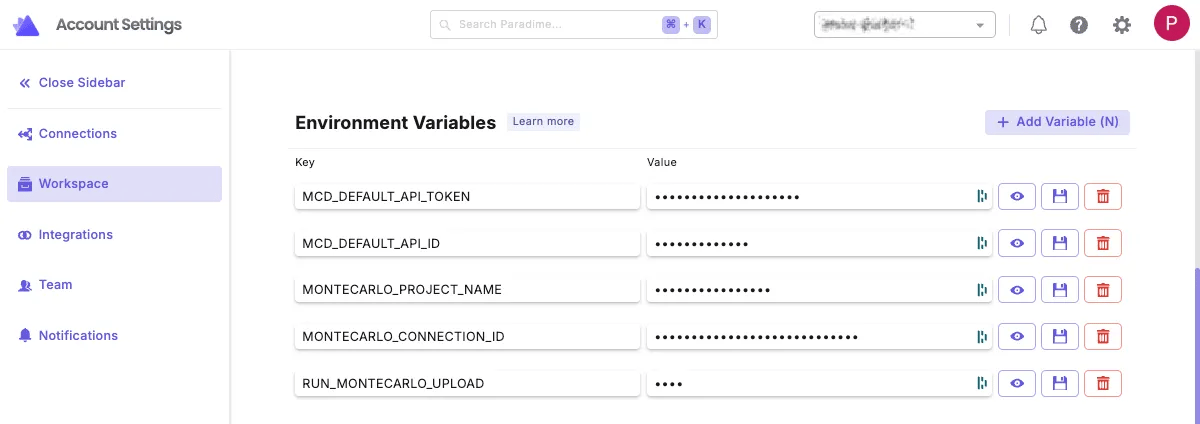
Connection parameters
Set the following environment variables in your Paradime Workspace Settings > Environment Variables, in the Bolt Schedules section.Testing the Integration
To verify the integration, run the following steps in Paradime’s Bolt:- Trigger a Run for one of your Bolt schedule which contains either
dbt build,dbt runordbt testcommand. - Verify the results in Monte Carlo:
- Check the lineage graph for updated dbt™ context.
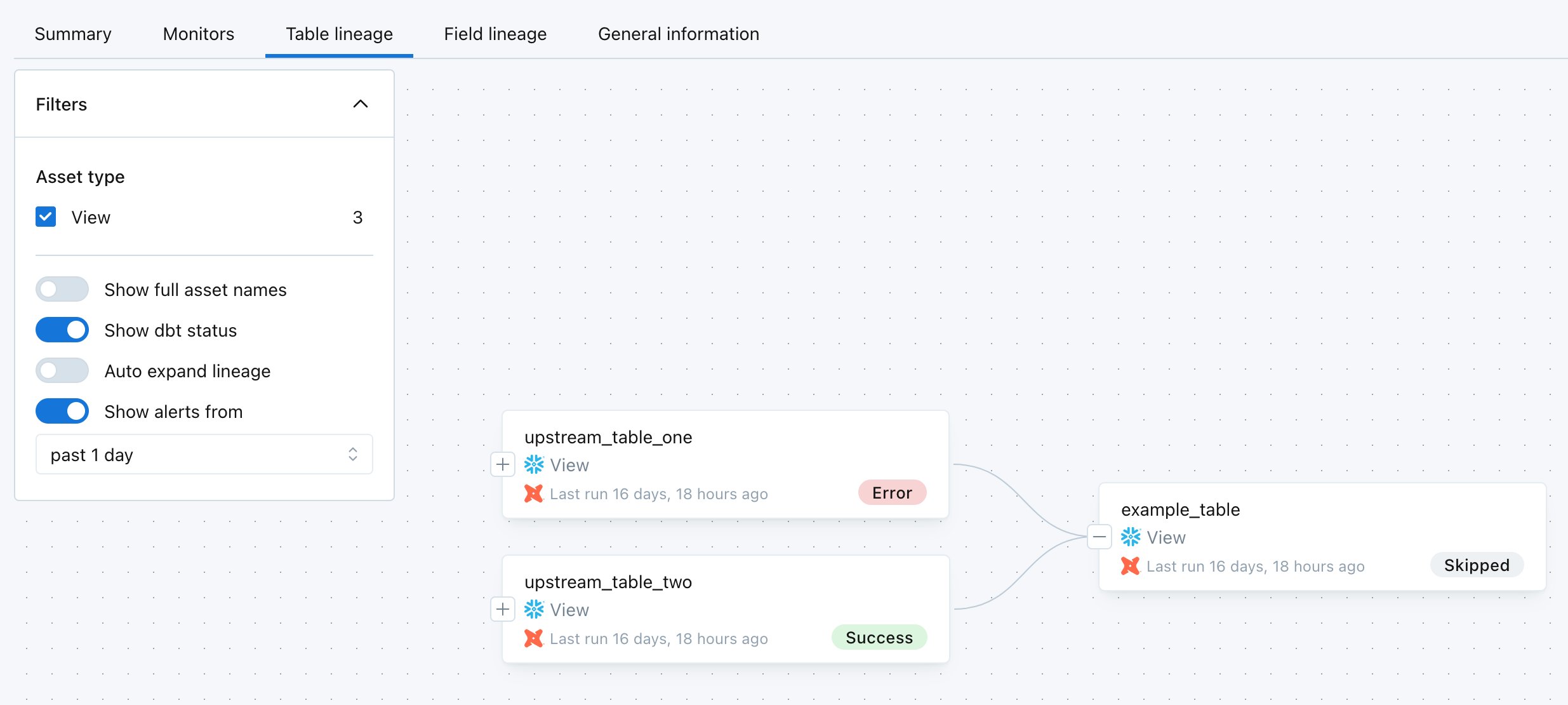
- View job statuses, model run results, and test outcomes.
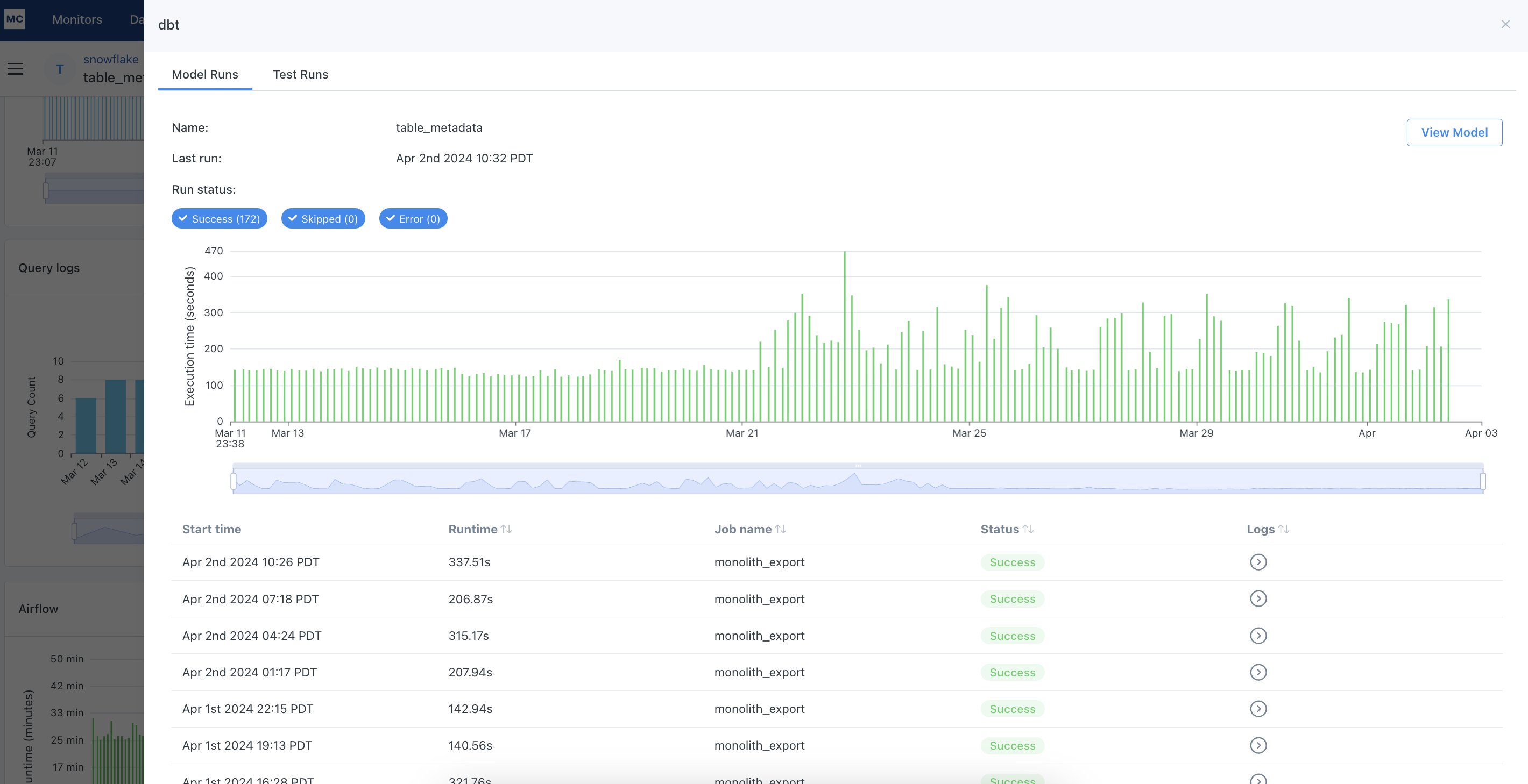
For more details on the logs that Montecarlo will ingest check the Montecarlo dbt integration documentation.