What you can do
- Send Bolt schedule notifications to Microsoft Teams channels when a run succeeds or fails
- Receive Bolt System alerts and Radar Data Alerts in Microsoft Teams
- Route notifications to multiple channels using per-channel webhooks
Step 1: Configure Microsoft Teams
Create a new team and/or channel
First, create a new Team or add a new channel to an existing team to receive the alerts. Ensure the channel’s type is set to Standard.Create a MS Teams Webhook
In Paradime we will need to provide a webhook URL to send notifications to. Paradime support both MS Teams Incoming Webhooks (Legacy) as well as MS Teams Workflows.- Setup with MS Teams Workflows
- Setup with MS Teams Incoming Webhooks (Legacy)
Create incoming webhooks with MS Teams WorkflowsBelow are the instructions on how to create an Incoming Webhook using MS Teams Workflows that will allow Paradime to send notification to your MS Teams Channel.
You will need to generate a new Webhook URL for each channel you want to connect to Paradime for notifications.
- Go to a channel in your MS Teams , click on the “more option” icon and select
Workflows. - Search the template
send webhook alerts to a channel - Provide a Name for the Workflow, like Paradime Notifications
- Setup the connection owning this workflow, we suggest using a service account user like
paradime.alerts@acme.io - Configure the MS Teams and Channel.
Add Workflow. Now copy the URL of the webhook, you will need this later when configuring the alerts.Step 2: Connect the MS Teams integration
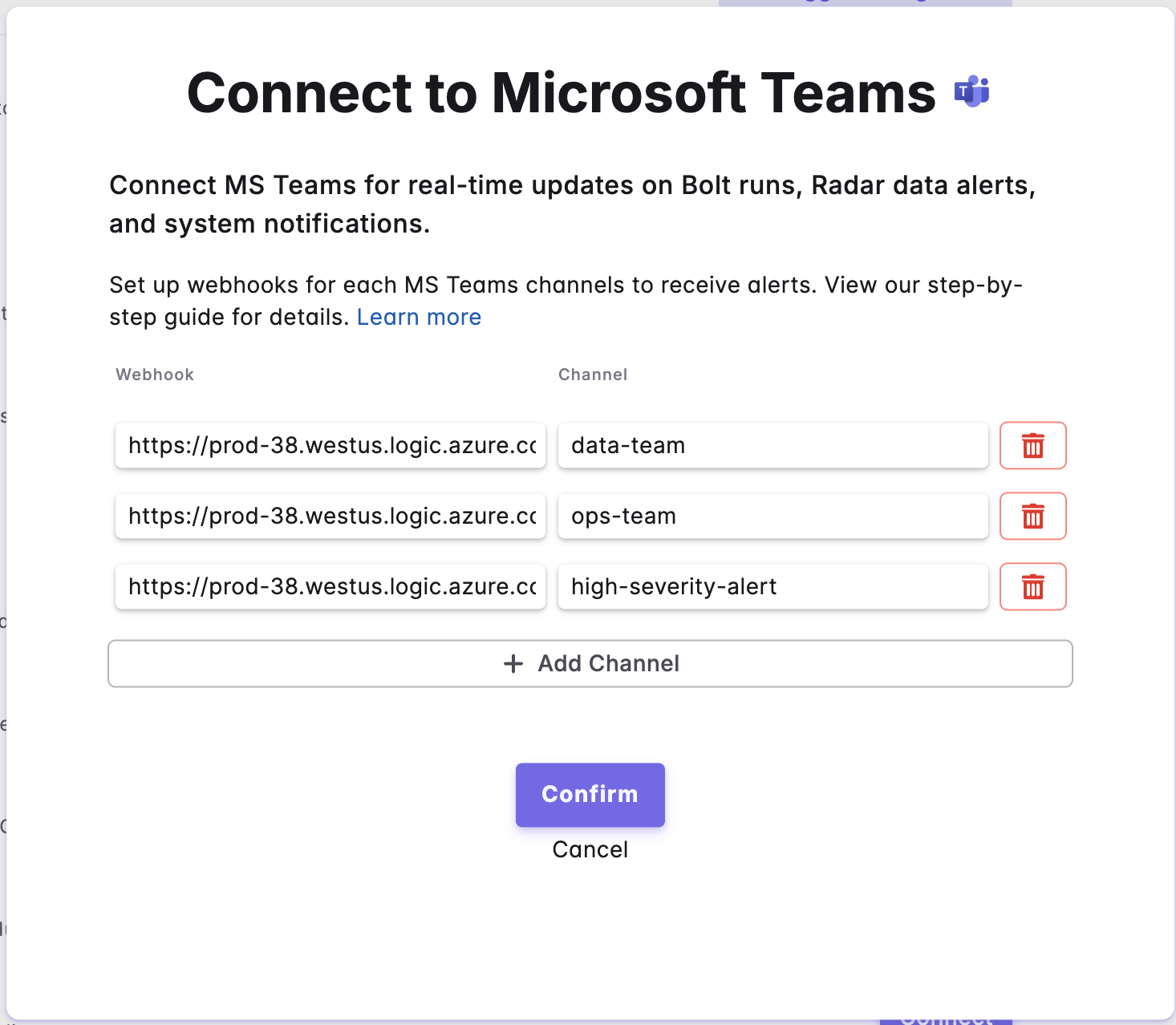
Paradime MS teams integration is set up by the Admin user for each of your Paradime workspace. In Paradime, go to Settings → Integrations (see connecting integrations), find the Paradime MS Teams integration, and click Manage.
- MS Teams Webhook URL (generated in the previous step)
- The MS Teams Channel name
Confirm to complete the setup of the MS Teams integration. You can now setup MS Teams notifications for Bolt Schedules and Data Alerts.