

What you can do
- Store Bolt schedule logs and dbt™️ run artifacts in an S3 bucket you own, inside your own VPC.
- Keep run metadata (such as
manifest.jsonandrun_results.json) organized by schedule name.
Bolt
Prerequisites
- An AWS account with permissions to create S3 buckets, IAM policies, and IAM users.
- The bucket must be created in the same region where your Paradime instance is hosted.
Set up your S3 bucket
Step 1: Create your own AWS S3 bucket
In your AWS account navigate to Amazon S3 > Buckets > Create Bucket. Enter the custom bucket name and select the region where you want to create your bucket in.Step 2: Create IAM policy
Next create the IAM policy that provides the minimum required permissions for Paradime to access the Amazon S3 bucket. Sign in to your AWS account and open the IAM Management Console and in the navigation pane, choose Policies, then Create policy.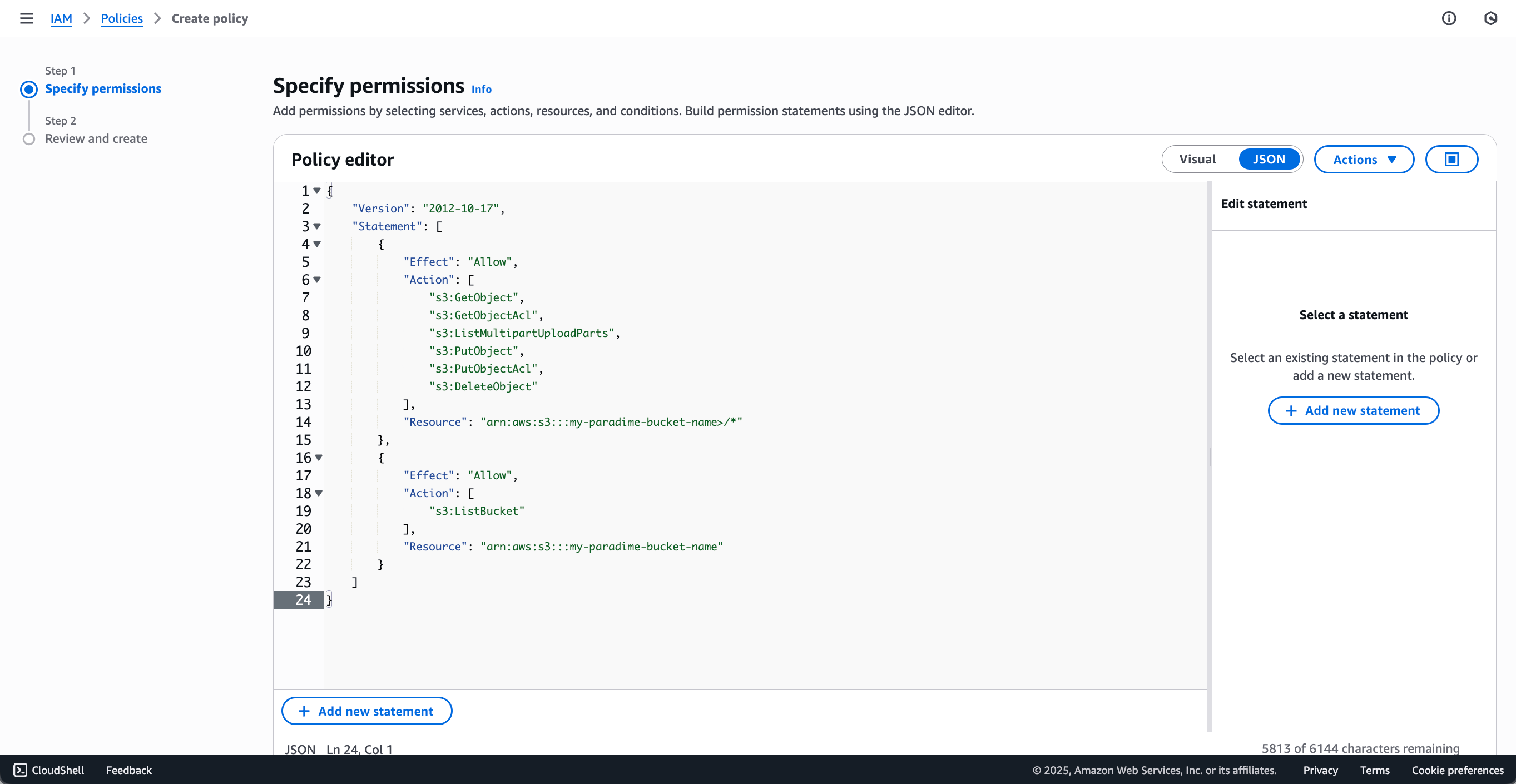
Step 3: Create AWS User and attach the previously created IAM policy
- Next create a new user in AWS
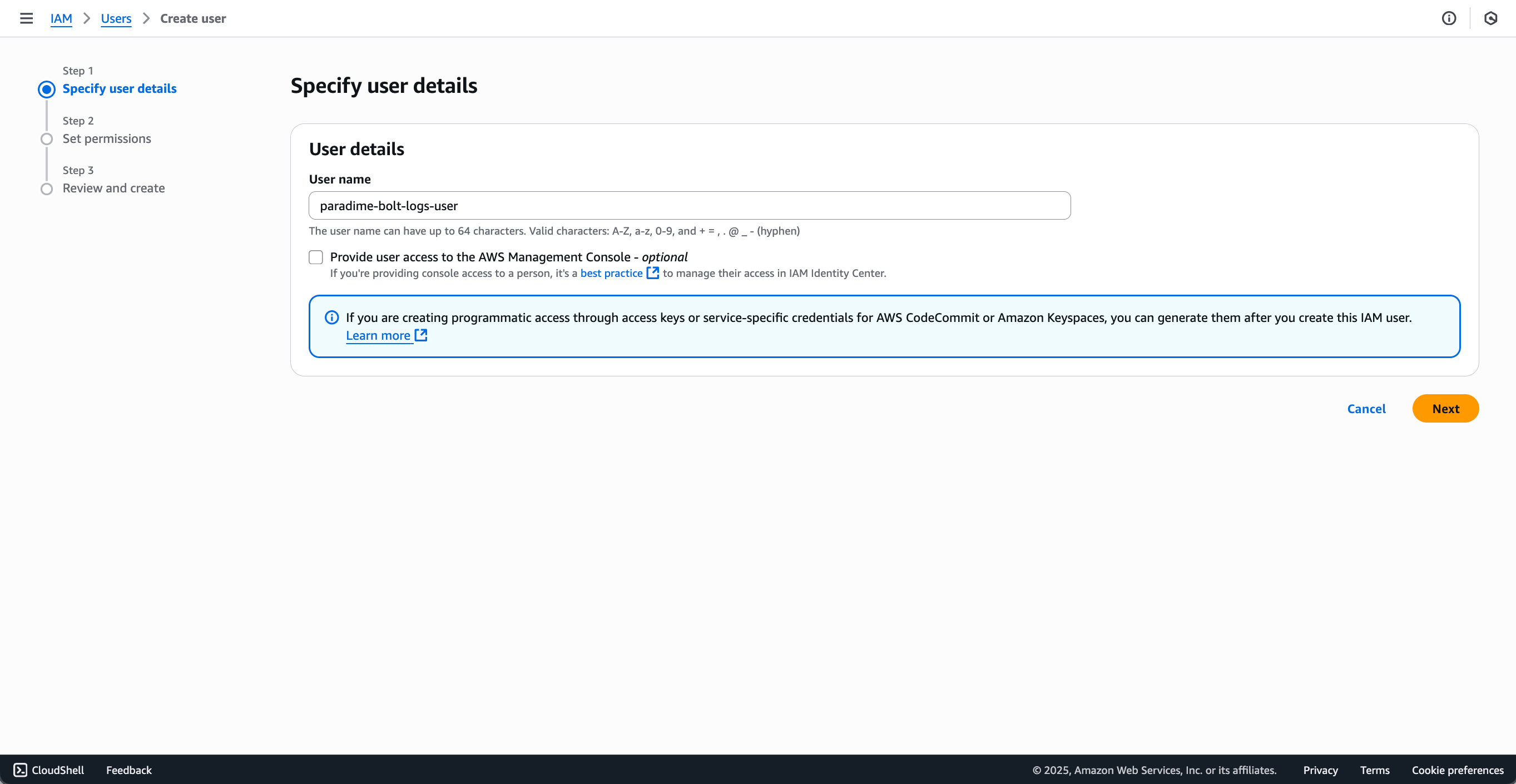
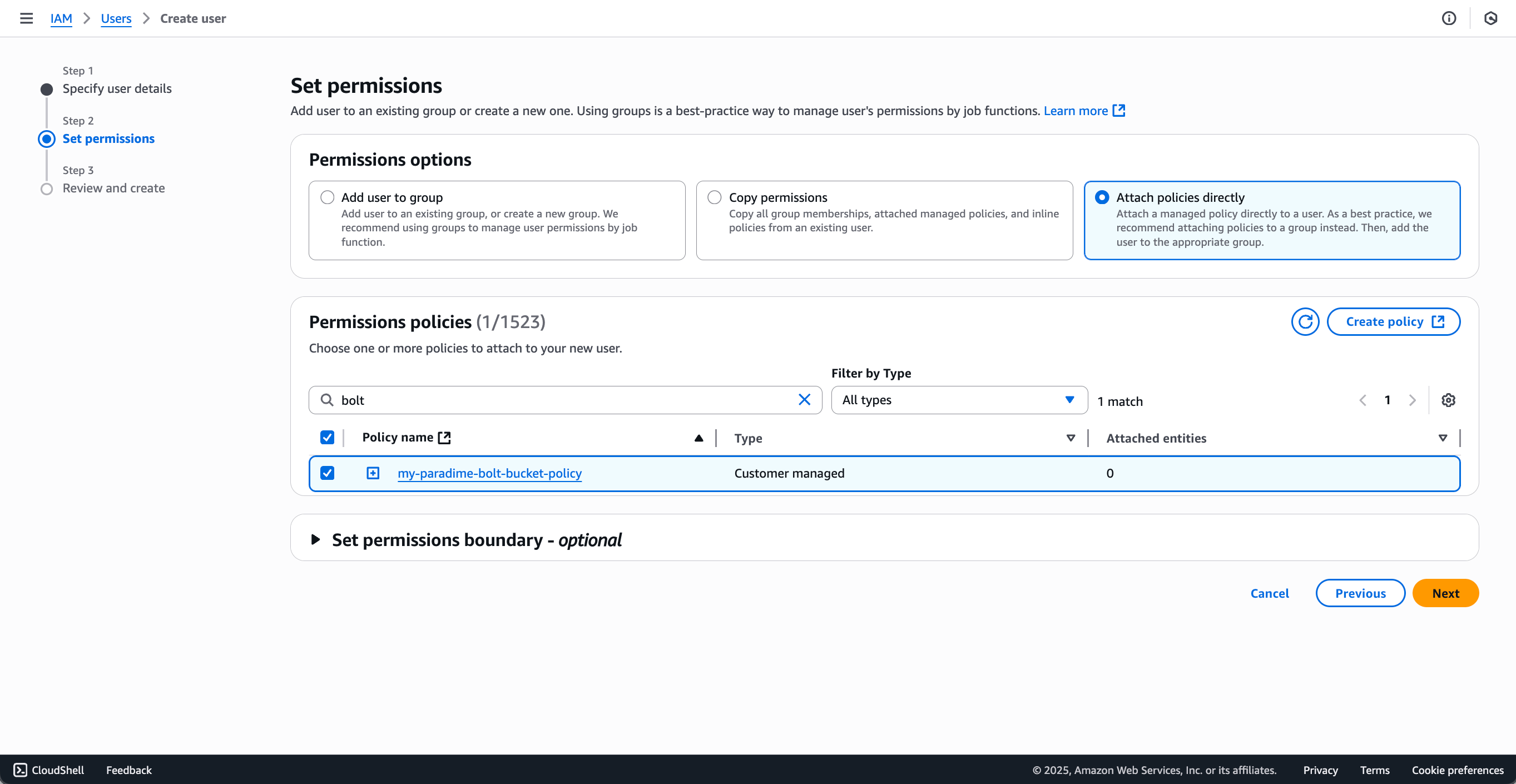
- Assign the IAM policy created in the previous step to this user.
Step 4: Configure CORS policy for the S3 bucket
Set up the CORS policy to enable Paradime to access files when the request is initiated from the Paradime app.- In AWS navigate to S3 Bucket and select the Paradime S3 bucket created in the previous steps.
- Select Permissions and then Cross-origin resource sharing (CORS)
- Provide the below configurations
Step 5: Create Access Key ID and Secret Access Key
To generate the credentials needed for Paradime integration:- Navigate to IAM > Users and select the user you created in the previous step
- Go to the Security credentials tab
- Click Create Access key
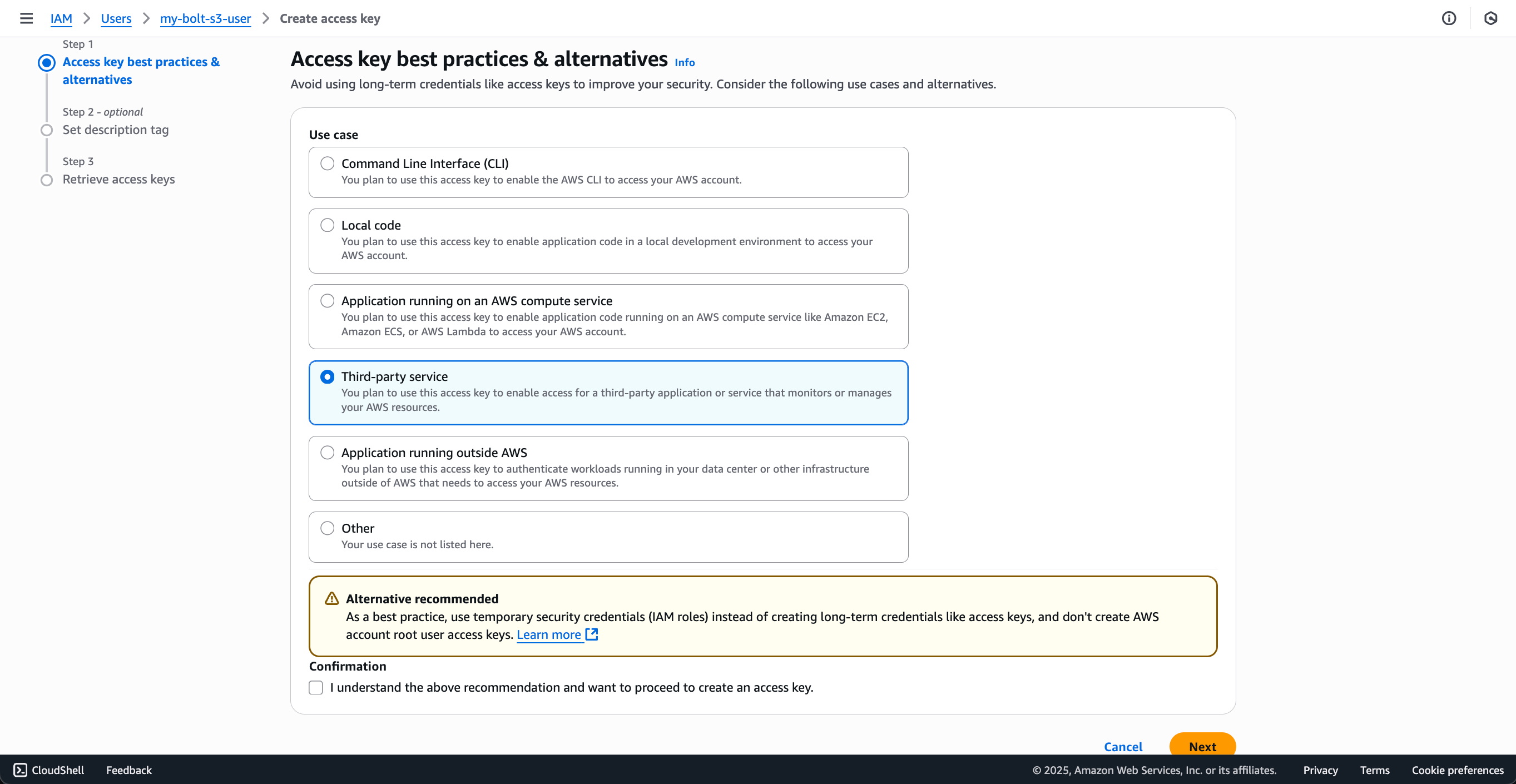
- On the “Access key best practices & alternatives” page:
- Select Third-party service as your use case since Paradime will be accessing your S3 bucket
- AWS will display a warning recommending temporary security credentials (IAM roles) instead of long-term access keys
- Check the confirmation box “I understand the above recommendation and want to proceed to create an access key”
- Click Next
- Optionally add a description tag for the access key
- Click Create Access key
Important: Copy and securely store both the Access Key and Secret Access Key - the secret key will not be shown again
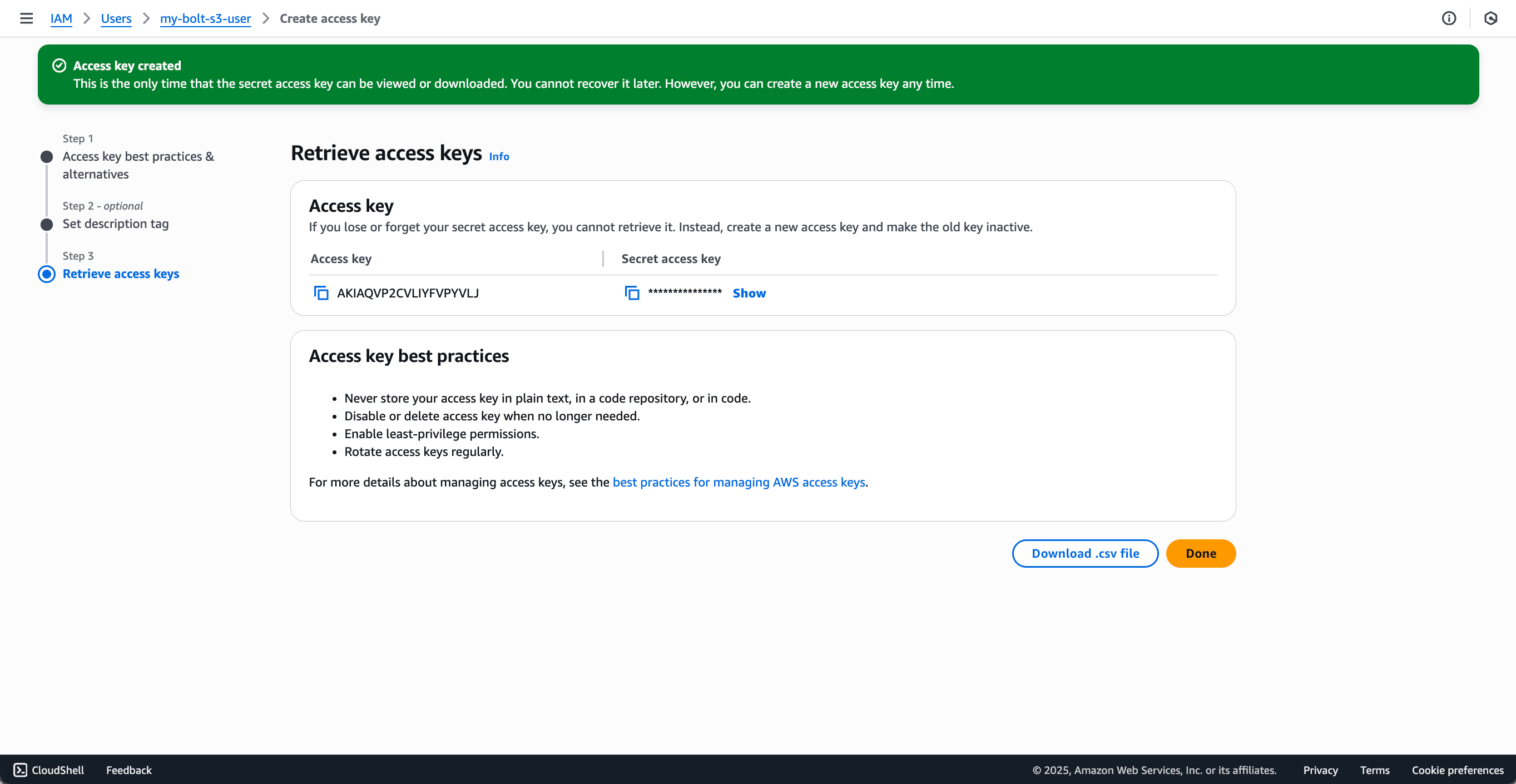
Step 6: Send the details to the Paradime team
Once the custom S3 bucket and roles are created, reach out to the Paradime team on support@paradime.io and securely share the details below via a password manager like Dashlane / 1Password.- Bucket Name
- Bucket region
- Access Key
- Secret Access Key
paradime-empty-test-file in the customer’s S3 bucket to test that Paradime can connect and write to it.
From this point onwards, dbt™️ run logs and artifacts will be stored in the custom S3 bucket.
FAQ
How are the dbt™️ artifacts stored in the S3 buckets?
In the S3 bucket you will see theBolt folder which will contain all the artifacts by schedule name using the below folder structure.