

Two ways to sync
You can push dbt™ metadata to DataHub in two ways:Automatic sync
Connect DataHub in the Paradime UI, and Paradime pushes dbt™ metadata to DataHub automatically after every Paradime Catalog Refresh, with no command required.
Bolt or CLI command
Push explicitly from a Bolt schedule or the CLI using the DataHub sync command as part of your production pipeline.
You can connect the integration in two ways:
- Connect UI: a dedicated form to enter your GMS URL, token, and optional domain, with a built-in connection test. Fastest way to get set up.
- Environment variables: set your DataHub credentials as Paradime environment variables. Useful for scripted or templated setups.
Prerequisites
Before generating API credentials, ensure you have:
- An active DataHub instance (DataHub Cloud / Acryl)
- Permission to create Personal Access Tokens in DataHub
- Metadata Service Authentication enabled on your instance
- The service account used to generate the Personal Access Token must have Admin permissions in DataHub. The token inherits the account’s privileges, and Admin access is required to push dbt™ metadata to the GMS endpoint.
Step 1: Generate API Credentials
Paradime authenticates to DataHub’s GMS (Generalized Metadata Service) endpoint using a Personal Access Token. The token is created from your DataHub instance and used together with your GMS server URL.- Log in to your DataHub instance as a user with permission to manage access tokens.
- Click your profile in the top right corner and navigate to Settings.
- Select the Access Tokens tab from the settings menu.
- Click the Generate new token button.
- Enter a name for your token (e.g., “Paradime Integration”), set an expiry, and click Create.
- Copy the Access Token from the dialog. Store it securely as we will need it to set up the Paradime integration. Important: The Access Token will only be displayed once. Make sure to copy and store it in a secure location before closing this dialog.
Step 2: Find Your GMS Server URL
Paradime sends metadata to your DataHub GMS endpoint. For DataHub Cloud, this is your instance URL with the/gms path, for example:
Step 3: Connect the DataHub Integration
The DataHub integration can be connected by a Paradime Admin user. Choose one of the following methods, both enable the background data catalog refresh.Option 1: Connect via the UI (recommended)
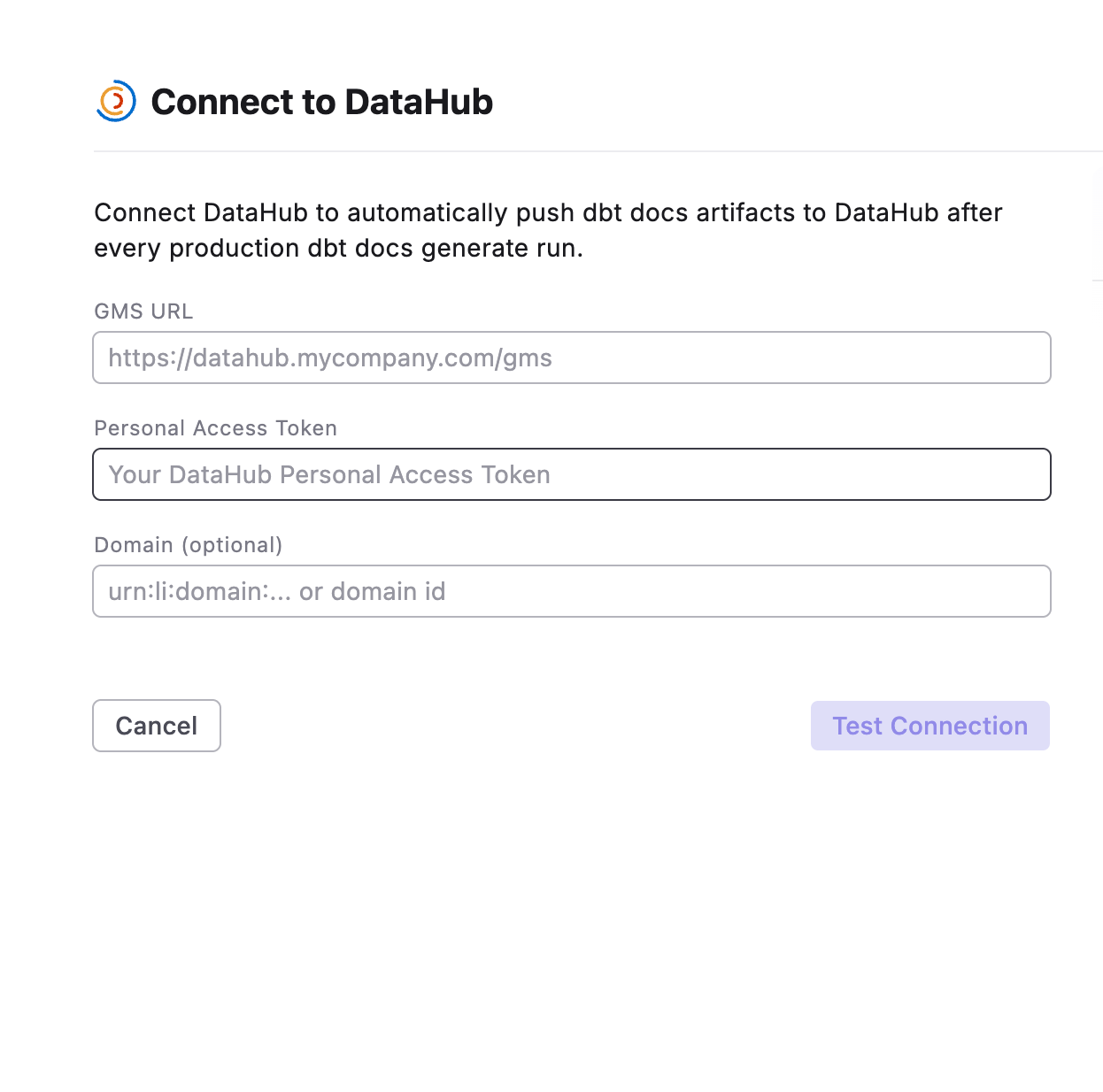
- In Paradime, go to Settings → Integrations (see connecting integrations).
- Find DataHub and click Connect to open the Connect to DataHub panel.
- Fill in the fields:
- GMS URL: your DataHub GMS server URL (e.g.
https://<instance>.acryl.io/gms). - Personal Access Token: the token you generated from your DataHub instance.
- Domain (optional): a DataHub domain URN or domain id (e.g.
urn:li:domain:sales) for pushed datasets that don’t set their own domain inmeta.datahub.domain. See Domains, terms, and tags. - Sync settings (optional): expand this section to change how Paradime pushes to DataHub, or keep the defaults. See Sync settings.
- GMS URL: your DataHub GMS server URL (e.g.
- Click Test Connection to verify Paradime can reach your GMS endpoint with the supplied token.
- Once the test passes, save the connection.
A
dbt docs generate command inside a Bolt schedule doesn’t push to DataHub. To push from a schedule, use the Push to DataHub command.Option 2: Connect via Environment Variables
Alternatively, set your DataHub credentials as environment variables in Paradime before connecting the integration.- In Paradime, go to Workspace Settings > Environment Variables.
- Create the following environment variables:
DATAHUB_GMS_URL: Set this to your DataHub GMS server URL (e.g.https://<instance>.acryl.io/gms)DATAHUB_GMS_TOKEN: Set this to your DataHub Personal Access TokenDATAHUB_TARGET_PLATFORM: Set this to the warehouse your dbt™ models run on (e.g.snowflake)
- Click Save to store the environment variables.
Connection parameters
Whichever method you use, Paradime reads the same DataHub credentials and configuration. The UI captures these in the Connect to DataHub form; the environment variable method reads them from the following variables:
Make sure these environment variables are set in your Paradime Workspace Settings > Environment Variables before attempting to use the environment variable method.
Sync settings
Sync settings control how Paradime pushes dbt™ metadata to DataHub on every production Catalog refresh. The defaults don’t delete anything in DataHub. You can set them in two places:- When you connect, under Sync settings (optional) on the connect form.
- After you connect, on the DataHub integration page. The Sync settings card shows the current values: click Edit, change what you need, and click Save.
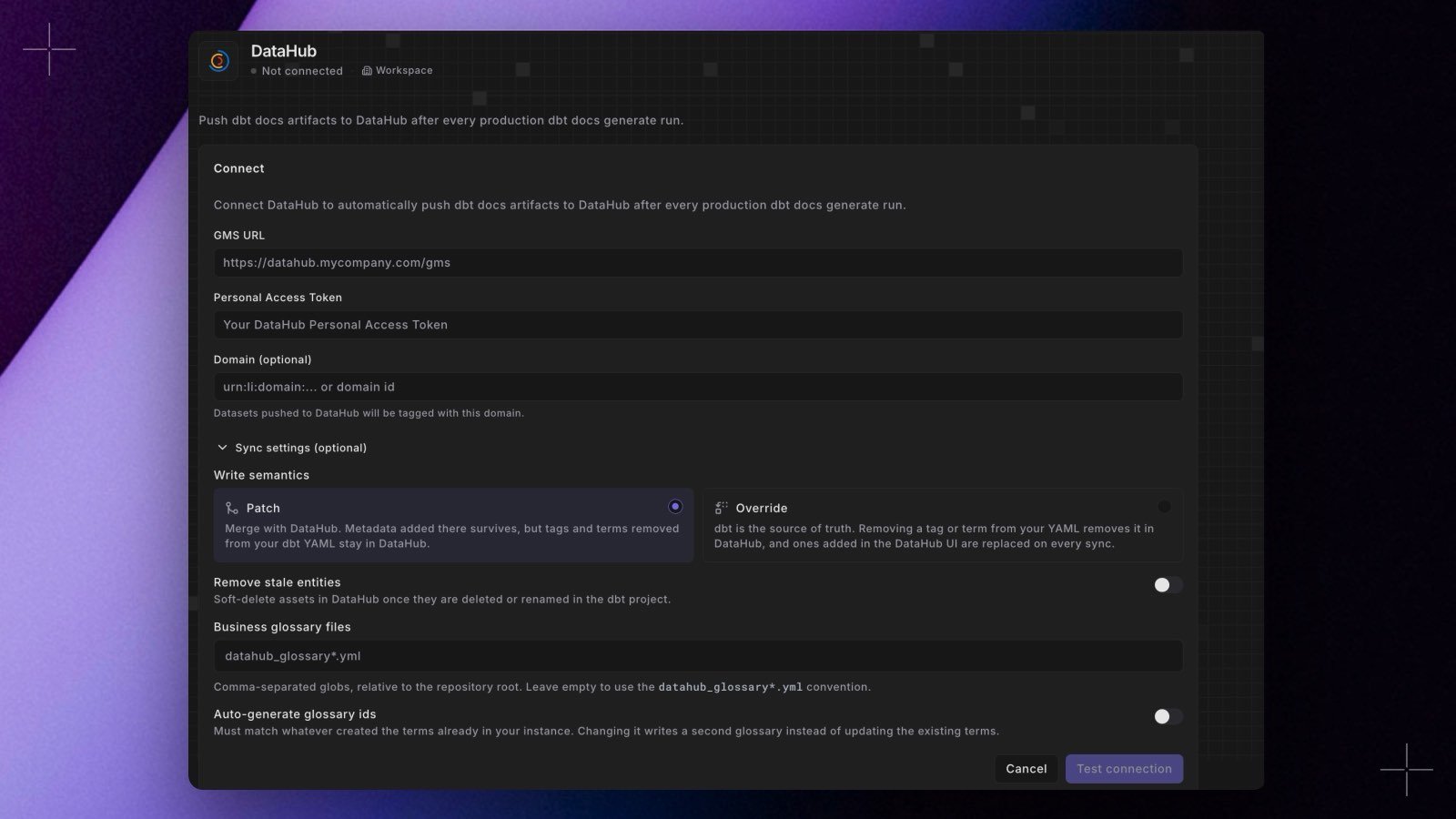
Users with the Admin, Workspace Settings Admin, or Workspace Admin role can edit sync settings. Other roles don’t see the Edit button. Every change is recorded in your audit logs. Disconnecting DataHub resets all sync settings to their defaults.
Sync settings apply only to this automatic push. They don’t apply to the Push to DataHub Bolt command.
Domains, terms, and tags
The automatic push also reads DataHub metadata you set in dbt™meta, under a datahub key:
domainon models and sourcesterms(glossary terms) andtagson models, sources, and columns
meta.datahub.domain, so it never overwrites a domain you set in dbt™.
Business glossary files
The automatic push also ingests business glossary files committed to your repository, written in DataHub’s business glossary format. By default, Paradime picks up any file nameddatahub_glossary*.yml or datahub_glossary*.yaml, anywhere in the repository. To use other paths, set Business glossary files in Sync settings.
To attach glossary terms to your models and columns, use meta.datahub.terms.
Troubleshooting
The Catalog refresh succeeds but nothing appears in DataHub
The Bolt Paradime Catalog Refresh command finishes as soon as the refresh starts. The push to DataHub runs at the end of the refresh, a few minutes later, and can take 20 minutes or more for a large project. A push that fails doesn’t fail the refresh or the Bolt run, so a green run doesn’t mean the push succeeded. Paradime pushes with the DataHub CLI, so you won’t see a recipe run start in DataHub’s ingestion UI. Look for the datasets themselves. If no datasets appear after the refresh has finished:- Check that DataHub is connected in the workspace you refresh. Each workspace has its own connection and token.
- Check that the token still works. DataHub answers an expired, revoked, or under-privileged token with
401 Unauthorized. Generate a new token from a DataHub account with Admin permissions. - Reconnect the integration with the new token under Settings > Integrations > DataHub. The next production Catalog refresh uses it.
DataHub Integration Capabilities
Paradime uses DataHub’s nativedbt ingestion source to push dbt™ metadata from Bolt into DataHub. This allows you to keep your DataHub catalog in sync with your dbt™ project as part of your Paradime workflows, enabling:
- Pushing dbt™ models, lineage, columns, and descriptions to DataHub on every run
- Associating pushed assets with a DataHub domain
- Setting domains, glossary terms, and tags from dbt™
meta - Ingesting business glossary files from your repository
- Pushing artifacts for multiple dbt™ projects in a single task
- Integrating catalog updates into larger data orchestration workflows