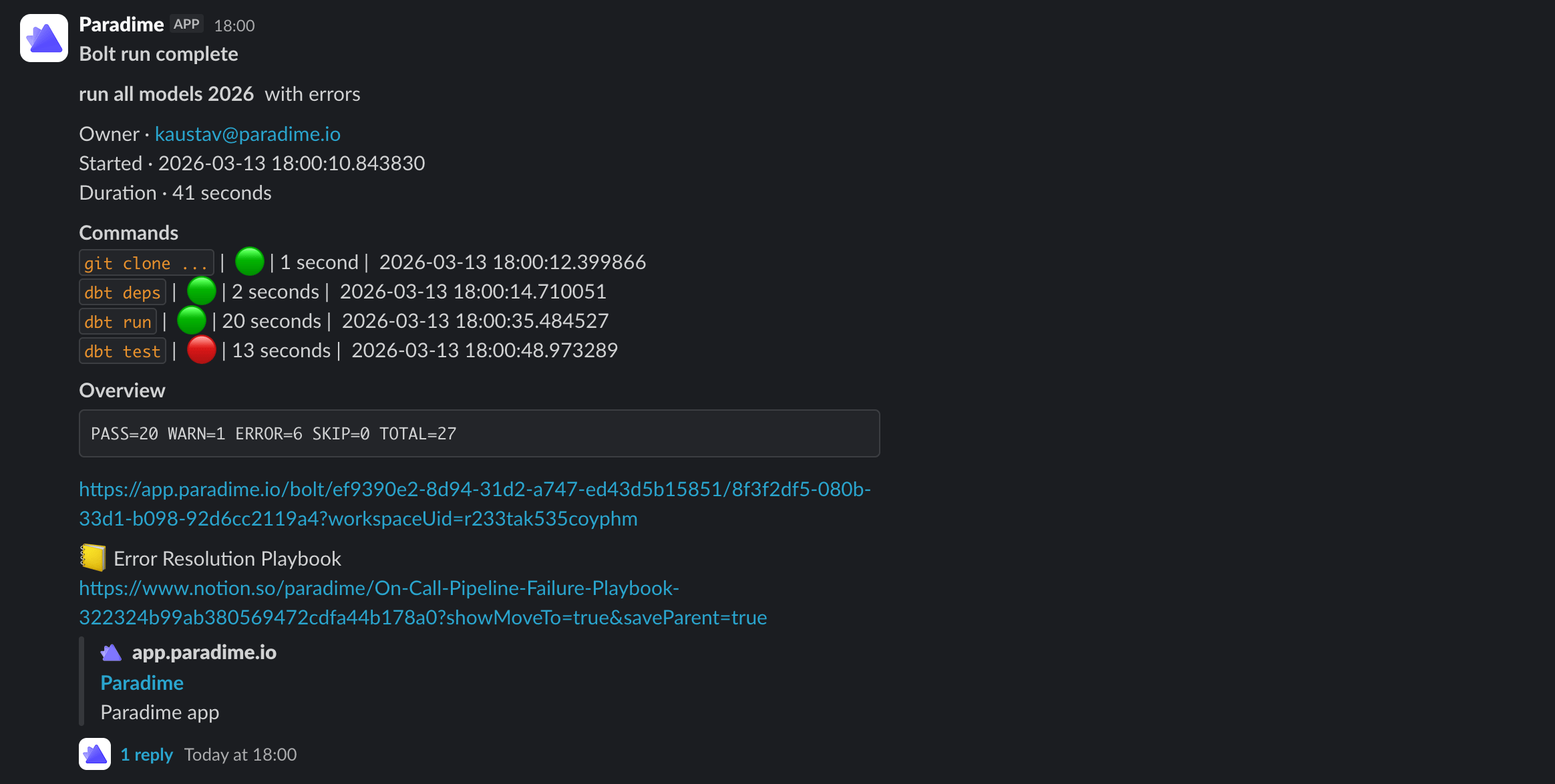
Templates are created once in the Alert Templates page and can then be attached to any channel destination across your schedules.
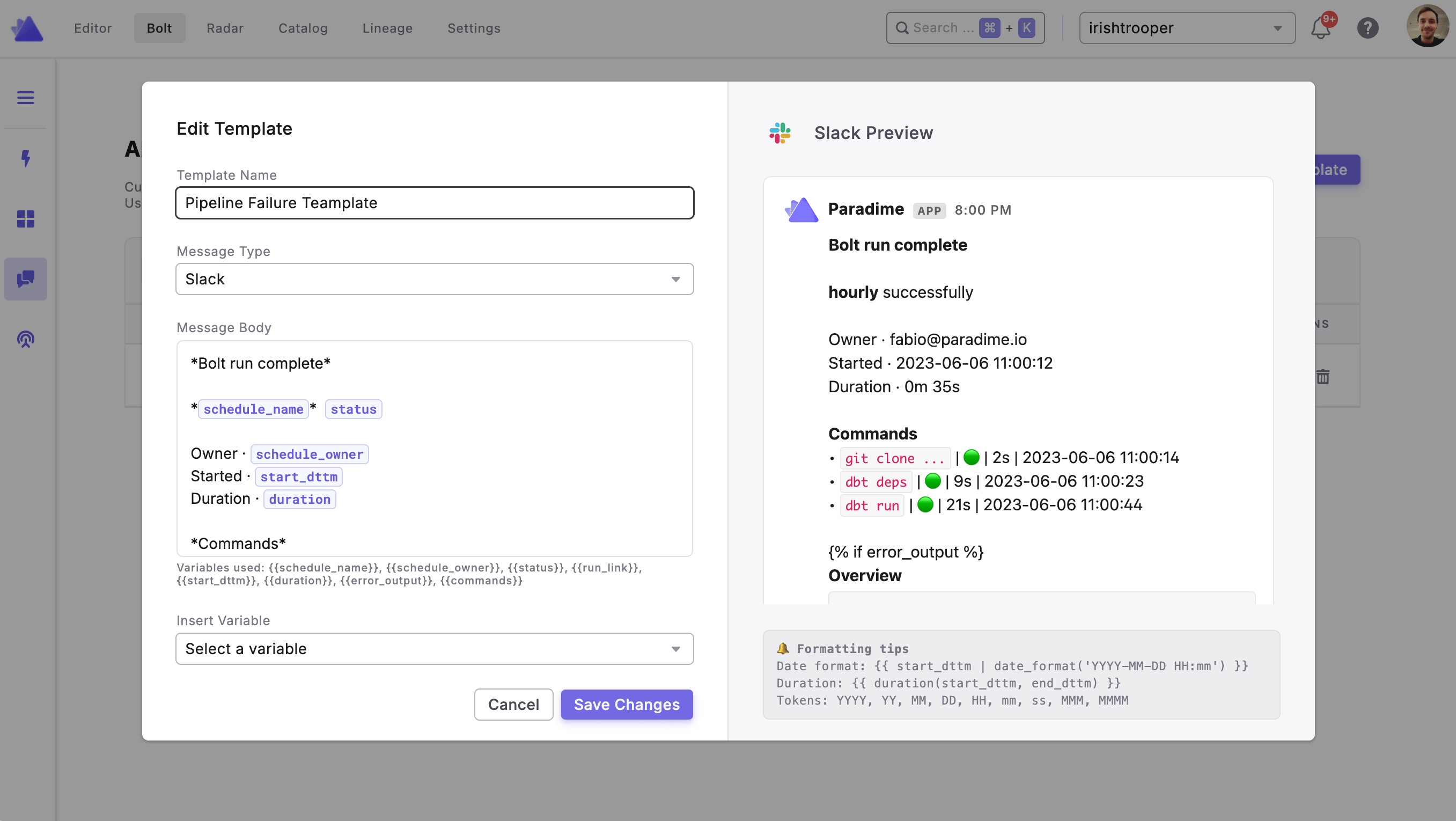
Creating a Template
- Navigate to Bolt > Alert Templates in the top navigation
- Click + New Template
- Give your template a name
- Write your message using plain text, template variables, and Jinja expressions
- Save the template
Attaching a Template to a Schedule
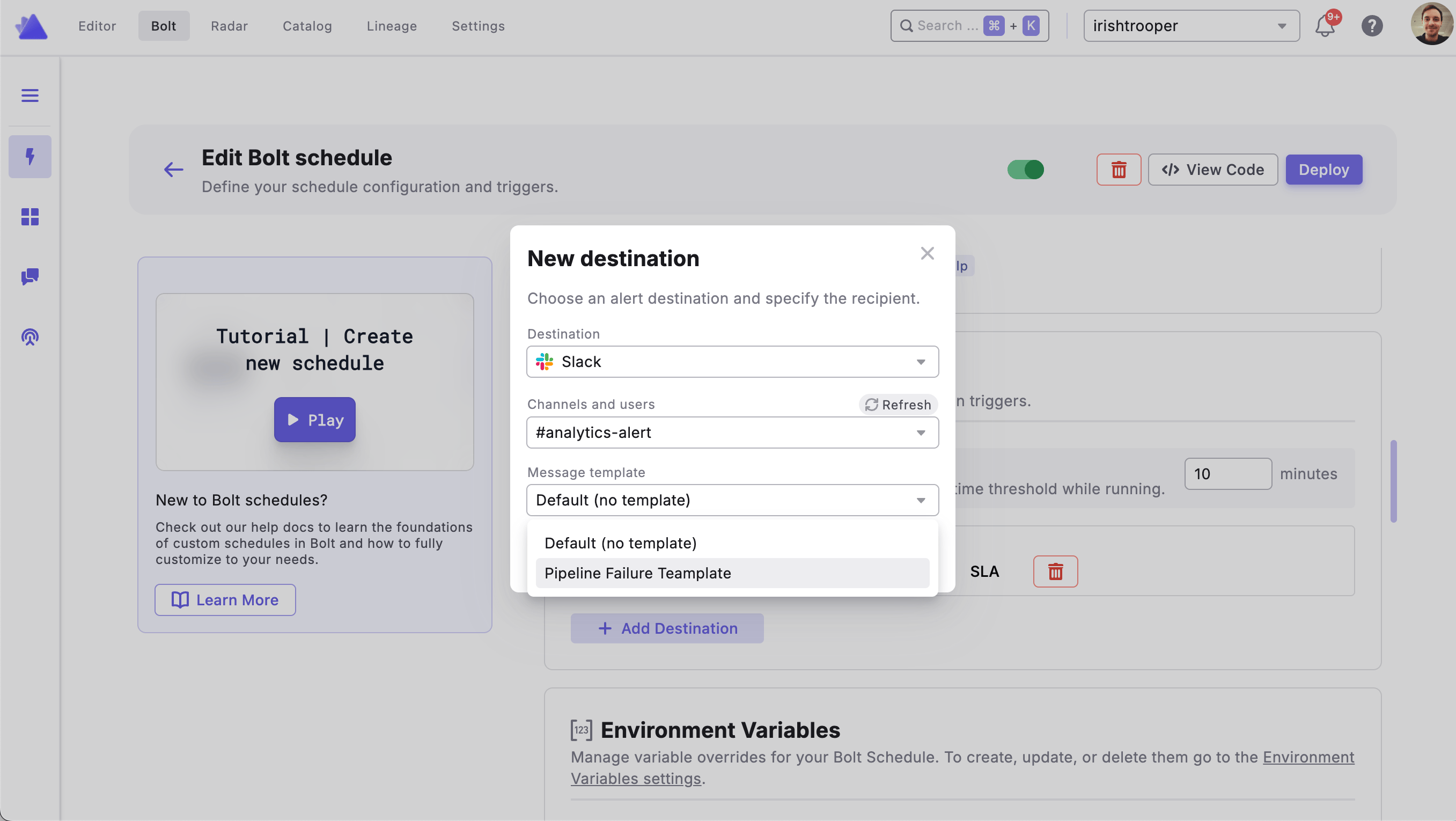
- Open the Bolt Schedule you want to configure
- Navigate to the Notification Settings tab
- Under Notification Destinations, locate the Slack or MS Teams channel you want to customize
- Select your saved template from the template dropdown on that channel row
- Click Deploy to save your changes
Template Variables
Templates use Jinja2 syntax. The following variables are available:- Schedule
- Run
- Environment
- Commands
- Errors
Filters & Helpers
Example Template