

Install the app
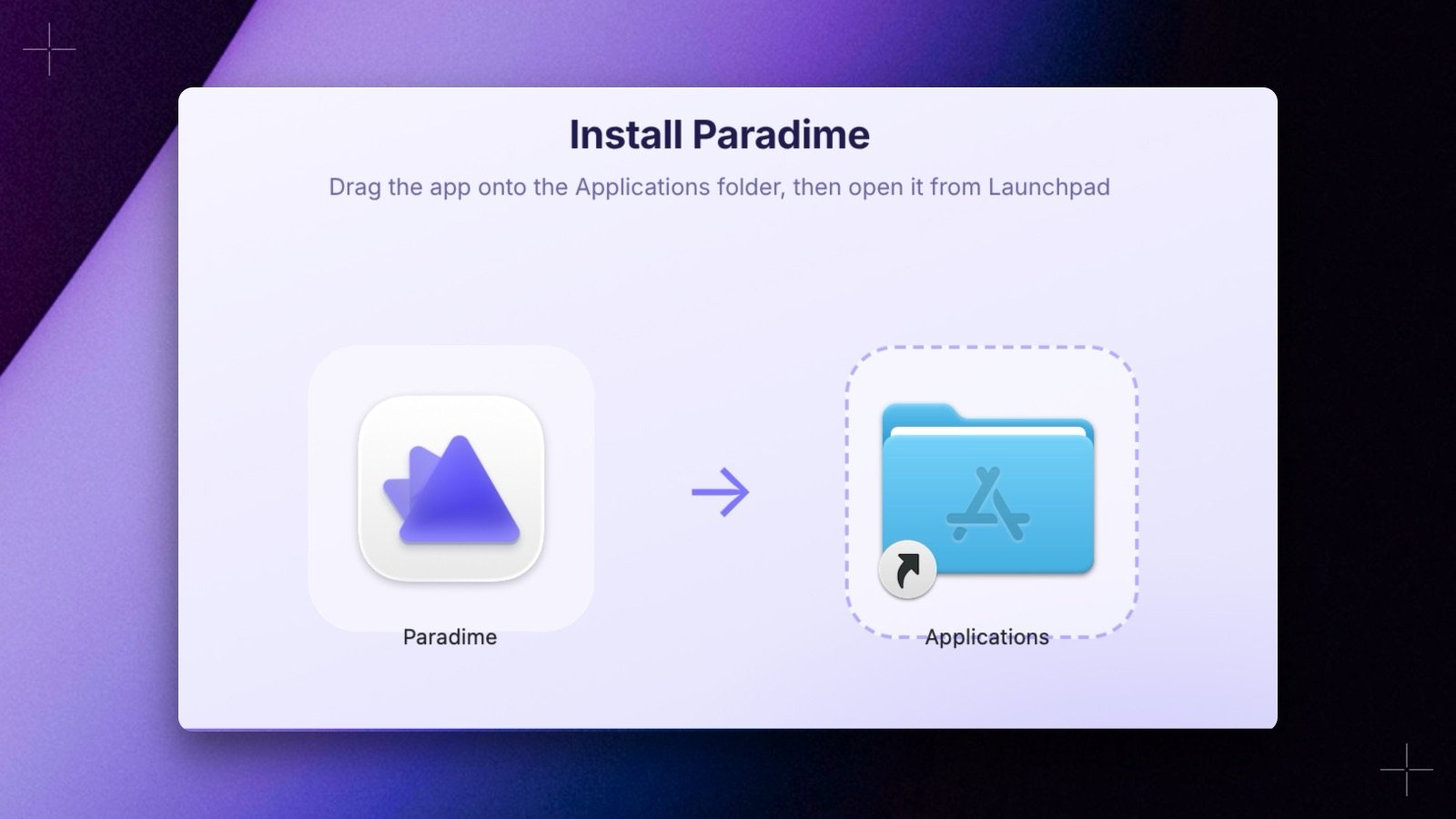
- In Paradime, open Home and click Download the app. This downloads
Paradime-mac-universal.dmg, one build for both Apple silicon and Intel Macs. - Open the downloaded file and drag Paradime to your Applications folder.
- Open Paradime from Applications.
If you installed a desktop app before October 2026, it doesn’t update to the new app by itself. Download and install the new app once.
Sign in
The desktop app signs you in through your usual browser, so Google, Microsoft, single sign-on, and your password manager work as they do on the web.- Open the app and start signing in. Your browser opens the Paradime sign-in page, and the app shows Finish signing in with your browser.
- Sign in in your browser.
- Your browser hands you back to the app through a
paradime://link, and the app finishes signing you in. If your browser asks whether to open Paradime, allow it.
Updates
The app checks for updates in the background, downloads them, and asks you to restart when a new version is ready. An update you don’t install right away is installed when you quit the app. To check now, choose Check for Updates… from the app menu.Troubleshooting
- Could not reach Paradime: the app can’t load Paradime, for example when you’re offline. Check your connection, then click Retry.
- The app stays on Finish signing in with your browser: finish signing in in the browser tab the app opened, and allow the browser to open Paradime when it asks.