

Why Document Your dbt™ Project?Thorough documentation is a critical component of any successful dbt™ project. Well-documented models and columns provide numerous benefits:
- Knowledge Sharing: Makes your data models accessible to stakeholders across your organization
- Onboarding: Helps new team members understand your data models quickly
- Self-Service Analytics: Empowers business users to explore data confidently
- Governance: Helps track sensitive data and ownership for compliance
Creating and Editing Documentation
Step-by-Step Guide
- Click Catalog to view and edit your dbt™ project’s documentation in real time. By default, you’ll see a catalog preview; expand it to utilize all catalog features.
- Make your desired edits:
-
Model Classification
- Edit existing classifications in the meta section
- Add new classifications
-
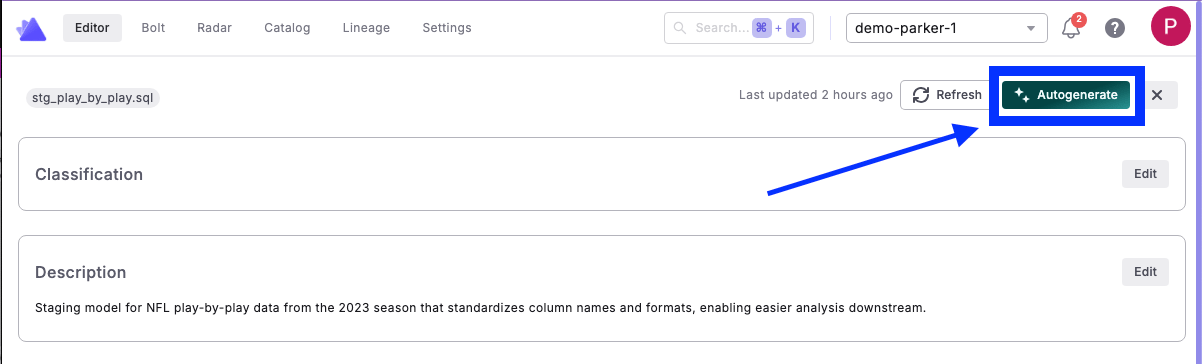
Model Description
- Type your model description manually
- Use the text formatting toolbar for better readability
- Alternatively, use DinoAI to autogenerate an in-depth, context-specific description
-
Model Classification
- Column Details
- Edit individual column descriptions
- Add or modify column classifications (e.g.,
[primary_key, true])
- Click Save Changes to apply your edits
- When finished, commit and push your git branch
- The edits you made in the UI will be reflected in the corresponding
.ymlfile
- The edits you made in the UI will be reflected in the corresponding
Available Documentation Features
Build status
The header row of the Catalog tab, beside the Description and Columns tabs, shows the state of your development catalog, for example Last updated 3 hours ago or Catalog not built yet, or the stage and time left while a build runs. If the latest build failed, the line starts with Build failed and a warning button beside it opens the error, with a note on whether it needs a configuration change or should clear on the next build. There is no refresh button: rundbt docs generate to rebuild your development catalog.
When there are no docs to show
If the Catalog tab has nothing to display, it says why:- Nothing is open in the editor: No file is open right now. Open a dbt™ model to see its docs.
- The open file isn’t one the catalog documents, for example a YAML file: No docs for the file, with a reminder that the catalog covers dbt™ models, sources, and seeds.
- The model isn’t in your workspace’s catalog yet: No docs for the file. If the model is new, run
dbt docs generateto rebuild your development catalog. - The lookup itself failed: Could not load docs, with the error underneath.
The Catalog is built using the current version of your dbt™ repository from the git branch currently selected in the Paradime IDE and Information schema from your Development Environment default connection.
For maximum efficiency, use Dino AI to autogenerate comprehensive data documentation, then refine it to meet your specific needs.