

Environment Variables
Paradime organises environment variables into four scopes. They share one grid under Settings > Environment Variables, where each variable shows the environments it is set in:Default
Admin-managed variables inherited by every user, every Bolt schedule, and every agent session in the workspace. Use Default for values shared across the whole workspace, such as a region, a default profile path, or the credentials for a dbt™ Mesh producer, instead of repeating the same value in every environment.- Default values are overlaid into Bolt schedule runs, the Code IDE, and agent sessions. A value set for a more specific environment wins on a name collision (see Precedence Hierarchy).
- After a Default variable is added, updated, renamed, or removed, Paradime automatically redeploys your Bolt schedules so running schedules pick up the change.
- When a Default variable is added, updated, renamed, or removed, or copied in from another workspace, Paradime also rewrites every developer’s Code IDE environment files. Terminals opened afterwards see the new value.
Bolt
Variables available to every Bolt schedule that runs in that Bolt environment. They are layered on top of Default variables, and a per-schedule override (UI or YAML) can override them in turn.- Scoped to Bolt schedules (production jobs) only. Not visible in the Code IDE.
- Per-schedule overrides take precedence. Set them in the schedule’s UI override column, or in YAML using
env_overrides. See the full ordering in Precedence Hierarchy.
Code IDE
Per-user variables for the Code IDE when running dbt™, Python, and CLI commands. Each user manages their own set, visible only inside their own Code IDE session.- Scoped to the Code IDE development environment only. They do not affect Bolt schedules or the Agent.
- Layered on top of Default variables. On a name collision, the user’s Code IDE value wins for that user’s session.
Agent
Variables used by DinoAI agents when they execute dbt™, Python, and CLI commands during agent sessions.- Agent sessions get the Default variables, overlaid by the variables of the Agent environment the agent runs in. On a name collision, the Agent environment’s value wins.
- Bolt and Code IDE variables are not visible to agents.
Adding Variables
The flow is the same for all four scopes:- From any page in the Paradime application, open Settings.
- Select Environment Variables.
- Click Add variable.
- Enter the Key, then enter a value in the box of each environment that needs it: Default, Code IDE, a Bolt environment, or an Agent environment. Leave a box empty to inherit the Default value.
- Click Save.
- Key must match
^[a-zA-Z_][a-zA-Z0-9_]*$(letters, digits and underscores; cannot start with a digit). - Value cannot contain whitespace.
Precedence Hierarchy
When the same variable name is set in more than one scope, the most specific scope wins. The diagram shows how each runtime context resolves its effective environment: Higher in the stack = higher precedence. The bottom layer is overlaid first; each layer above can override matching keys from the layers below it.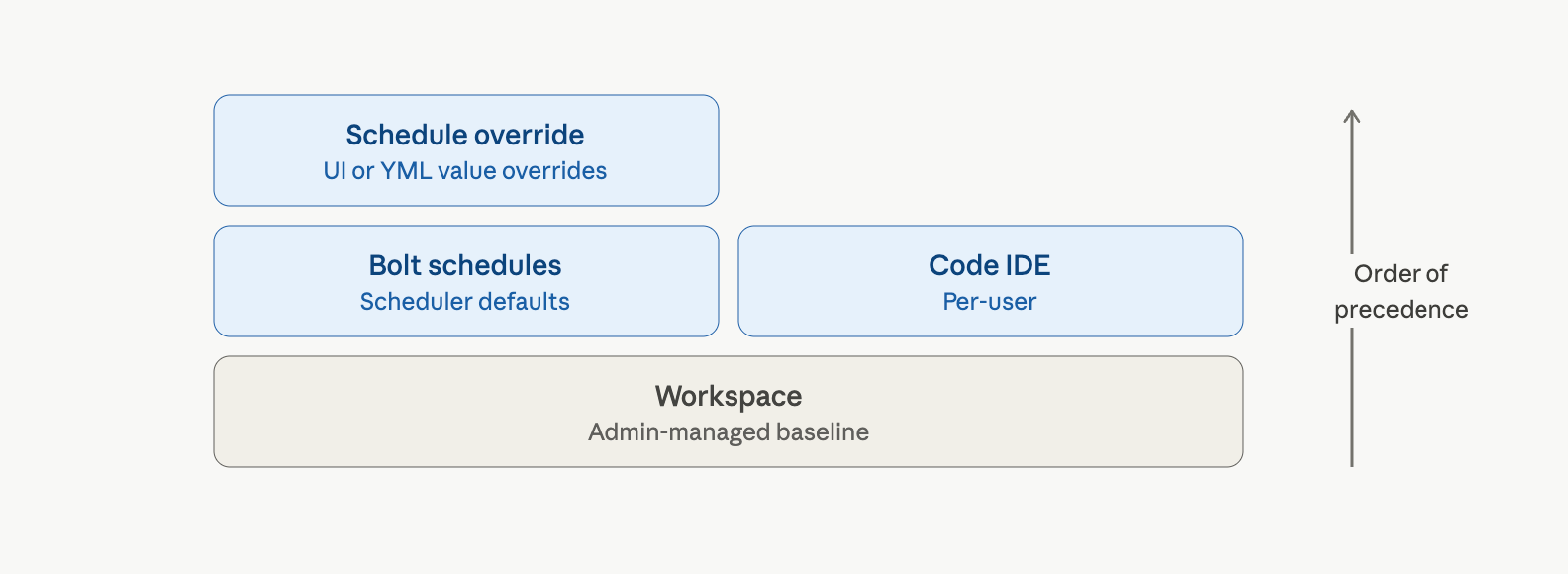
Agent sessions follow the same pattern: Default values first, then the Agent environment’s values on top. Bolt and Code IDE variables are not visible to agents.
- Bolt schedule runs: Default is overlaid first, then the Bolt environment’s values override matching keys, then Schedule-level overrides (set per schedule in the UI, or in YAML via
env_overrides) override everything else. - Code IDE: Default is overlaid first, then the user’s Code IDE values override matching keys. Bolt values and Schedule-level overrides do not apply in the IDE.
- Agent: Default is overlaid first, then the Agent environment’s values override matching keys. Bolt and Code IDE values are not visible to agents.
Use Default for values genuinely shared across users, Bolt runs, and agents (for example a default region or a shared profile path). Put production-only values in a Bolt environment, developer-specific values in Code IDE, and values only agents need in an Agent environment.