

Authentication Methods
Trino supports multiple authentication methods. Setmethod to one of these values:
LDAP- Username and password authentication via LDAP. See LDAP authentication docs.JWT- JSON Web Token authentication. See JWT authentication docs.
Setup Instructions
- Click Settings in the top menu bar of the Paradime interface to access Account Settings
- In the left sidebar, click “Connections”
- Click “Add New” next to the Bolt Schedules section
- Select “Trino” and fill out the corresponding fields.
- In the Profile Configuration field, add the following parameters based on your authentication method. Reference the Profile Fields Reference section below for additional context and configurations:
- LDAP
- JWT
After adding the configuration, ensure it’s properly formatted using a YAML formatter like YAML Formatter.
- Provide a dbt™ Profile Name (This should match with the profile name set in your
dbt_project.yml). - In the Target field, enter “
prod”. This is the default target your dbt™ project will use for your Bolt Schedules. - The “Schema” field is pre-configured, but you can change it to specify the schema where dbt will build objects.
- The “Threads” value is pre-configured to 1, but you can adjust this number to specify how many parallel operations your dbt project can run.
Example Profile Configuration
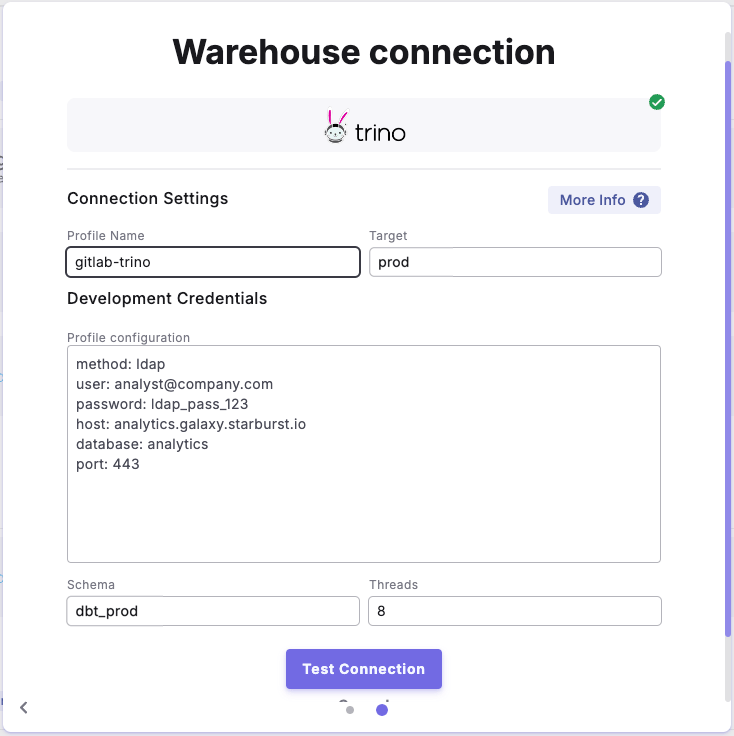
Profile configuration example is for 'LDAP' configuration