

IP RESTRICTIONMake sure to allow traffic from one of the Paradime IPs in your firewall depending on the data location selected.👉 See also: Paradime IP addresses.
Add Scheduler Connection
To add the DuckDB Scheduler connection, follow these instructions:- Click Settings in the top menu bar of the Paradime interface to access Account Settings
- In the left sidebar, click “Connections”
- Click “Add New” next to the Bolt Schedules section
- Select “duckDB” and fill out the corresponding fields.
Configuration for a DuckDB Connection
In the Scheduler connection setup screen, you will need to fill in the form with the details of the connection you want to use to run dbt™️ models against a DuckDB database. In this example we are connecting tos3 to read/write parquet files using an AWS access key and secret, these secrets can be stored in the user environment variable settings.
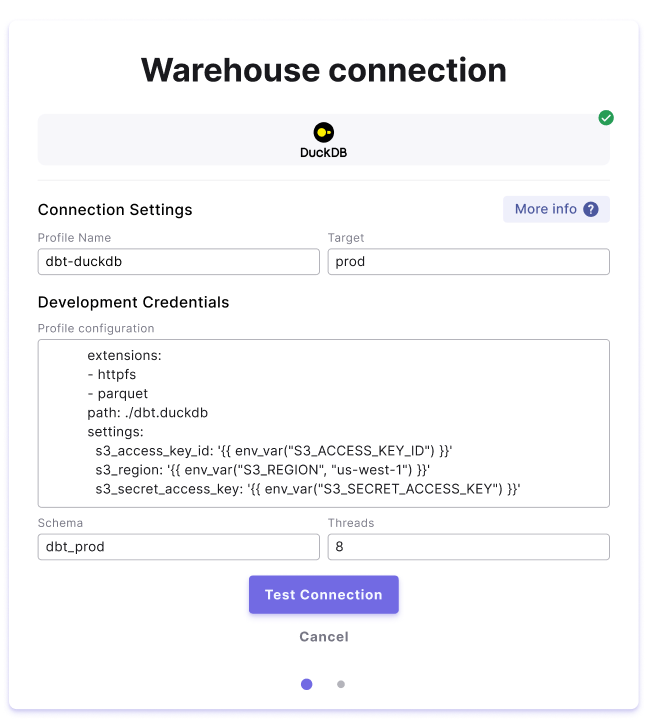
Field Details
Below are list of fields and example to create a connection.For additional supporting docs see DuckDB SQL reference.