

What You’ll Get
When a run fails, Bolt automatically creates an incident.io incident containing:- Incident name with schedule and workspace details
- Incident summary including:
- Direct link to Paradime run logs
- Run ID and execution details
- Start and end timestamps
- Commands executed
- Branch information
- Severity level based on your configuration
Key Benefits for Data Teams
- Streamline incident response - Leverage incident.io’s battle-tested incident workflow for data pipelines
- Enable Slack-native collaboration - Manage incidents directly in Slack with automatic channel creation
- Track incident metrics - Measure MTTR and incident frequency for data pipeline reliability
- Integrate with on-call rotations - Automatically page the right team when critical pipelines fail
Setup Guide
Set up incident.io incident creation for failed runs. Follow the steps below, and watch our interactive tutorial. Step 1: Gather Your incident.io Information-
Generate API Key:
- Navigate to https://app.incident.io/settings/api-keys
- Click “Create API Key”
- Give it a descriptive name (e.g., “Paradime Integration”)
- Copy and save your API key securely
-
Find Your Severity ID:
Method 1: Using the API
- Make a GET request to
https://api.incident.io/v1/severitieswith your API key - This returns all severities with their corresponding IDs
- Navigate to https://app.incident.io/settings/severities
- Click the Edit button for the severity you want to use
- Check the browser URL - the severity ID will be displayed in the URL path
01FCNDV6P870EA6S7TK1DSYDG0) - Make a GET request to
- From the Bolt home screen, go to Templates
- Click Incidents and select “Create incident in incident.io”
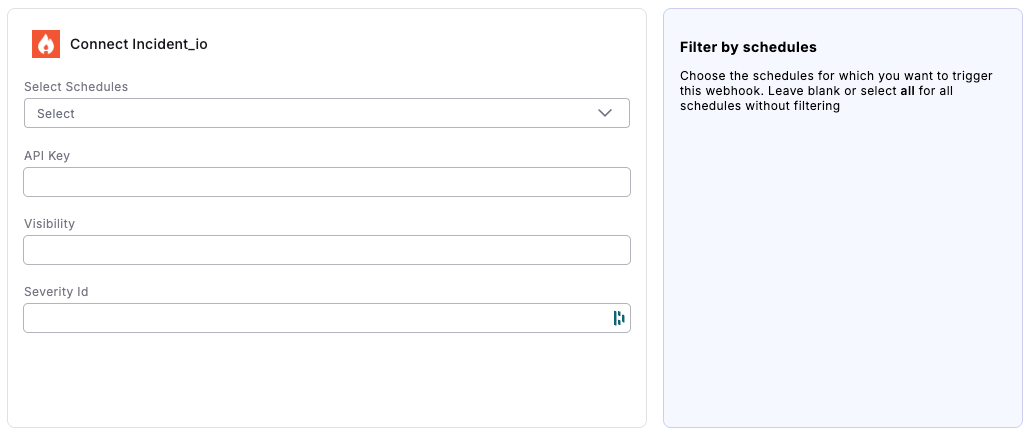
- Fill in the following fields:
- Select Schedules: Choose the schedules for which you want to trigger this webhook. Leave blank or select all for all schedules without filtering
- API Key: Enter the API key you generated in incident.io
- Visibility: Choose incident visibility:
public- Open to anyone in your Slack workspaceprivate- Invite-only access
- Severity Id: Enter the severity ID you found in Step 1
- Click “Connect”
- Run a Bolt schedule manually that will fail (the webhook only triggers on failed runs)
- After the run fails:
- Check your incident.io dashboard for the new incident
- Verify a Slack channel was created (if configured)
- Confirm the incident contains all run failure details