

incident.io Integration
Connect incident.io to Paradime to automatically create incidents when Bolt runs fail, with Slack-native collaboration and automated incident workflows.Need to connect incident.io first? Follow our incident.io integration setup guide to authenticate and connect your account.
Configure incident.io Trigger
Step 1: Add incident.io Destination
- Navigate to the Triggers integration section
- Click Add Integration
- Select incident.io from the dropdown
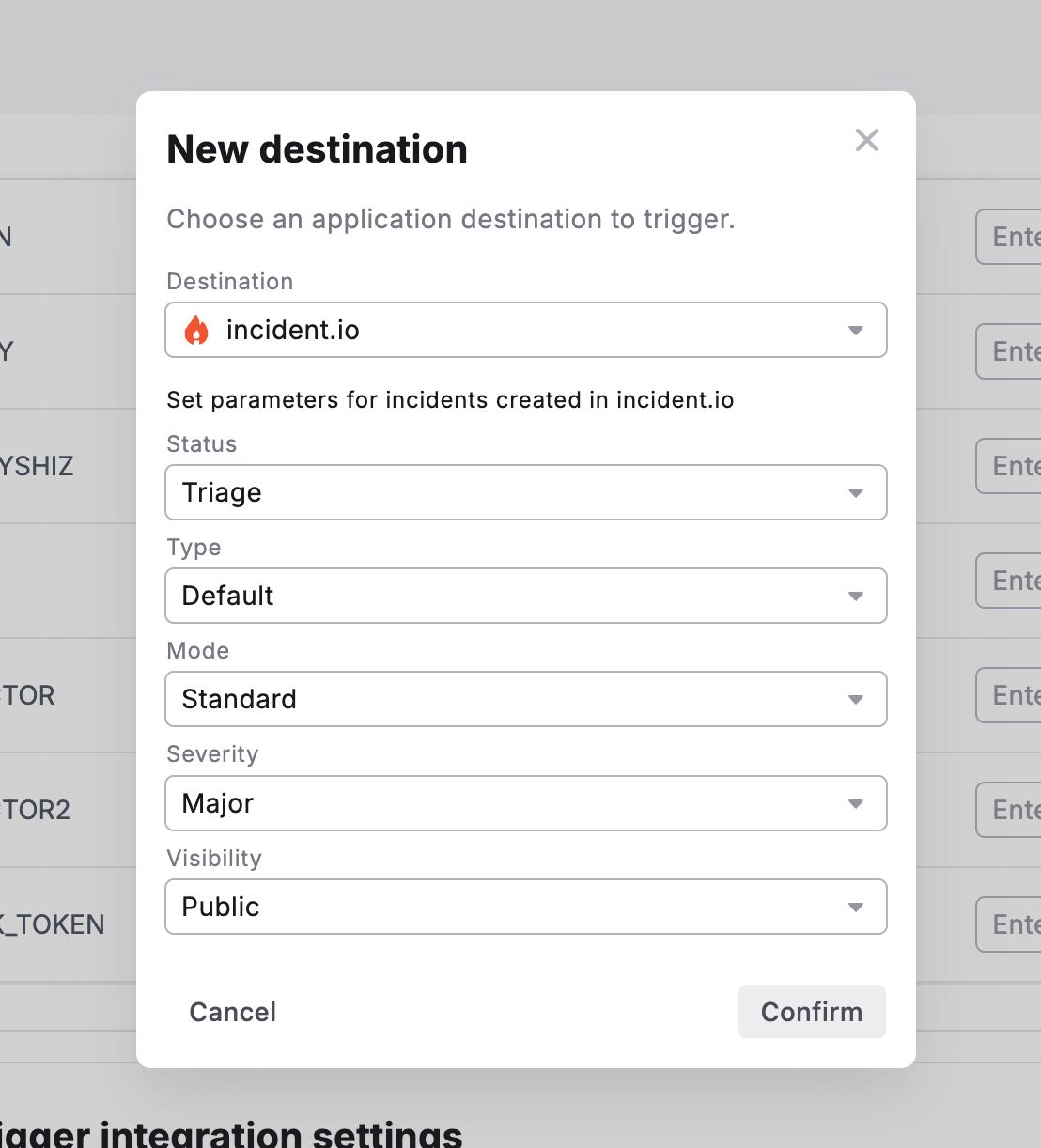
Step 2: Set Incident Parameters
Configure the following fields to customize incidents created in incident.io:Step 3: Confirm Configuration
- Review your incident parameters
- Click Confirm to save the trigger
- The incident.io trigger is now active for this schedule
What Gets Created
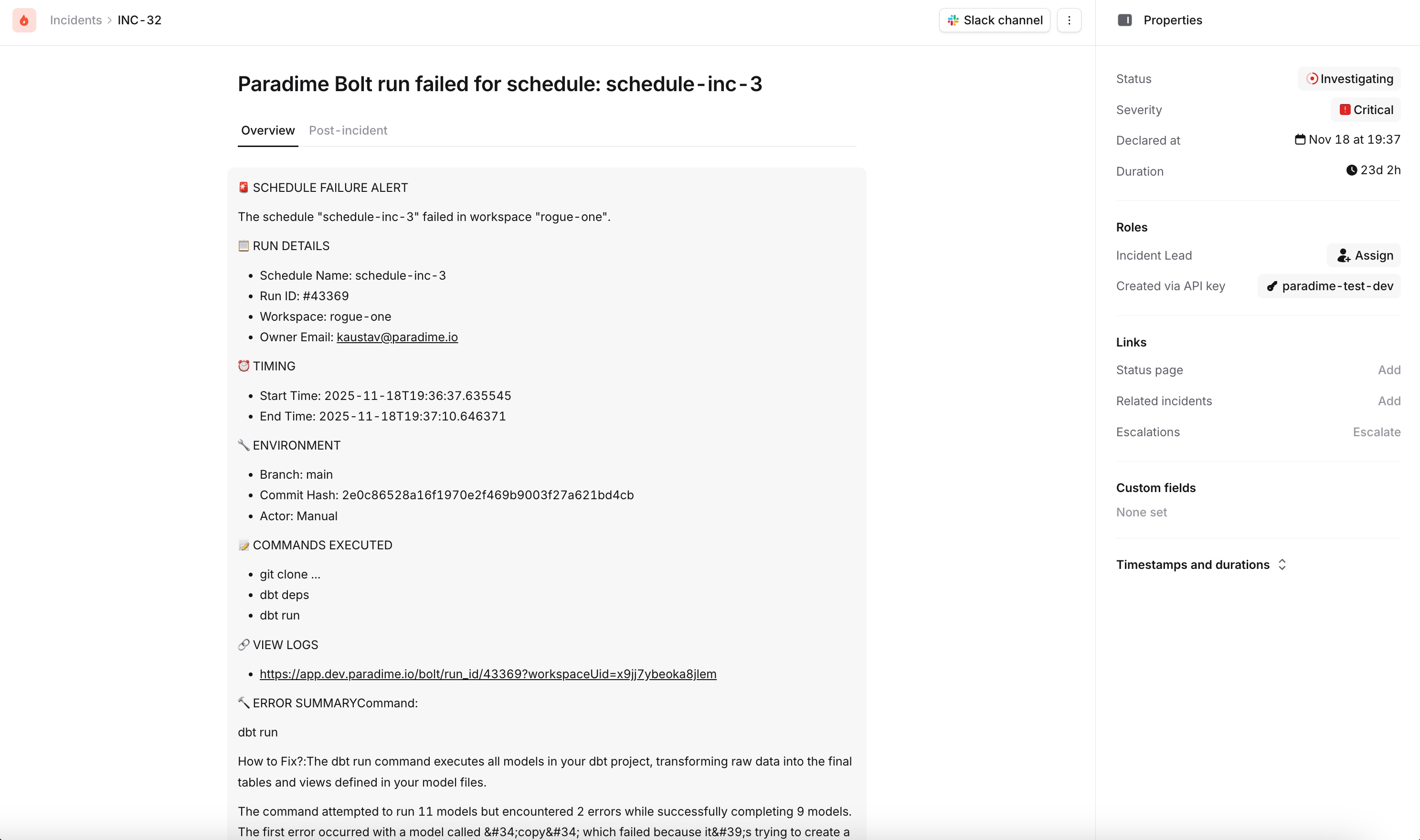
When a Bolt run fails, incident.io will automatically create an incident containing:- Incident name with schedule and workspace details
- Incident summary including:
- Direct link to Paradime run logs
- Run ID and execution details
- Start and end timestamps
- Commands executed
- Branch information
- AI Summary of the command Logs
- Configured severity level, type, and mode
- Automatic Slack channel creation (if visibility is Public)
Testing Your Configuration
- Manually run a schedule that will fail
- Check your incident.io dashboard for the new incident
- Verify the incident contains the correct parameters and run details
- Confirm the Slack channel was created (if applicable)
Key Benefits
- Slack-native collaboration - Manage incidents directly in Slack with automatic channel creation
- Standardized workflows - Leverage incident.io’s battle-tested incident response processes
- Automatic documentation - Timeline and postmortem features for pipeline issues
- Integration with on-call - Automatically page the right team when critical pipelines fail