

PagerDuty Integration
Connect PagerDuty to Paradime to automatically create incidents when Bolt runs fail, with on-call escalation and automated alerting workflows.Need to connect PagerDuty first? Follow our PagerDuty integration setup guide to authenticate and connect your account.
Configure PagerDuty Trigger
Step 1: Add PagerDuty Destination
- Navigate to the Triggers integration section
- Click Add Integration
- Select PagerDuty from the dropdown
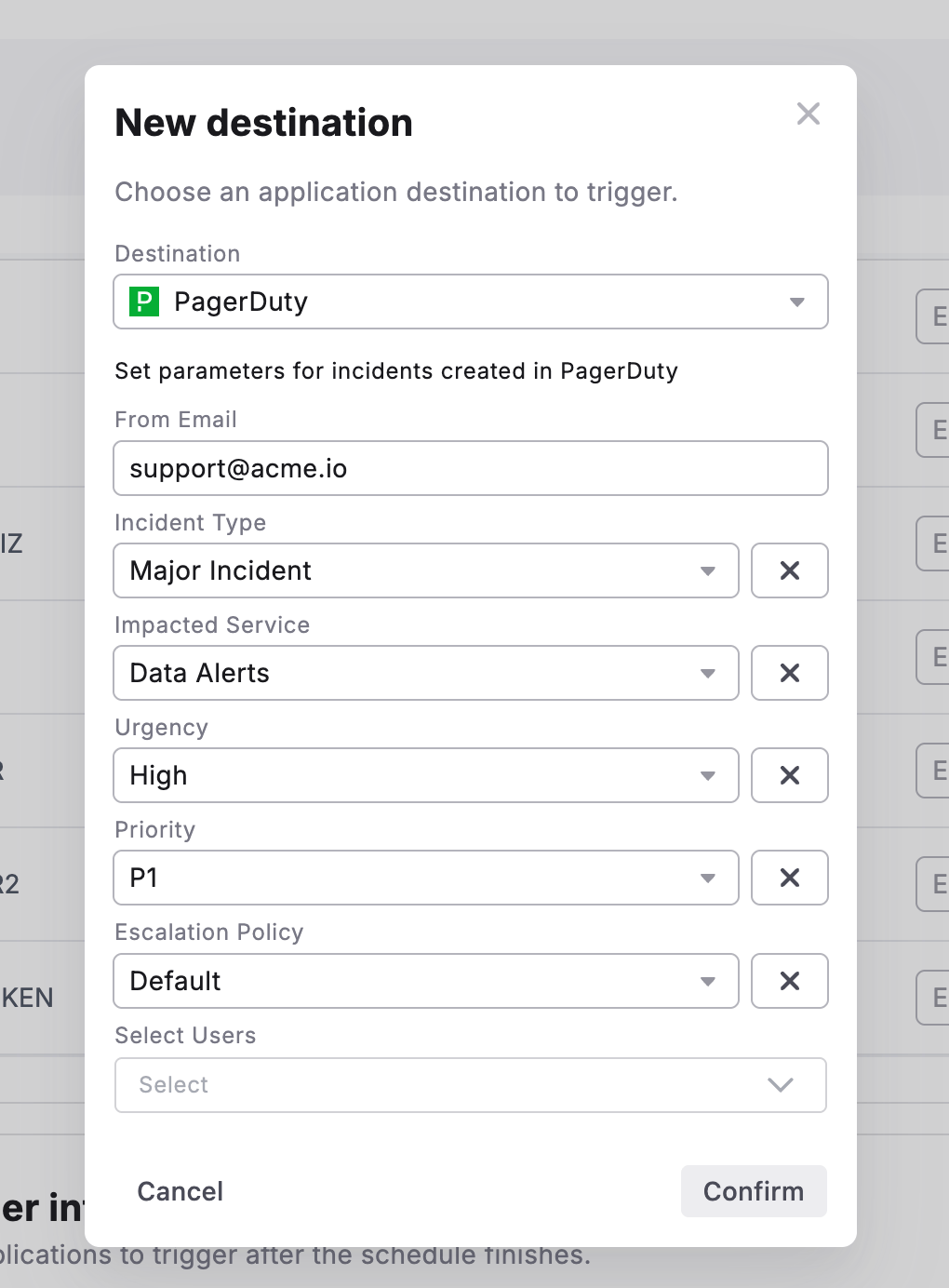
Step 2: Set Incident Parameters
Configure the following fields to customize incidents created in PagerDuty:Step 3: Confirm Configuration
- Review your incident parameters
- Click Confirm to save the trigger
- The PagerDuty trigger is now active for this schedule
What Gets Created
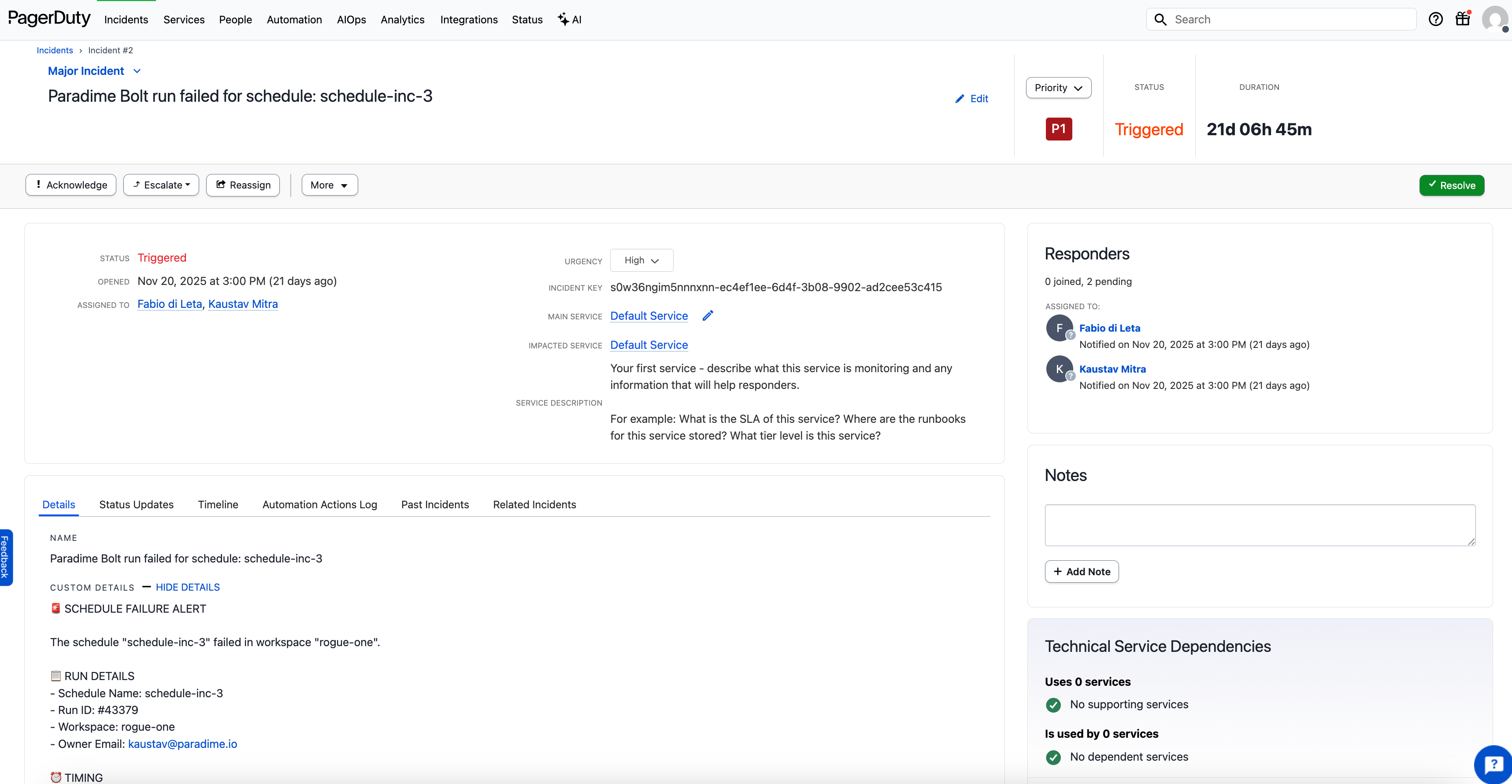
When a Bolt run fails, PagerDuty will automatically create an incident containing:- Incident title with schedule and workspace details
- Incident description including:
- Direct link to Paradime run logs
- Run ID and execution details
- Start and end timestamps
- Commands executed
- Branch information
- AI Summary of the command logs
- Configured urgency, priority, and incident type
- Automatic assignment based on escalation policy
Testing Your Configuration
- Manually run a schedule that will fail
- Check your PagerDuty dashboard for the new incident
- Verify the incident contains the correct parameters and run details
- Confirm the appropriate users were notified based on your escalation policy
Key Benefits
- On-call escalation - Automatically page the right team members when critical pipelines fail
- Urgency-based routing - High urgency incidents trigger immediate notifications
- Centralized alerting - Manage data pipeline incidents alongside infrastructure alerts
- Mobile notifications - Receive alerts on mobile devices for rapid response