# Trigger New Relic Incidents

Connect New Relic to Paradime to automatically create incidents when Bolt runs fail, with centralized observability and monitoring workflows.

{% hint style="info" %}
**Need to connect New Relic first?** Follow our [New Relic integration](/app-help/documentation/integrations/incident-management/new-relic.md) setup guide to authenticate and connect your account.
{% endhint %}

### Configure New Relic Trigger

#### Step 1: Add New Relic Destination

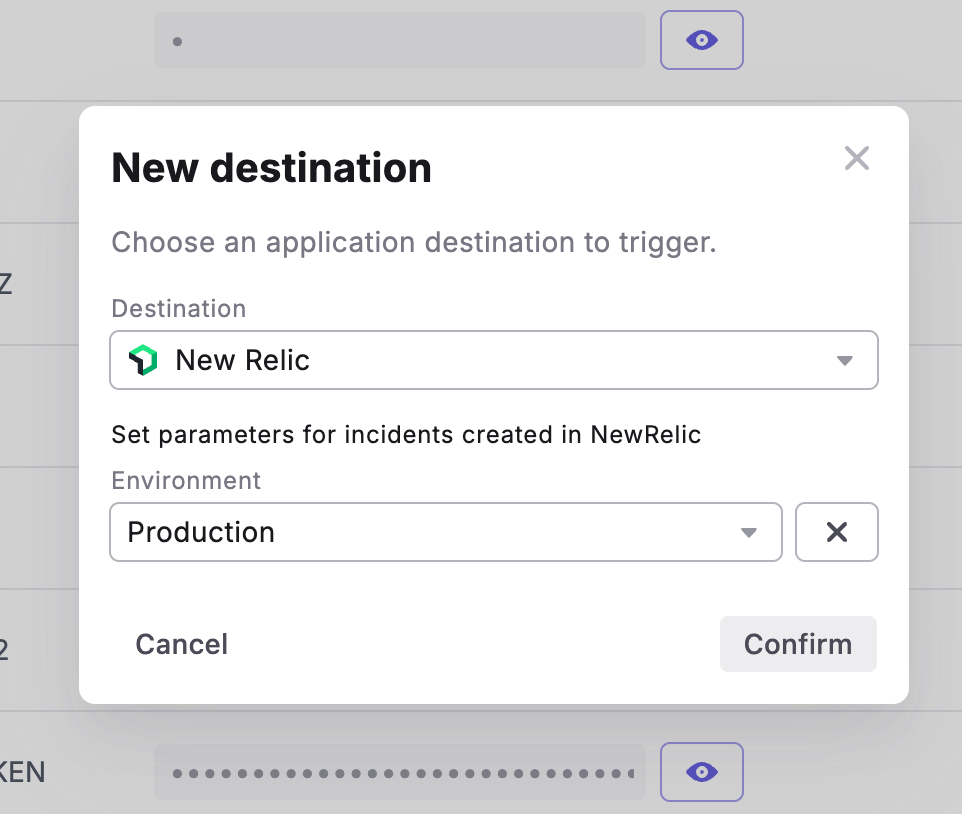
1. Navigate to the **Triggers integration** section
2. Click **Add Integration**
3. Select **New Relic** from the dropdown

<div data-with-frame="true"><figure><img src="/files/vCnTQKTfk1fPmyboBYoE" alt="" width="375"><figcaption></figcaption></figure></div>

#### Step 2: Set Incident Parameters

Configure the following field to customize incidents created in New Relic:

| Field           | Description                         | Options                                                                 |
| --------------- | ----------------------------------- | ----------------------------------------------------------------------- |
| **Environment** | Environment where the pipeline runs | Production, Staging, Development, or custom environments from New Relic |

#### Step 3: Confirm Configuration

1. Review your incident parameters
2. Click **Confirm** to save the trigger
3. The New Relic trigger is now active for this schedule

### What Gets Created

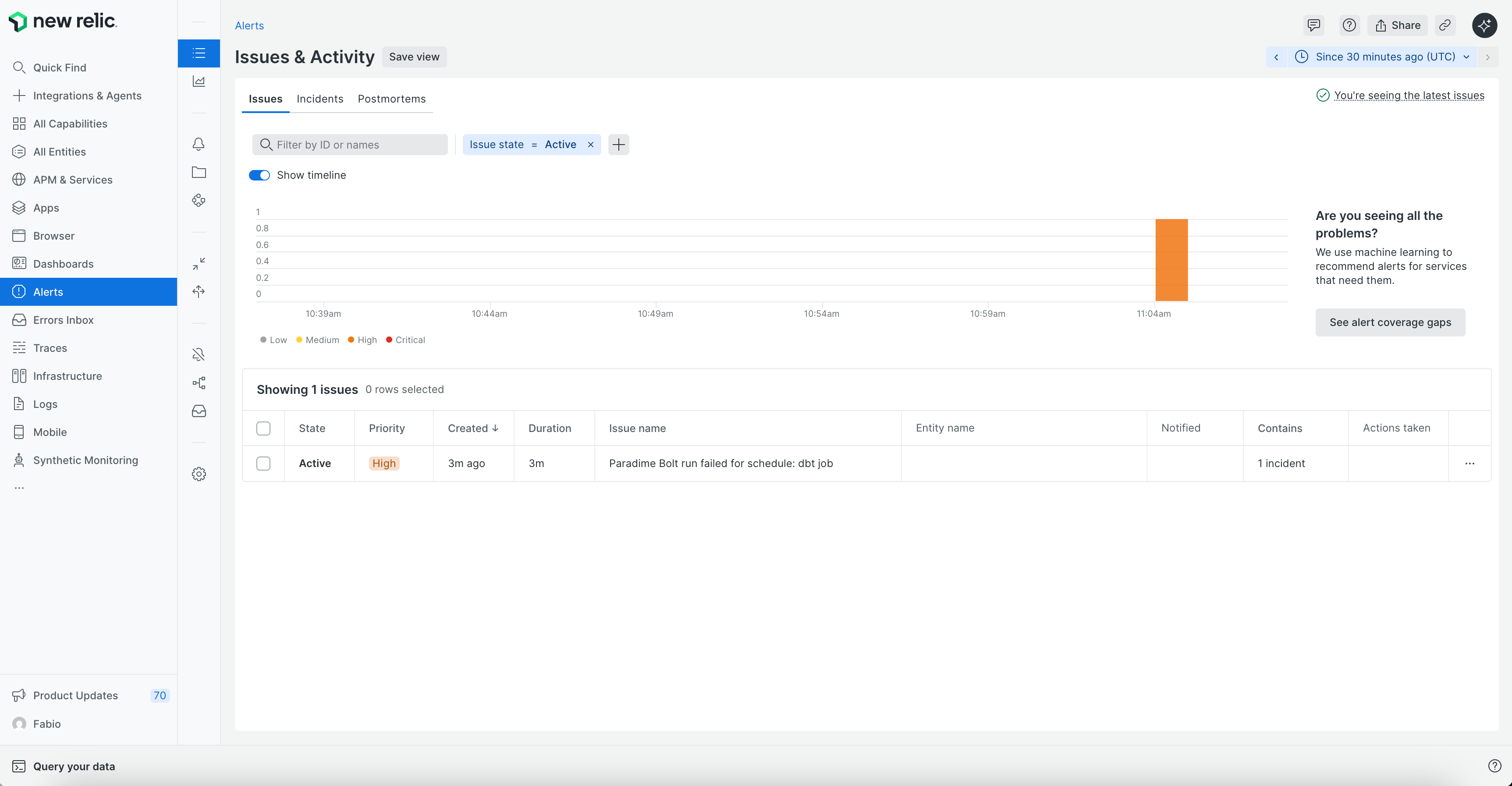
When a Bolt run fails, New Relic will automatically create an incident containing:

* Incident title with schedule name and workspace
* Incident details including:
  * Direct link to Paradime run logs
  * Run ID with direct link
  * Execution timestamps
  * Commands executed
  * Branch information
  * AI Summary of the command logs
* Configured environment classification

<div data-with-frame="true"><figure><img src="/files/77w1a3aazNWayXPPTlqa" alt=""><figcaption></figcaption></figure></div>

### Testing Your Configuration

1. Manually run a schedule that will fail
2. Check your New Relic dashboard for the new incident
3. Verify the incident contains the correct parameters and run details
4. Confirm the incident appears in the correct environment

### Key Benefits

* **Centralized observability** - Track pipeline failures alongside application and infrastructure monitoring
* **Unified dashboards** - Monitor data pipeline health with your existing New Relic setup
* **Cross-team visibility** - Share pipeline incidents with platform and DevOps teams
* **Faster debugging** - Jump directly from New Relic alerts to Paradime run logs


---

# Agent Instructions: Querying This Documentation

If you need additional information that is not directly available in this page, you can query the documentation dynamically by asking a question.

Perform an HTTP GET request on the current page URL with the `ask` query parameter:

```
GET https://docs.paradime.io/app-help/documentation/bolt/creating-schedules/trigger-integrations/trigger-new-relic-incidents.md?ask=<question>
```

The question should be specific, self-contained, and written in natural language.
The response will contain a direct answer to the question and relevant excerpts and sources from the documentation.

Use this mechanism when the answer is not explicitly present in the current page, you need clarification or additional context, or you want to retrieve related documentation sections.