> For the complete documentation index, see [llms.txt](https://docs.paradime.io/app-help/llms.txt). Markdown versions of documentation pages are available by appending `.md` to page URLs; this page is available as [Markdown](https://docs.paradime.io/app-help/products/dino-ai/bolt-pipeline-agent/production-pipelines.md).

# Pipeline Insights

When a Bolt run completes, DinoAI automatically analyses the execution logs and generates a human-readable summary for each command. Instead of manually scanning through hundreds of log lines, you get a clear breakdown of what happened, what went wrong, and what to do next

### What the Summary Includes

For each command executed in a Bolt run, DinoAI provides:

* **Execution overview** — a plain-language summary of what the command did
* **Warnings and errors** — surfaced and explained in context, not just raw stack traces
* **Recommendations** — actionable suggestions to improve reliability and performance
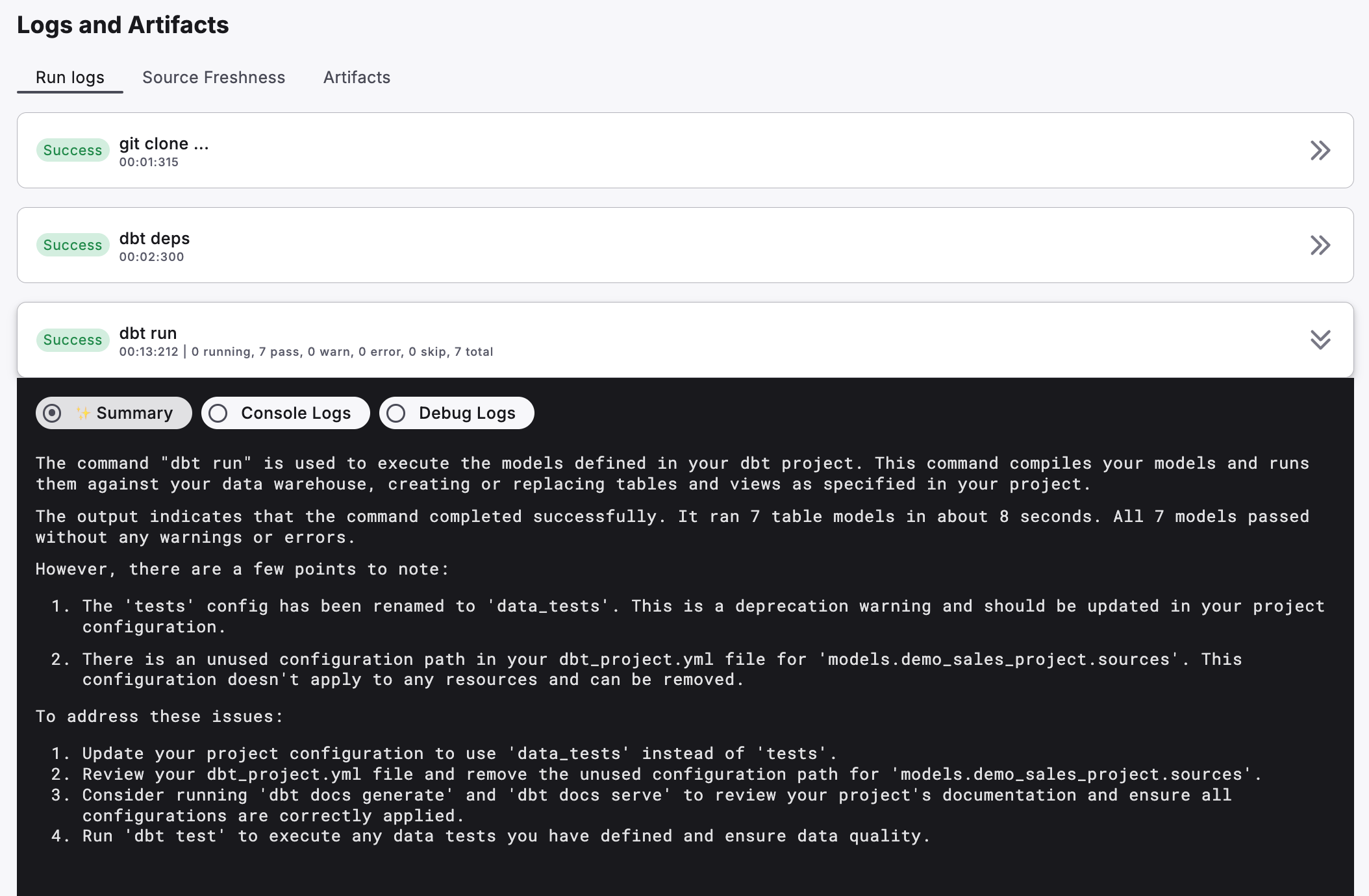
<div data-with-frame="true"><figure><img src="/files/9CqmZBQjdZvOdNlTIEEm" alt=""><figcaption><p>Example: DinoAI Summary</p></figcaption></figure></div>

### Turbo CI summaries on GitHub

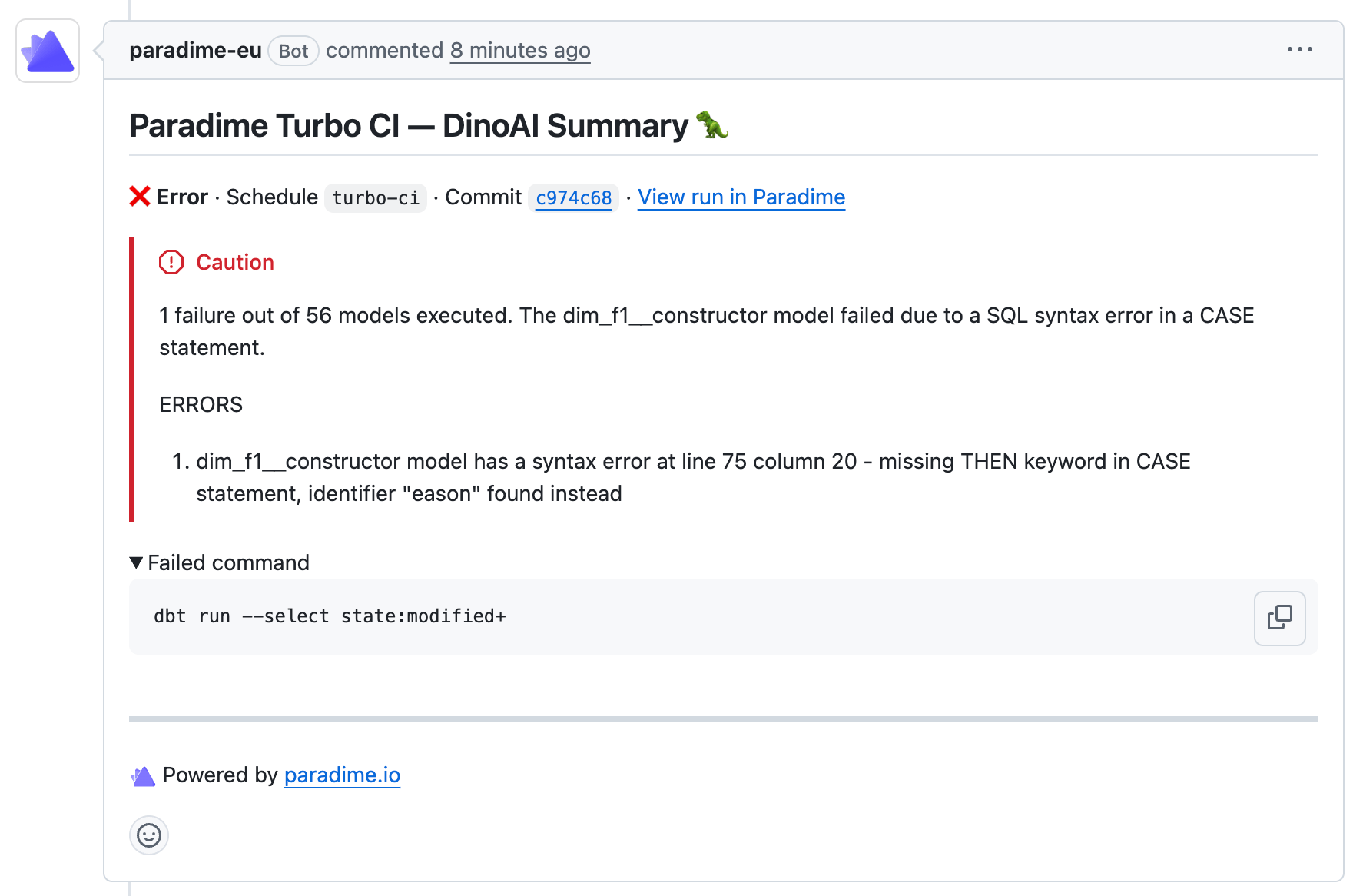
DinoAI summaries also appear on pull requests. When a Turbo CI run fails, Paradime posts the DinoAI Summary as a comment on the pull request — so reviewers can see why CI failed without leaving GitHub.
<div data-with-frame="true"><figure><img src="/files/zJt2PdgCcYcKVPoWjAqr" alt=""><figcaption></figcaption></figure></div>

The PR comment includes the schedule name and commit SHA, a plain-language explanation of the failure, the specific errors with affected models, and the command that failed. A link back to the full run in Paradime is included for deeper investigation.

No additional configuration is required — the DinoAI Summary is posted automatically whenever a Turbo CI run fails on a pull request. **See the** [**GitHub Turbo CI doc**](/app-help/products/bolt/ci-cd/turbo-ci/github.md) **for details.**

### Troubleshooting Pipeline Runs

1. Open the **Bolt UI** and select a schedule
2. Scroll down to **Run History** and click on a specific run
3. Scroll down to **Logs and Artifacts**
4. Select a command that has an error or warning (e.g. `dbt run`)
5. Click the **Summary** tab to see the DinoAI-generated analysis

{% @arcade/embed url="<https://app.arcade.software/share/3vfnYgc3uEYepUvSn2H9>" flowId="3vfnYgc3uEYepUvSn2H9" %}

> **Tip:** The Summary tab is most useful when a command has failed or produced warnings — that's when DinoAI's analysis saves the most time.

***

### Next Steps

Once you've reviewed the summary, you have two options:

* **Fix it yourself** — use the recommendations to make changes in the IDE
* **Let DinoAI fix it** — use [Fix with DinoAI](https://claude.ai/chat/fix-with-dinoai.md) to trigger a one-click fix directly from the run

***

### Related

* [Bolt Schedules](/app-help/products/bolt.md) — Setting up and managing your pipelines
* [Fix with DinoAI](/app-help/products/dino-ai/bolt-pipeline-agent/fix-with-dinoai.md) — One-click fixes based on run errors
* [Self-Healing](/app-help/products/dino-ai/bolt-pipeline-agent/self-healing.md) — Automatically fix and re-run failed pipelines


---

# Agent Instructions
This documentation is published with GitBook. GitBook is the documentation platform designed so that both humans and AI agents can read, navigate, and reason over technical content effectively. Learn more at gitbook.com.

## Querying This Documentation
If you need additional information that is not directly available in this page, you can query the documentation dynamically by asking a question.

Perform an HTTP GET request on the current page URL with the `ask` query parameter:

```
GET https://docs.paradime.io/app-help/products/dino-ai/bolt-pipeline-agent/production-pipelines.md?ask=<question>
```

The question should be specific, self-contained, and written in natural language.
The response will contain a direct answer to the question and relevant excerpts and sources from the documentation.

Use this mechanism when the answer is not explicitly present in the current page, you need clarification or additional context, or you want to retrieve related documentation sections.
