

.dinoai/agents/<name>.yml through a pull request.
The Agents page
Open DinoAI Agent from the left navigation and select Agents. The list shows every agent available in the workspace, whether it was built here or defined as YAML under.dinoai/agents/ in your repo. Each row shows the agent’s role, model, tools, squad, whether it was Deployed from UI or Deployed from Git, and when it last ran. Use Search agents… to filter by name or role.
From this page you can:
- New agent: describe a new agent, or pick a template.
- Chat: start a new interactive session with that agent. Your first message starts the run; the agent clones the repository and works from there.
- Schedule: jump straight to a new Bolt schedule with the Run DinoAI Background Agent command already added and the agent pre-selected, so you only need to describe the task. See Triggering from Bolt.
Describe the agent, or start from a template
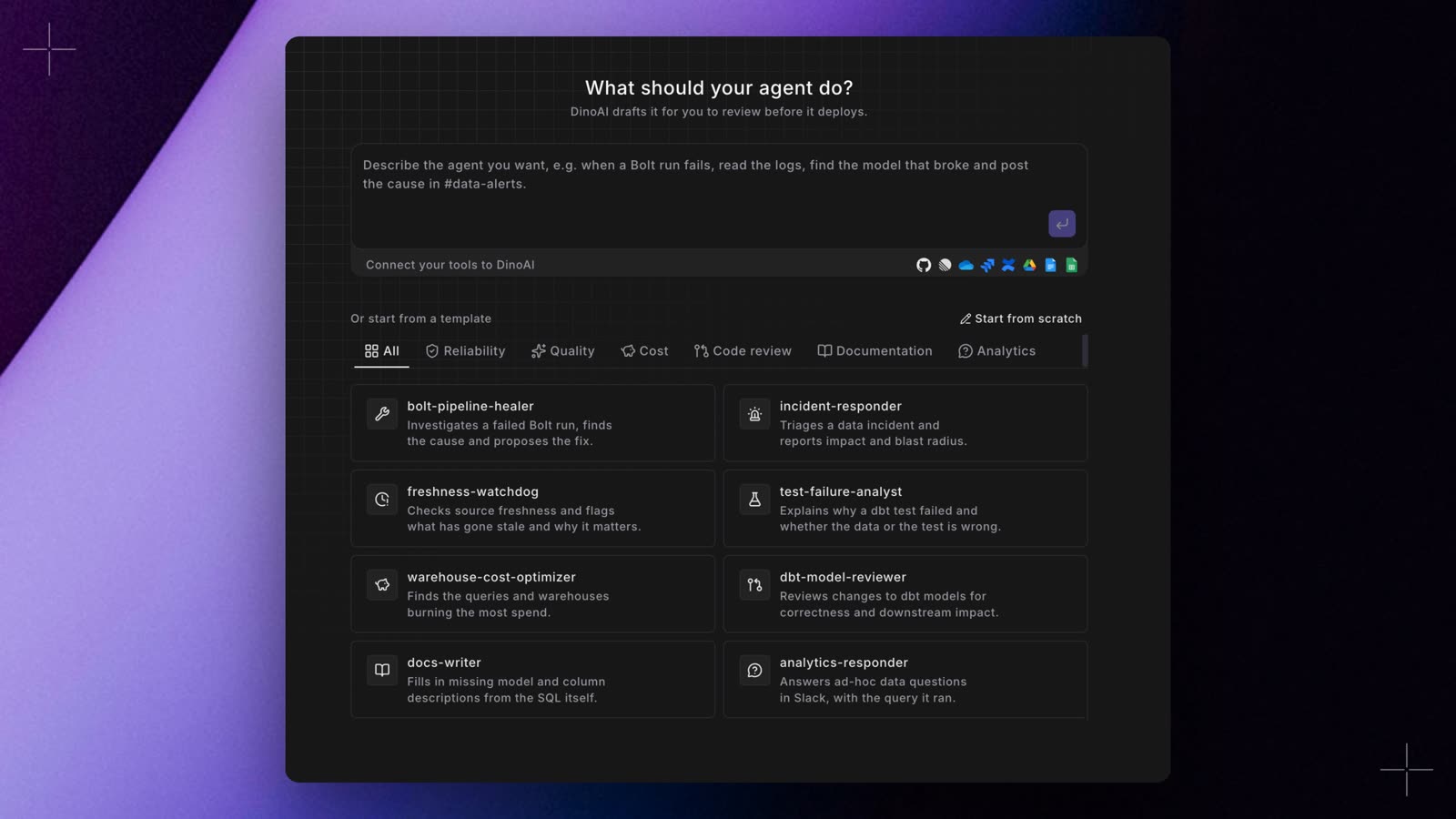
bolt-pipeline-healer, incident-responder, freshness-watchdog, test-failure-analyst, warehouse-cost-optimizer, dbt-model-reviewer, docs-writer, and analytics-responder.
Pick Start from scratch for a blank agent where you write the role, goal, and backstory exactly how you want.
The builder
The builder walks you through the same fields you would otherwise write in YAML. A checklist in the left rail tracks which sections still need attention.Identity
- Name: becomes the filename under
.dinoai/agents/and how you invoke the agent from Bolt, the API, or chat. - Role: who the agent is, in one line.
- Goal: what a successful run achieves.
- Backstory: context and instructions for every run, such as who to add as Jira watchers when creating issues.
Model
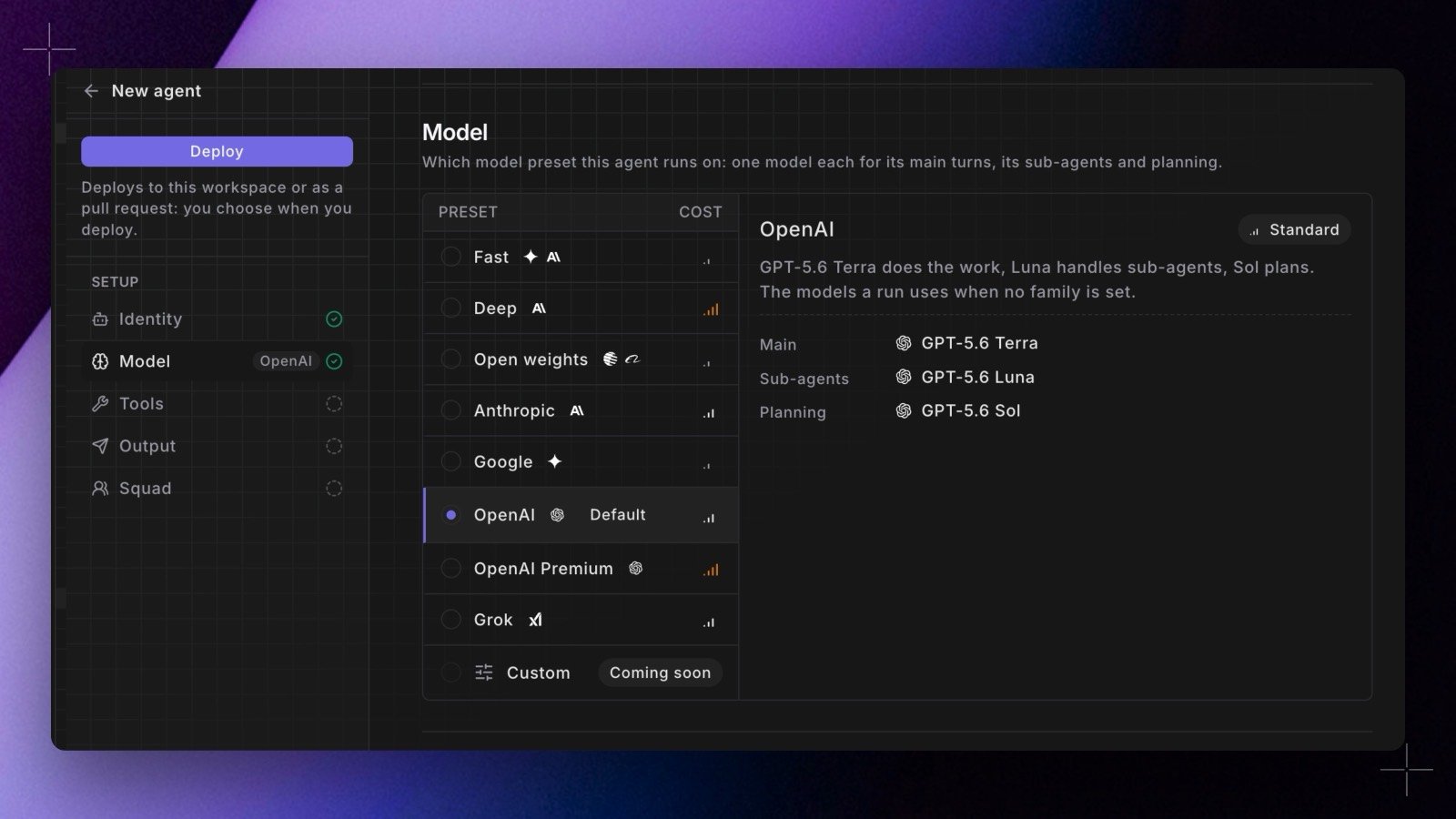
modelFamily argument. An unrecognized family never fails the run: it starts on the workspace’s default family instead, and the mutation returns a warning saying which family it used.
Environment
Pick the Agent environment the agent runs in. An environment carries a warehouse connection, a dbt™ version, and a partial parsing setting, so this decides what the agent connects to and what it runs dbt™ with. Leave it on Workspace default and the agent follows the workspace’s default Agent environment, writing noenvironment field to the YAML. Pick a named environment and the agent is pinned to it, which is how you hold one agent on a newer dbt™ version than the rest of the workspace, or point it at a warehouse role scoped for agent work. Its SQL tools run through the same connection.
The environment is resolved and pinned before the agent’s runtime starts, so the dbt™ version takes effect for the whole session. A session already in flight keeps the environment it resolved, so editing the agent mid-run cannot move it.
Manage these under Settings → Environments → Agent, where each environment carries its own connection, dbt™ version, and dbt™ partial parsing toggle. See Agent environment.
Tools
Control which tools the agent may reach for:- Allowed tools: only these, everything else is refused.
- Denied tools: everything the workspace allows, except these.
- Leave both lists empty and the agent inherits the workspace’s tool permissions.
mcpTools list, the section shows a notice with a Remove button. That list keeps limiting the agent’s MCP tools until you select Remove and deploy, so add the MCP tools the agent needs to the lists above first.
See the Tools Reference for what each tool does.
Change the agent with a prompt
The box under the form takes a change in plain words, such as also check source freshness first. DinoAI updates only the fields the change needs and marks each changed section with a dot (Updated by DinoAI). Select Undo to put back the fields you haven’t edited since.- While DinoAI works, the fields and Deploy are locked.
- DinoAI doesn’t change the agent’s model, environment, output channel, or squad, and it keeps the agent’s name once it has one.
- It changes tools only when the agent already has an Allowed tools list, or when the form is blank.
- DinoAI reads the agent as it is in the form, unsaved edits included, so a change builds on your latest version.
- Each change uses your DinoAI credits. There is no length limit on the prompt or the agent.
- If a change fails, the builder shows the reason DinoAI gave.
Output (optional)
Pick a Slack channel the agent posts its results to. Leave it empty and the agent replies wherever it was invoked (the Bolt run log, the API session, or the chat).Squad (optional)
Select other agents this one can delegate to. Each sub-agent runs in its own session and reports back. See Agent-to-Agent Delegation.Deploy
Click Deploy and choose where the agent lives:- Just here: the agent is saved to this workspace and is live straight away, with no file in your repo. You can deploy it as YAML later to put it under review.
- Open a pull request: Paradime commits
.dinoai/agents/<name>.ymlto a branch and opens a pull request against your default branch. The agent starts working once the change is merged, and from then on it is version-controlled alongside the rest of your project, exactly as if you had written the file by hand. - Download the YAML (shown when GitHub isn’t connected): download the file and commit it to your repo yourself.
Run the agent
Once the agent exists you can trigger it from any surface:- Chat: click Chat on the agent’s row for an interactive session in the app.
- Bolt: click Schedule on the agent’s row, or add the Run DinoAI Background Agent command to any schedule. Runs natively, no API keys needed. Give the schedule an incoming webhook to start the agent from another tool’s event, with the request body in its task. See Triggering from Bolt.
- API, SDK, or CLI: for workflows you orchestrate yourself. See the API Reference.