

Requires Google Drive integration. Before using this tool, make sure you’ve connected your Google account in Paradime. See Connecting Google Drive to Paradime for setup instructions.
Capabilities
Thesearch_google_drive_files tool searches and discovers files across your Google Drive. Specifically, it:
- Supports advanced search using Google Drive query syntax
- Filters by file type, name, content, and modification date
- Returns metadata including file links, timestamps, size, and starred status
Using the Google Drive Search Tool
- Open DinoAI in the right panel of the Code IDE
- Provide a description of the file or files you’re looking for (e.g., a file name, topic, or folder)
- Add your prompt describing what you want DinoAI to do once it finds the relevant files
- Grant permission when DinoAI asks to search your Drive
- Review the results and implement DinoAI’s suggested actions
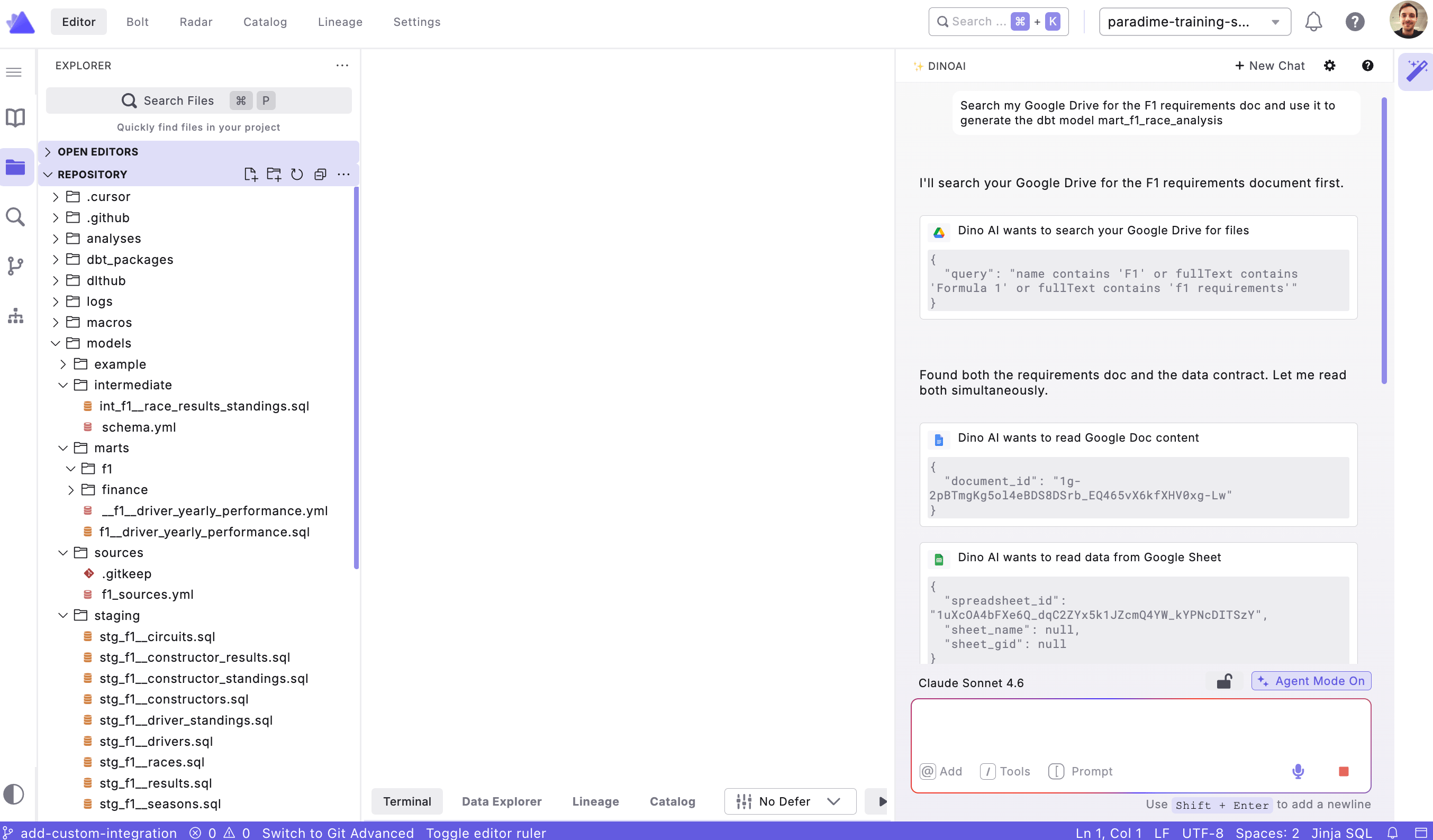
Example Use Cases
Finding the Latest Version of a Spec
PromptLocating Documents by Folder and Content
PromptWorking with Other Tools
The Google Drive Search Tool works well alongside DinoAI’s other capabilities to support your full development workflow:- Combine with the Google Docs Tool to search for a file in Drive and then read its full contents in the same workflow
- Combine with the Linear Tool or Jira Tool to locate supporting documentation referenced in a ticket
Best Practices
- Be specific in your search — Include file names, keywords, or folder names in your prompt to help DinoAI return the most relevant results
- Use modification date filters — When looking for the latest version of a document, mention a time range (e.g., “modified this month”) to narrow results
- Pair with the Google Docs Tool — Once you’ve found the right file, use the Google Docs Tool to extract its full content and turn it into actionable work
- Verify the results — Always confirm you’re working from the correct file, especially when multiple versions or similarly named documents exist