

From the run page
Select a failed step on the run page and click Fix with DinoAI in the command toolbar. The view moves to the run’s ✨ DinoAI tab, where the agent session starts right there in Bolt: the full transcript, tool calls, status, credits, and a reply box, the same session view as the agent panel.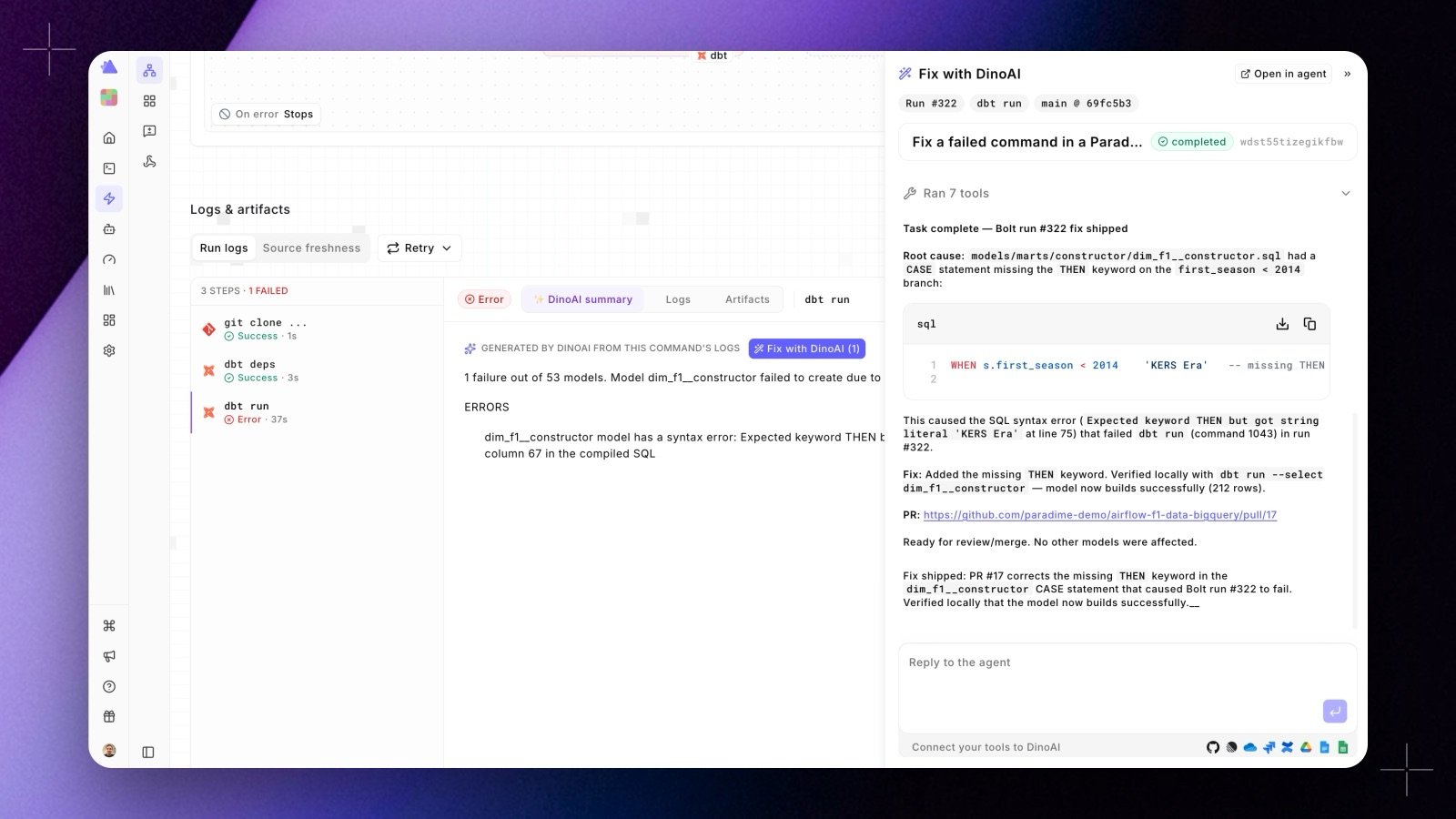
- The run id and failed command id, so it fetches the run’s logs itself through its Bolt tool
- The branch and commit the run used, so its checkout matches the run
- The AI-generated failure summary as the diagnosis to start from
Sessions stay attached to the run
Every session started this way records the run and the failed command that opened it. Reopen the run later and the DinoAI tab reloads its sessions instead of starting empty, with a switcher at the top when a run has more than one. From the tab:- Fix with DinoAI again continues the run’s current session
- New chat starts a fresh session against the same run
- Open in agent shows the same session in the agent panel
From Slack
When Bolt posts a run failure notification to Slack, the thread includes a Fix with DinoAI button alongside the error summary. Click it directly from the thread to kick off the fix: the agent session posts its analysis and progress updates to the connected Slack channel, and the final PR link lands in the same thread.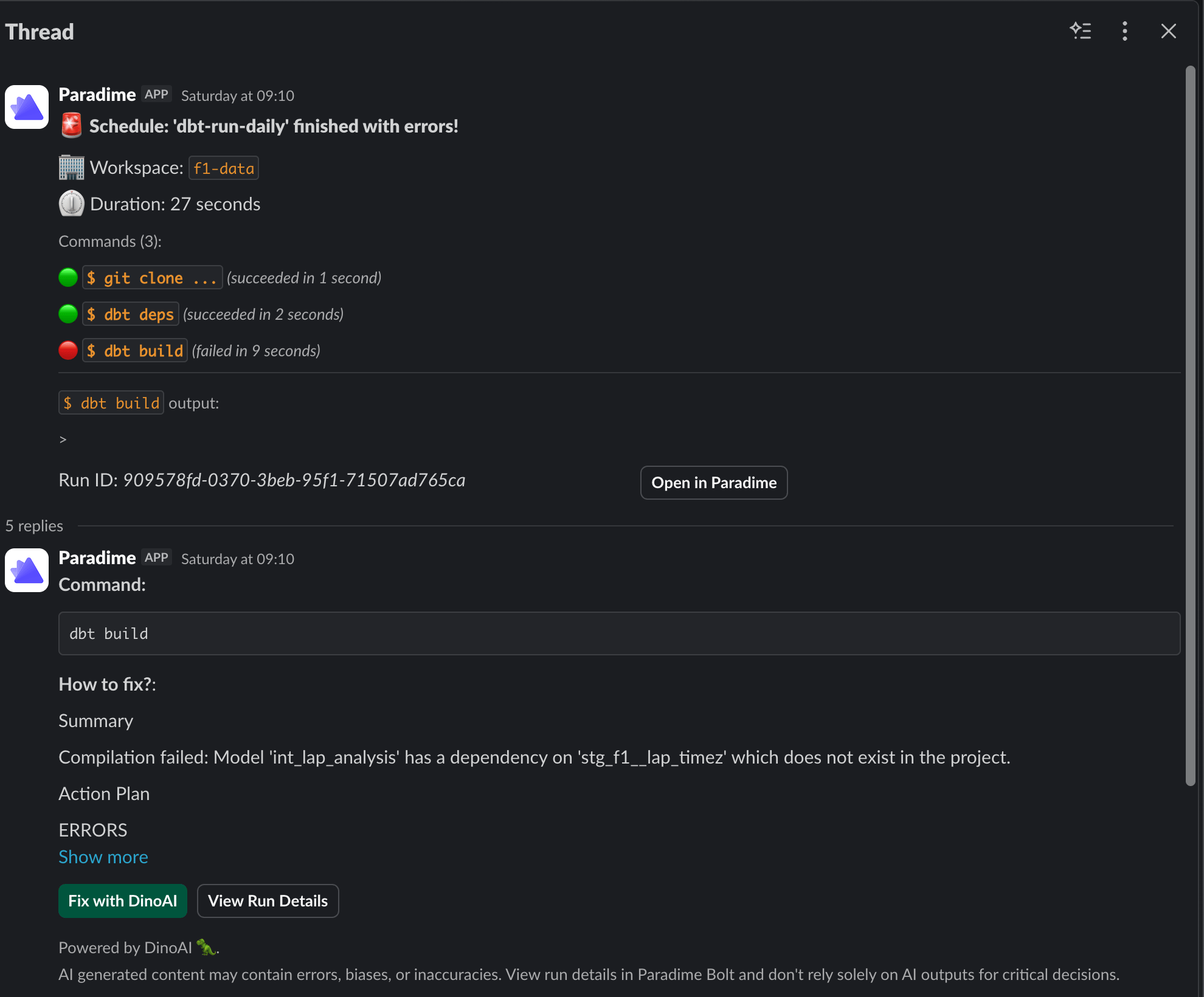
dbt build command failed because a model references a source that doesn’t exist in the project. DinoAI surfaces the root cause, an action plan, and the Fix with DinoAI button, all in the same Slack thread.
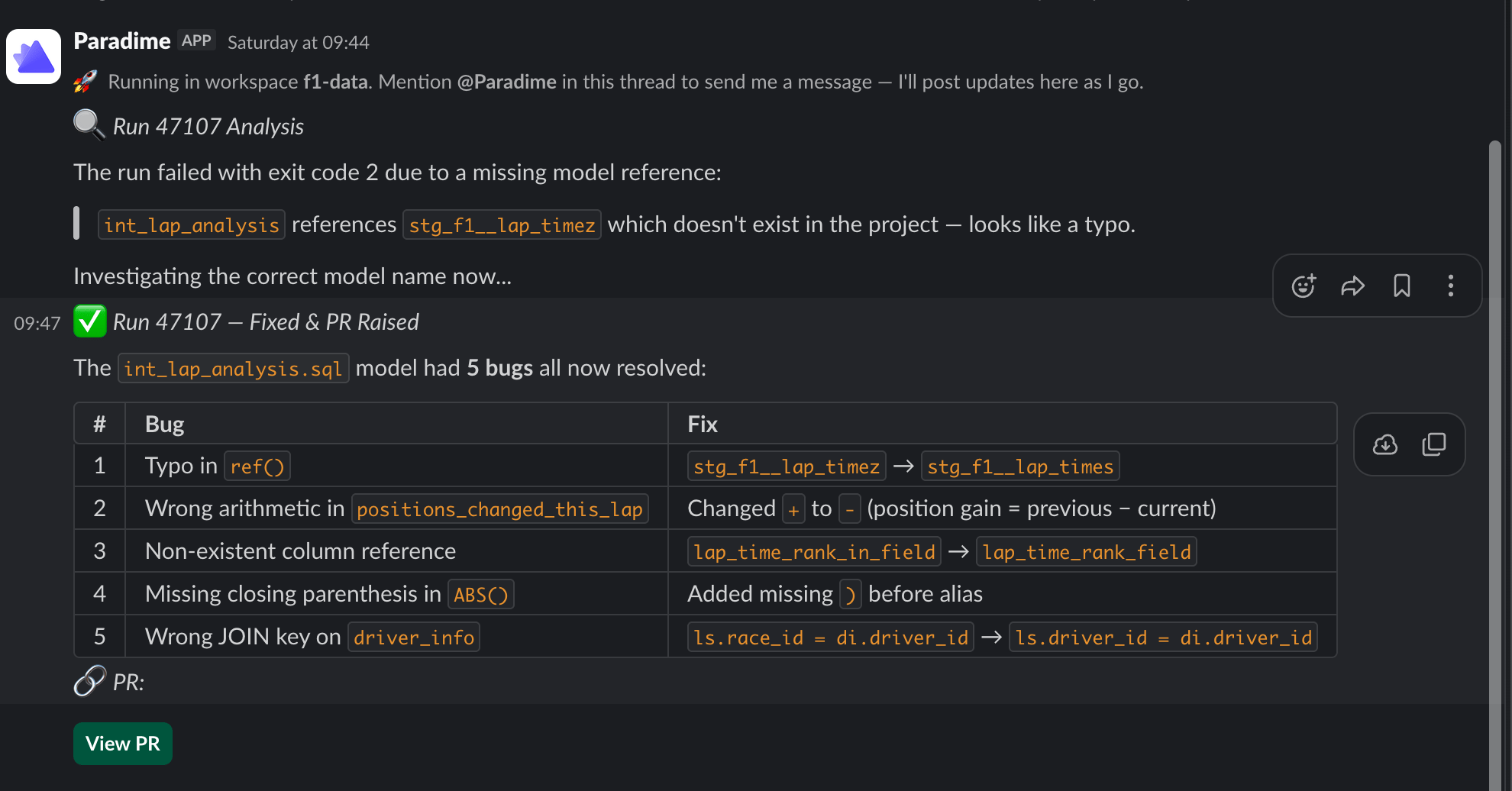
You stay in control. Fix with DinoAI opens a pull request; it never merges directly to your default branch. Your team reviews and approves before anything reaches production.
What DinoAI has access to
To implement the fix, the agent uses:- Bolt run logs: the full output of the failed command, including error messages and stack traces
- Your connected repository: cloned at the branch and commit the run used
- Warehouse connection: to run validation queries if needed
- Slack: to post progress updates and the final PR link, when the session was started from Slack
The environment used (warehouse connection, integrations, repository) is determined by the workspace configured in DinoAI Background Agent
Related
- Run Summaries: understand what went wrong before triggering a fix
- Self-Healing: automatically fix and re-run pipelines without manual intervention
- Agent sessions: how sessions work and where to find them all