

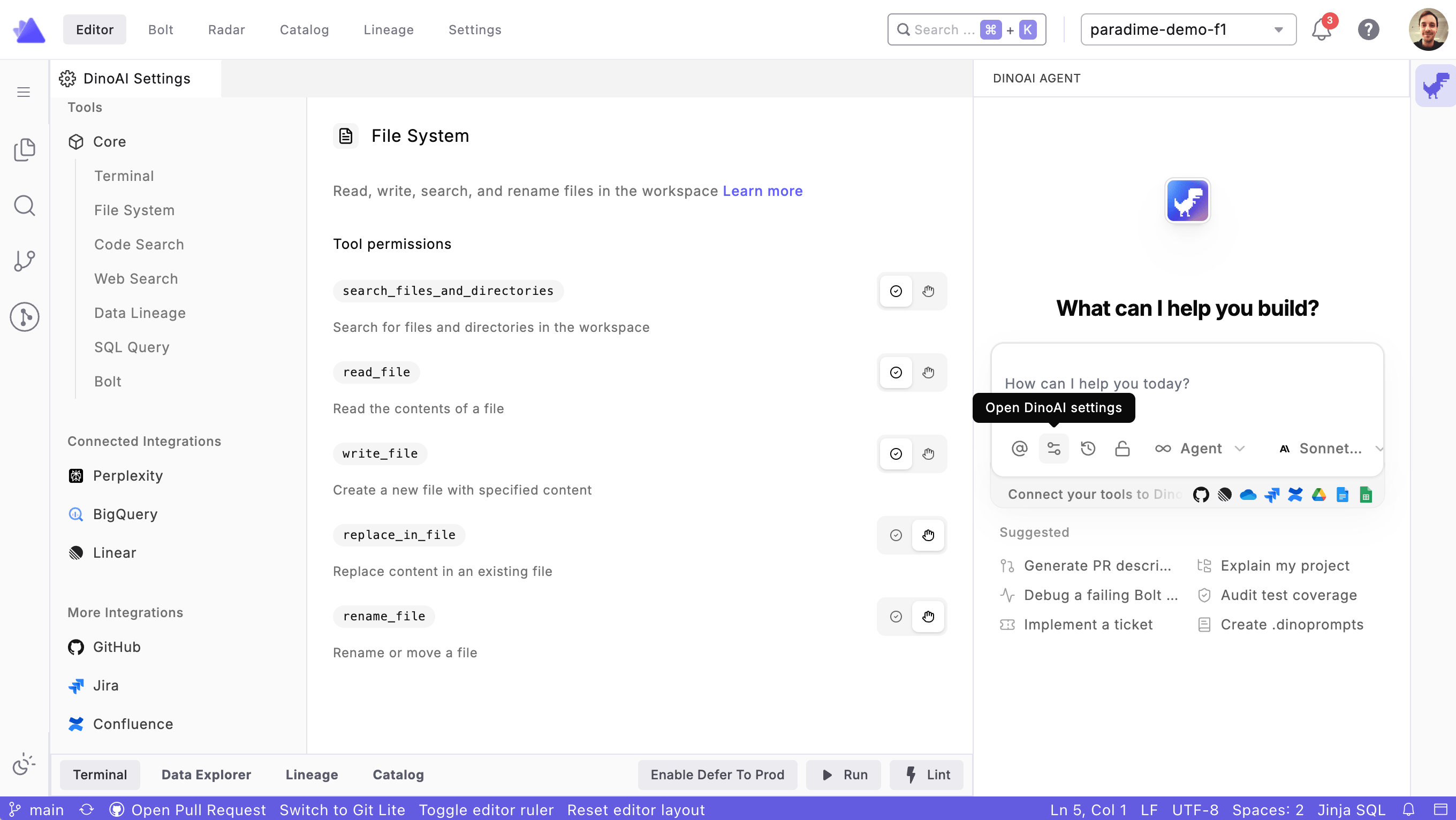
Accessing DinoAI Settings
To open DinoAI Settings, click the Settings button inside the DinoAI prompt input box at the bottom of the DinoAI agent panel.Tool Permissions
The Tools section displays all tools currently available to the DinoAI agent. For each tool, you can control whether it:- Auto-accepts — DinoAI can invoke the tool autonomously without requiring your approval
- Requires human review — DinoAI will pause and prompt you to approve the action before proceeding
Configuring tool permissions is especially useful for teams that want to balance agent productivity with oversight on sensitive or high-impact actions.
Core Tools
The Core section lists the built-in tools available to DinoAI out of the box, such as terminal access, file system navigation, code search, SQL querying, data lineage exploration, and Bolt orchestration. You can review the current permission setting for each tool and adjust them to match your team’s preferences.Connected Integrations
The Connected Integrations section shows all third-party services that are currently linked to your DinoAI agent. Each integration exposes a set of tool permissions that you can individually:- Enable or disable — control whether DinoAI can use the integration at all
- Set to auto-accept or require human review — determine how much autonomy the agent has when interacting with that service
More Integrations
The More Integrations section lists additional third-party services you can connect to extend what DinoAI can do. Connecting an integration makes it available as a tool within the agent, allowing DinoAI to query, reference, or act on data from that service during your conversations. To connect an integration:- Browse the list of available integrations under More Integrations
- Click on the integration you want to enable
- Follow the authentication steps to link your account
- Once connected, the integration will appear under Connected Integrations where you can configure its tool permissions