

Starting a new chat
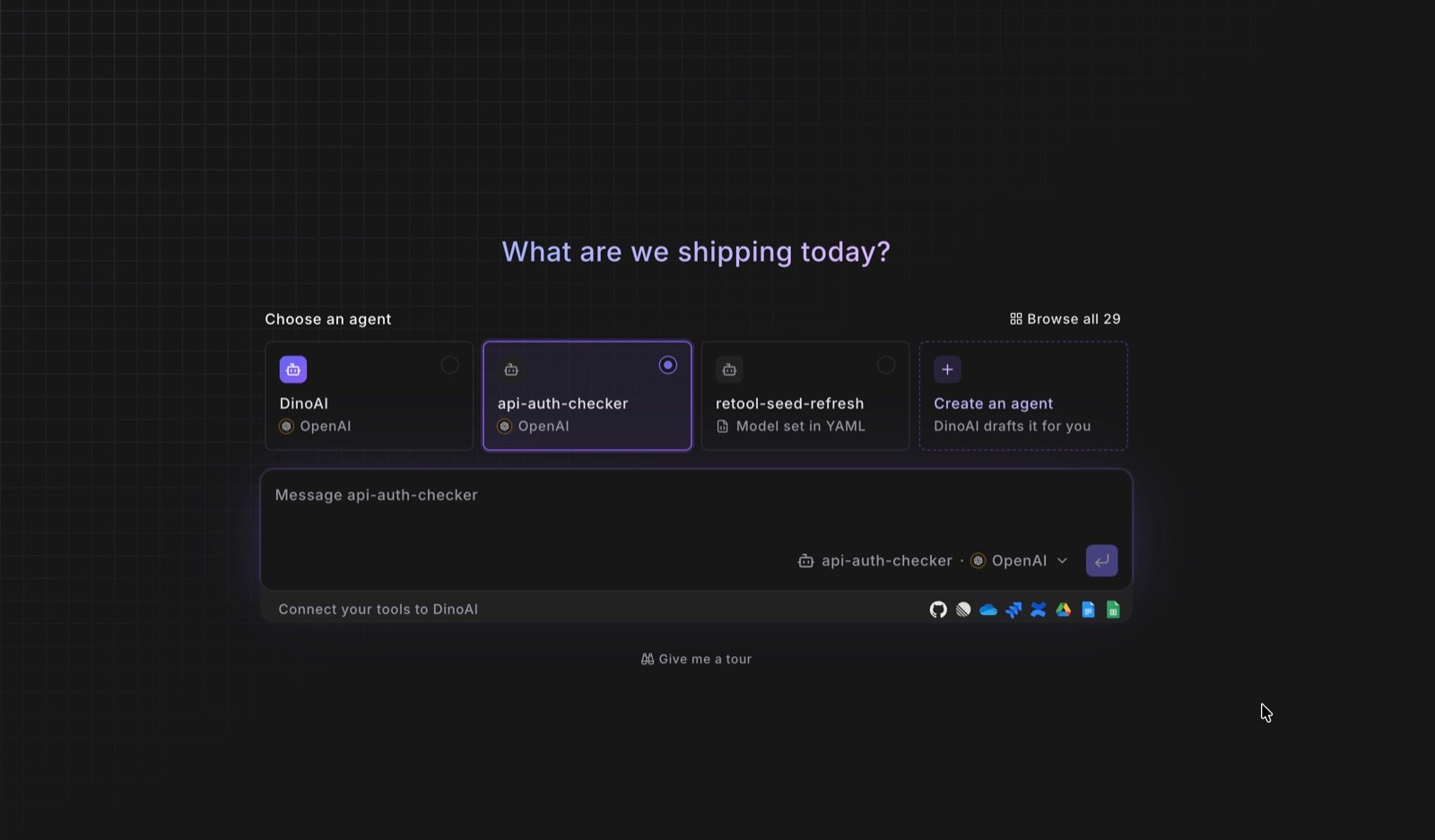
New chat at the top of the Agent app’s left panel opens the new chat page. Cards above the composer show who your message goes to:- DinoAI: the general-purpose agent, with no setup needed.
- The two most recently used agents.
- Create an agent: opens the templates page, where DinoAI drafts an agent from your description. Analyst and Business roles can’t save agents, so the card is locked for them.
The sessions panel
The left panel of the Agent app lists your workspace’s recent sessions under Recents, newest first. Each row shows:- Source icon: where the session was started (chat, Bolt, Slack, or API).
- Title: the opening message or a generated label. Hover a row for the source name and the full title.
- Live indicator: a dot on sessions that are currently running, so you can tell an active run from history at a glance.
Searching all sessions
The View all arrow on the panel header opens the full session list as a page. It adds what the panel can’t fit:- a search box that matches both session titles and session ids;
- faceted filters for Status, Type, and Agent;
- a sortable Started column and pagination for browsing history.
The session page
Opening a session shows a chat-style transcript with a compact header:- Status and session ID next to the title.
- A pill strip with the source, start time, and credits consumed, plus runtime and burn rate while the session is still running.
- A Stop button on running sessions. Stopping ends the run; the session stays in the panel as stopped rather than disappearing.
Continuing the conversation
Every session has a reply box under the transcript, no matter where it started: chat, Bolt, Slack, Teams, or the API. Sending a message starts the agent again with everything it already knows, so you can refine the task, ask follow-up questions, or ask a Bolt run about what it just did. The agent works through one message at a time: a message sent while the agent is busy is queued and picked up when the current turn finishes. A few source-specific notes:- Slack and Microsoft Teams sessions stay in sync in both places: a reply you send from the app is mirrored into the original thread under your name, and thread replies show up in the app transcript.
- Bolt sessions are one run per trigger: each schedule run starts a fresh session, which you can then reply to. See Triggering from Bolt.
- API sessions can also be continued programmatically with
sendDinoaiAgentMessage. See the API Reference.
Related
- Creating Agents in the App for building an agent and starting a chat with it
- Triggering from Bolt for scheduled runs
- API Reference for programmatic sessions