

main and a lighter one for release/*.
Before you start
The workspace’s repository must be reachable by Paradime’s review bot:- GitHub: install the Paradime GitHub App on the repository.
- GitLab: install the GitLab connection on the project’s top-level group, on gitlab.com or GitLab Self-Managed.
Create a reviewer
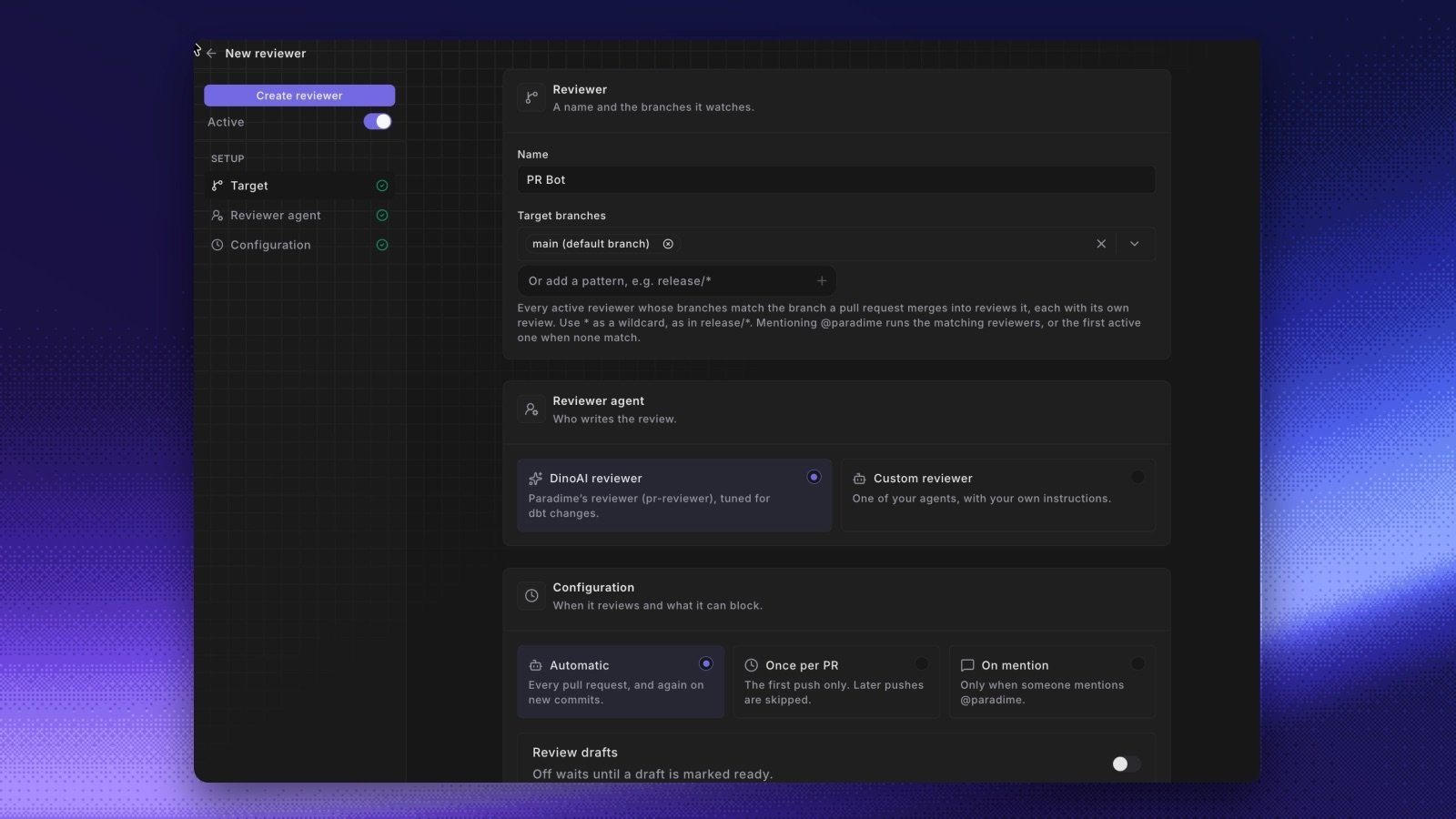
- Open the Agent app and select Code review.
- Select New reviewer.
- In Target, enter a Name, for example
Production reviewer. Then pick the Target branches: the branches that pull requests (or merge requests) merge into. To match many branches, type a pattern in Or add a pattern and select +.*matches any characters, sorelease/*matchesrelease/2026-11. - In Reviewer agent, pick who writes the review:
- DinoAI reviewer: Paradime’s managed reviewer (
pr-reviewer), tuned for dbt™ changes. Nothing to set up. See The DinoAI reviewer. - Custom reviewer: one of your agents, with your own instructions. Pick it in Agent, or select Create custom reviewer to build one from the
dbt-model-reviewertemplate. See Custom reviewers.
- DinoAI reviewer: Paradime’s managed reviewer (
- In Configuration, set When to review, Review drafts, and Block merging on findings. See Review modes and blocking.
- Select Create reviewer.
@paradime review.
When you create a reviewer, Target branches starts with the repository’s default branch. A reviewer with no target branches is listed as All branches.
When several reviewers match
Every active reviewer whose target branches match the base branch of a pull request reviews it. Each reviewer posts its own review, with its name in the heading, for exampleDinoAI review · Production reviewer. All reviewers share one Paradime Code Review check, which fails if any blocking reviewer has open findings.
Change, pause, or delete a reviewer
- Select a reviewer in Code review to open it. Change the fields and select Save.
- Use the Active switch to pause a reviewer without deleting it. A paused reviewer shows as Paused.
- To delete a reviewer, open it and delete it. Pull requests into its branches stop getting its review. Its past reviews stay in Sessions.
Add a reviewer from Turbo CI
If no active reviewer watches a branch, the Turbo CI schedule and run pages show No DinoAI reviewer watches<branch>. Select Add a reviewer to open a new reviewer with that branch already in Target branches.
Next steps
Review modes and blocking
Choose when DinoAI reviews and whether findings block the merge.
Custom reviewers
Review with your own agent and instructions.