

1. Open a DM with the Paradime Bot
Find the Paradime app in your Slack sidebar and open its Messages tab. You can get there in two ways: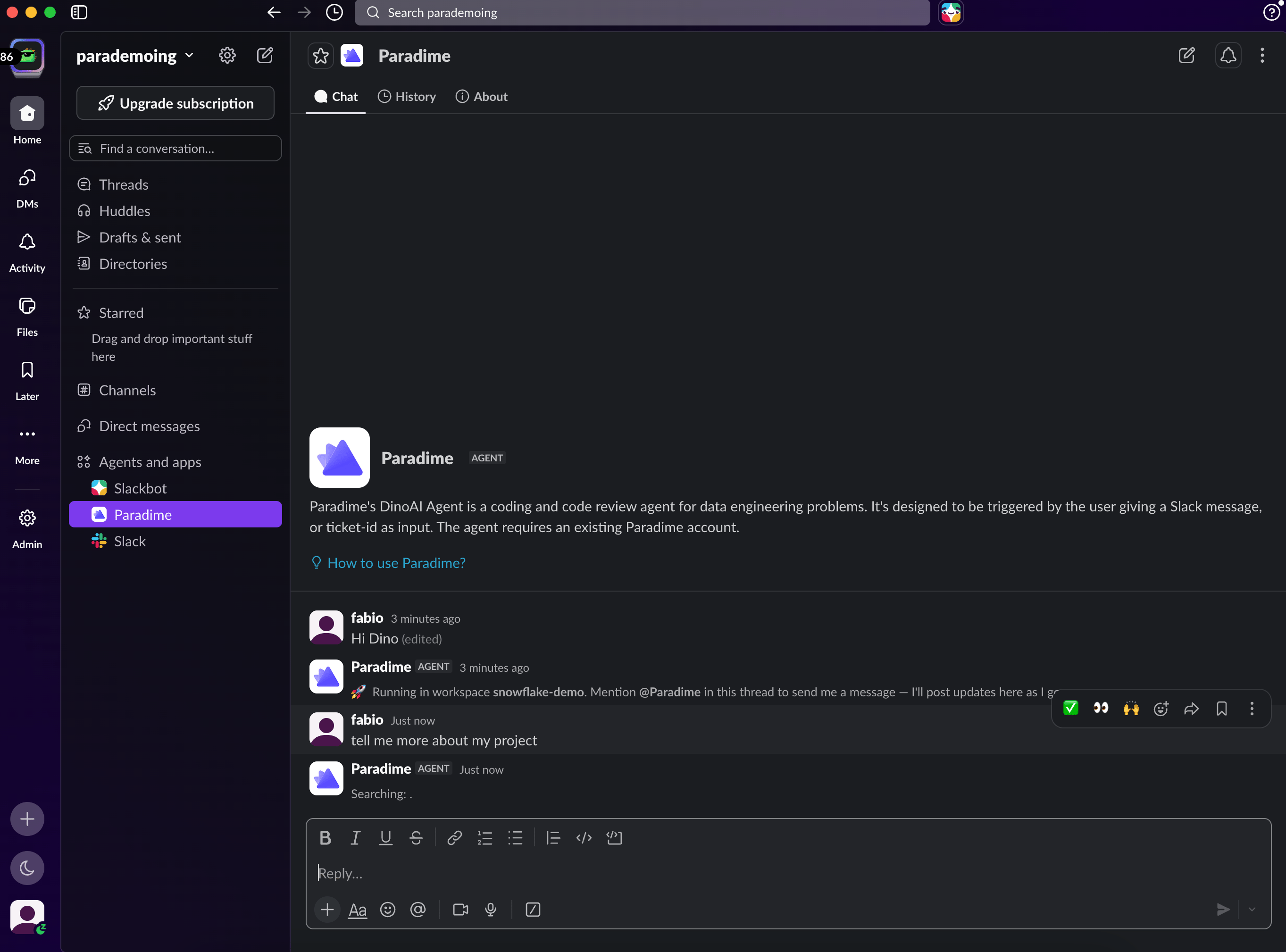
- In the left sidebar, scroll to the Apps section
- Click Paradime (use Add apps and search for it if it’s not listed yet)
- Select the Messages tab
- Press
Cmd/Ctrl + Kto open the Slack jump menu - Type Paradime and select the app
- Select the Messages tab
2. Select a Workspace (Optional)
If your Paradime account has multiple workspaces, DinoAI will ask which one to run against the first time you send a message. A workspace dropdown appears right in the DM. Pick the workspace you want the agent to operate on, and DinoAI will confirm before getting to work. If your account has a single workspace, DinoAI selects it automatically and starts straight away.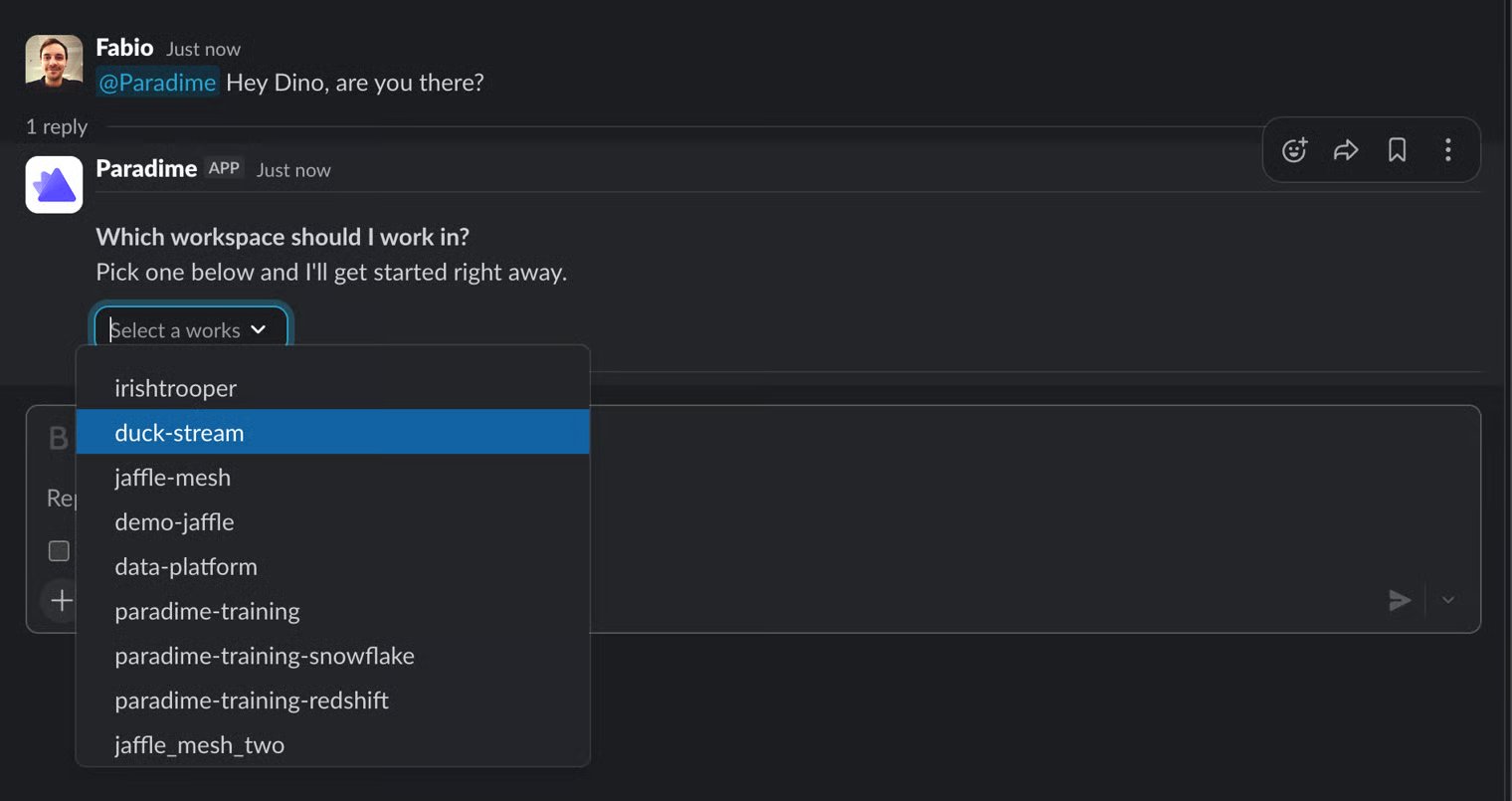
This matters. The workspace you select determines the environment DinoAI runs with, including the data warehouse connection, integrations, and configuration set up for that workspace.
3. Send Your First Message
Just type. Unlike channels, you don’t need to mention@paradime in a DM. Every message you send in the conversation goes straight to the agent.
4. Give It a Task
Here are a few examples to get started:DMs vs Channels
Everything DinoAI can do in a channel, it can do in a DM. Cloning repositories, working across multiple repos, opening PRs, and querying your warehouse all work exactly the same. The differences are only about how you talk to it:
Use channels when you want the team to see and collaborate on what the agent is doing; use DMs for personal or exploratory work.
Related
- Setup — Configure the GitHub App and warehouse environment
- Starting a Session — Work with DinoAI in Slack channels
- .dinorules — Set rules that guide how DinoAI works across all sessions
- Tools and Features — Explore tools accessible by the Slack Agent