

- Platform admins set the monthly allowance for each workspace
- Workspace admins decide how to allocate that provided budget across the users in their workspace
Budget & Consumption is only available to admins. Setting workspace-level allowances is available to platform admins; allocating a workspace’s budget across users is available to workspace admins.
Accessing Budget & Consumption
DinoAI budgets and consumption live on a single DinoAI Credits page in Settings, with a tab for each scope.- Navigate to Settings in your Paradime workspace
- Click on “Budget & Consumption” → “DinoAI Credits”
- Pick a scope with the Platform | Workspace tabs: Platform for company-wide spend across every workspace, or Workspace for a single workspace’s spend with per-user and background-agent allowances
Platform
The Platform tab shows company-wide DinoAI spend across every workspace, and the monthly allowance each one runs against. It is available to platform admins; other roles see a request-access notice and can switch to the Workspace tab.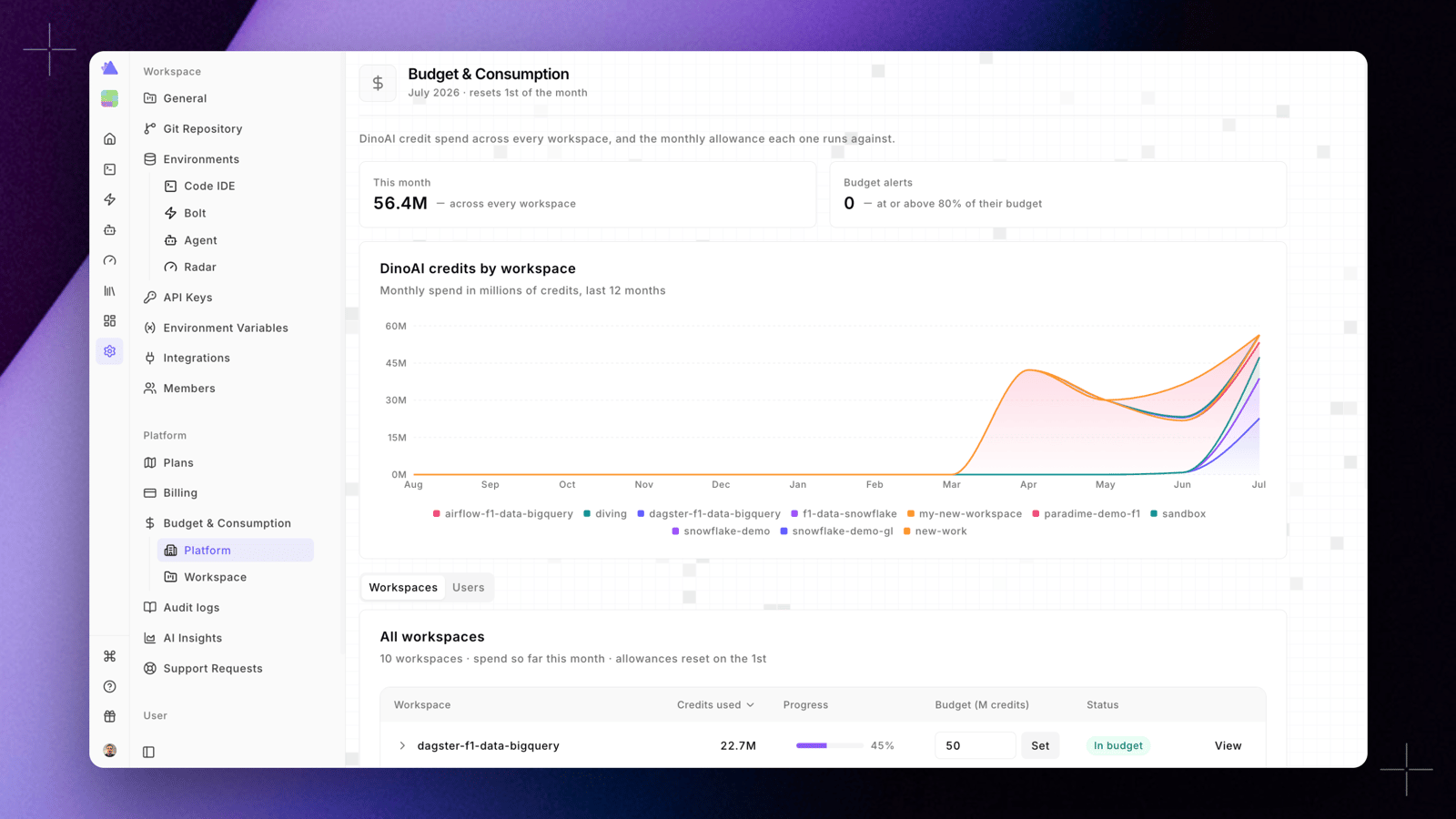
Overview
At the top of the page, two cards summarize the current month:- This month: total credits used across every workspace
- Budget alerts: the number of workspaces at or above 80% of their budget
Workspaces
The Workspaces tab is where platform admins set the monthly allowance for each workspace. It lists every workspace with its spend so far this month. For each workspace you can see:- Credits used: credits consumed this month
- Progress: usage relative to the workspace’s budget
- Budget (M credits): the monthly allowance, in millions of credits. Enter a value and click Set to define the allowance for that workspace, or leave it as no limit
- Status: Metered means usage is tracked with no cap applied
- View: open the Workspace tab for that workspace
Users
The Users tab ranks every user across all workspaces by spend so far this month. For each user you can see their workspace, credits used, whether they draw from a shared pool or a fixed share, their usage relative to their allowance, and their status.Workspace
The Workspace tab shows a single workspace’s DinoAI spend, with per-user and background-agent allowances. The header shows the workspace name, the current month, and the number of users.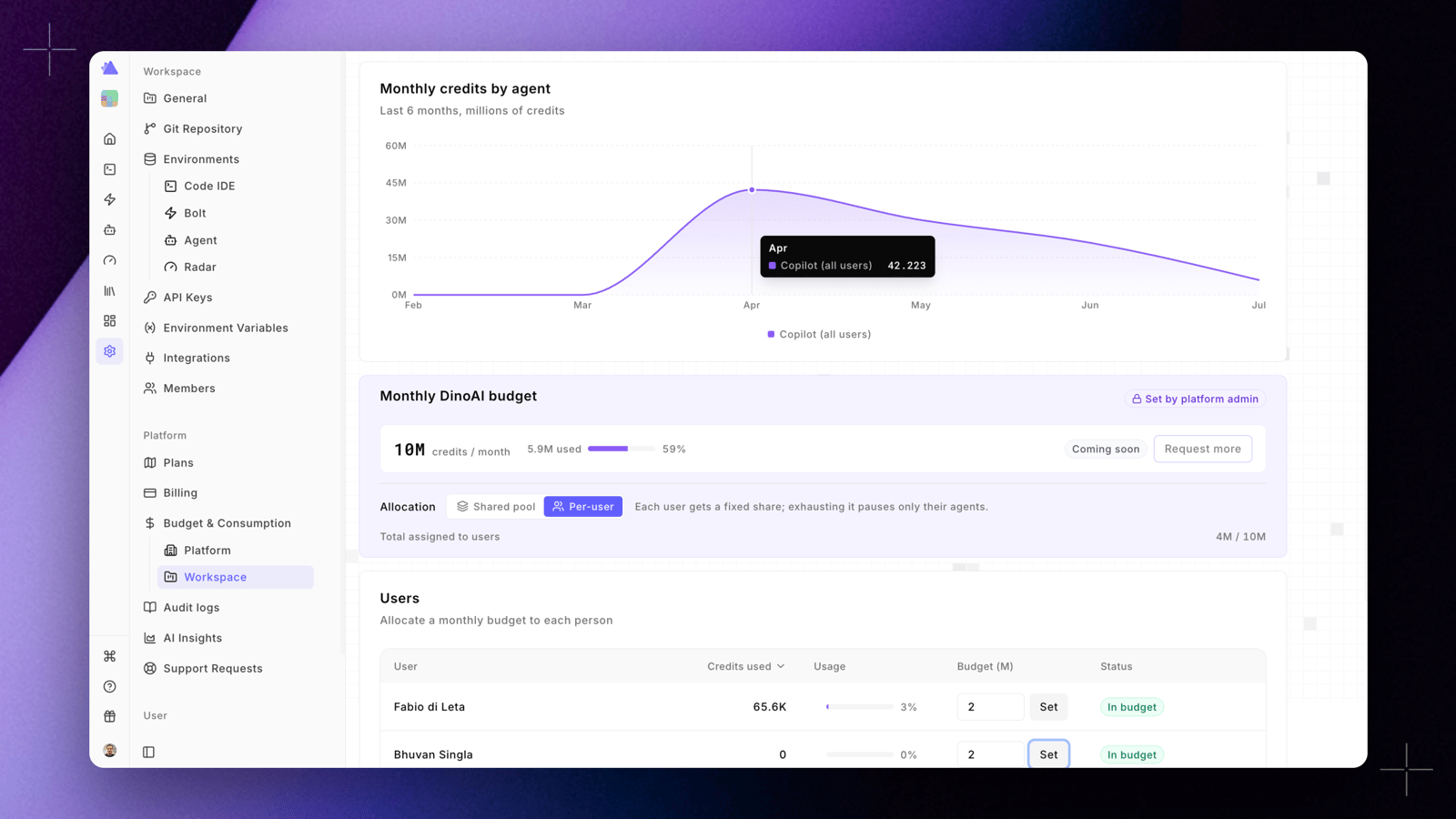
Monthly credits by agent
The Monthly credits by agent chart plots the workspace’s spend, in millions of credits, over the last 6 months, broken down by agent.Monthly DinoAI budget
The Monthly DinoAI budget panel shows credits used against the workspace’s allowance for the month. The allowance is set by a platform admin, so it is labelled Set by platform admin. Use Request more to ask for a higher allowance.Allocation
Workspace admins choose how the provided allowance is distributed across the workspace’s users:- Shared pool: any user draws from the full allowance, first come first served
- Per-user: each user gets a fixed share. Exhausting it pauses only that user’s agents
Users
The Users section lets you allocate a monthly budget to each person. For each user you can see credits used, usage relative to their budget, the budget assigned to them (in millions of credits), and a status:- In budget: usage is within the allocated budget
- Approaching: usage is nearing the budget limit
- Metered: usage is tracked with no cap applied
Agents
The Agents section applies one combined cap for background agents, plus optional per-agent caps. Enter a value in Cap (M) and click Set to limit background-agent spend.Copilot is never capped. Budgets and caps apply to background agents, so interactive development is not interrupted.
Related
- DinoAI Credits - how credits are calculated and Credit Saver Mode
- Admin Dashboard - organization-wide DinoAI usage analytics