

.dinoprompts file serves as your team’s prompt library, allowing you to store and reuse battle-tested prompts that understand your data development patterns. This eliminates the need to recreate complex prompts and ensures consistency across your analytics engineering team.
Key Benefits
- Centralized Library: Store tailored prompts for analytics workflows
- Time Savings: Access proven prompts instantly
- Team Knowledge Sharing: Distribute effective prompts across your organization
- Context-Aware: Use variables for dynamic, situation-specific prompts
- Fast Onboarding: New team members access best practices immediately
Step-by-Step Instructions
- Open DinoAI by clicking the DinoAI icon (🦖) in the right panel
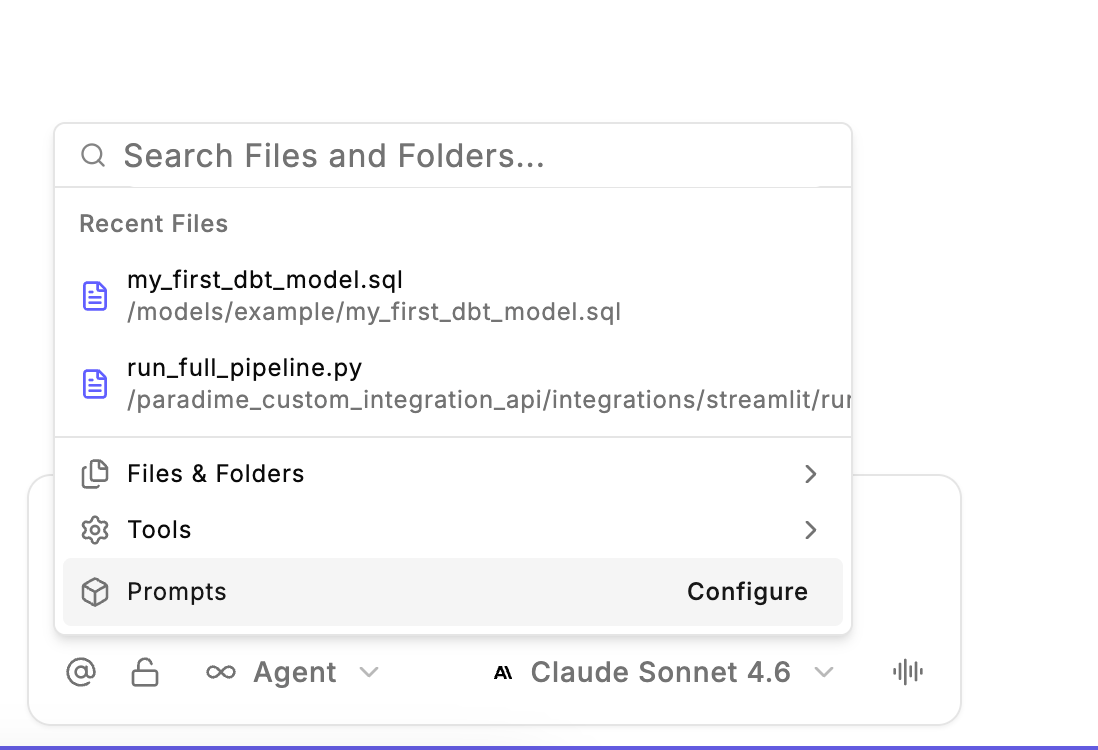
- Access Prompt Creation by clicking the
@context button and select prompt option in the chat input - Create the file by selecting “Configure
.dinoprompts” to automatically create a new file with built-in prompts - Define your prompts using the YAML structure with
nameandpromptfields - Access your prompts using the prompt quick-open feature in DinoAI
File Structure
The.dinoprompts file uses a simple YAML structure:
Available Variables
DinoAI provides built-in variables you can use in your prompts. Variables enable you to dynamically attach context to your prompts.Git Tracking
.dinoprompts file is git-tracked by default to enable seamless team collaboration on DinoAI configurations.What This Means
- .dinoprompts is tracked by git automatically
- You can commit, modify, and request reviews like any other file in your repository
- Full change tracking and version history
- Seamless team collaboration on AI configurations
Disabling Git Tracking
If you haven’t agreed internally on rules/prompts: You may encounter a merge conflict when updating your branch. You can use Paradime to resolve it, but we recommend agreeing on common versions for the .dinoprompts file first.
.dinoprompts to your .gitignore file.