

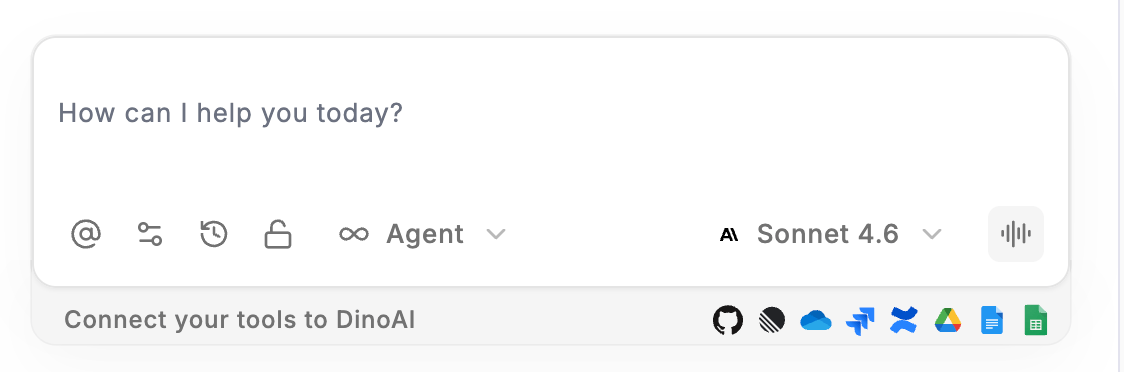
Using Speech-to-Text
- Click the sound icon on the right side of the DinoAI prompt bar
- Speak your request clearly — DinoAI will capture and process your voice input
- Review the transcribed text in the prompt bar and make any necessary edits
- Submit your request for DinoAI to process
You can combine Speech-to-Text with the @ context picker — attach relevant files or folders before speaking your request for more accurate and targeted responses.
Best Practices
- Speak clearly — use a normal speaking pace and clear pronunciation for the best transcription accuracy
- Be specific — include relevant details in your request, just as you would when typing a prompt
- Review before submitting — always check the transcribed text before sending to ensure it accurately reflects what you said
- Combine with context — use the @ icon to attach relevant files or folders alongside your voice prompt for more precise results