

For new Elementary data users, we recommend starting out Elementary Data’s Tutorial Guide to understand the core concepts and implementation.
Getting started
Paradime seamlessly integrates with Elementary, offering a ready-to-use installation of the Elementary CLI.1. Install Elementary dbt™️ package
To start using Elementary, you need to add the Elementary dbt package to your dbt project.2. Add elementary to packages.yml
Add the following to your packages.ymlfile (if missing, create it on the same path s yourdbt_project.yml):
dbt_project.yml
3. Configure Elementary Profile in your dbt_project.yml
Paradime simplifies the setup process by providing a pre-configured Elementary profile that works with your default connections for both IDE and Scheduler.
By default, the Elementary schema name is set as <target_schema>_elementary. You can override this by setting a system variable called PARADIME_EDR_SCHEMA. For instructions on configuring environment variables, click here.
3.1 - Add the following code to you dbt_project.yml:
dbt_project.yml
3.2 - Add this flag to your dbt_project.yml:
dbt_project.yml
dbt_project.yml
Important: Materialization config
Important: Materialization config
Elementary requires some models to be created as incremental tables. Ensure there are no global materialization configurations that might interfere with Elementary. For example, avoid settings like:Instead, structure your
dbt_project.yml
dbt_project.yml like this:dbt_project.yml
4. Build Initial Elementary Models
Once you’ve configured your Elementary in yourpackages.yml and dbt_project.yml, Run the following dbt commands to install Elementary and materialize the initial elementary models in your data warehouse:
Terminal
5. Generate Elementary Tests
After installing and configuring Elementary, you’re ready to generate a variety of tests, including: Anomaly Detection Tests, Schema Tests, etc. Additionally, you can leverage DinoAI’s one-click command, Generate Elementary Tests to automatically create comprehensive tests tailored to your dbt™ model’s structure and content. This ensures a seamless setup of data observability across your project. When complete, executedbt test to verify setup.
6. (Optional) Configure Slack / Teams notifications
Paradime Alerts allow you to set up and manage notifications for your dbt™ projects, keeping you informed of important events and anomalies. With support for both Slack and Microsoft Teams, you can customize your alerts to fit your team’s communication preferences. See docs for details.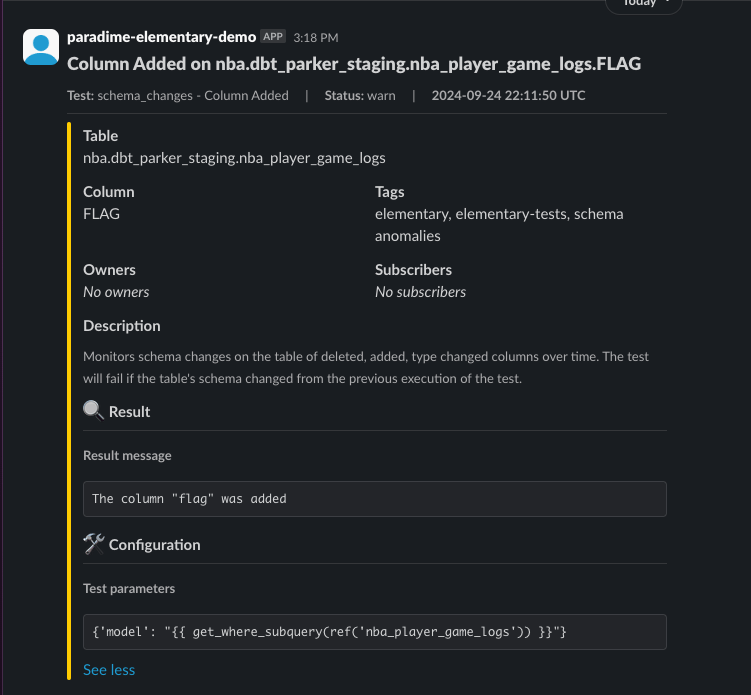
Example Slack Notifications