

When you add a directory, DinoAI gains access to all files in that folder, helping it understand patterns across multiple related files.
Adding Directory Context
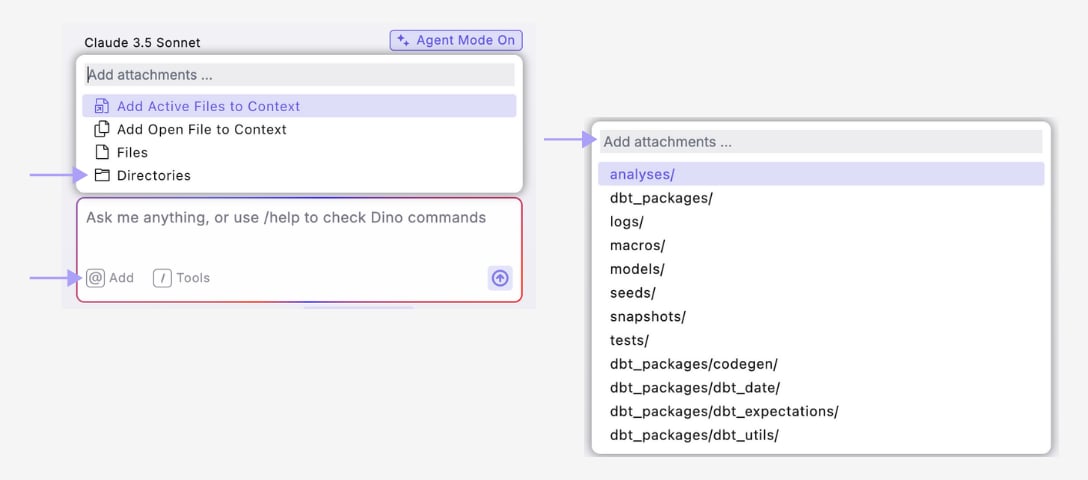
How to use:- Click the DinoAI icon (🪄)
- Click the ”@” symbol and select “Directories”
- Search and/or select the directory(s) to add as context
- Add your prompt
When to Use Directory Context
Example Use Cases
- Add your
/models/staging/directory when creating a new staging model - Add your
/models/marts/finance/directory when working on finance models - Add your entire
/models/directory when generating documentation - Add your sources directory when updating source definitions
- Generating documentation for multiple models at once
- Understanding patterns across a category of files
- Creating new files that should follow existing folder conventions
- Making bulk updates to related models
Directory Context in Action
Here’s how Directory Context improves DinoAI’s results:Without Directory Context
With Directory Context
Best Practices
- Be specific - choose the most relevant directory for your task
- Use subdirectories rather than root directories when possible
- Combine with file context for best results (e.g., add a directory plus a specific example file)
- Consider directory size - smaller, more focused directories often provide better context